
4.4
2,100+ reviews on G2

Decluttering digital files means deleting what you don't need, putting what you keep into a few clearly named folders, and erasing sensitive files properly so they are hard to recover. It comes down to four rules:
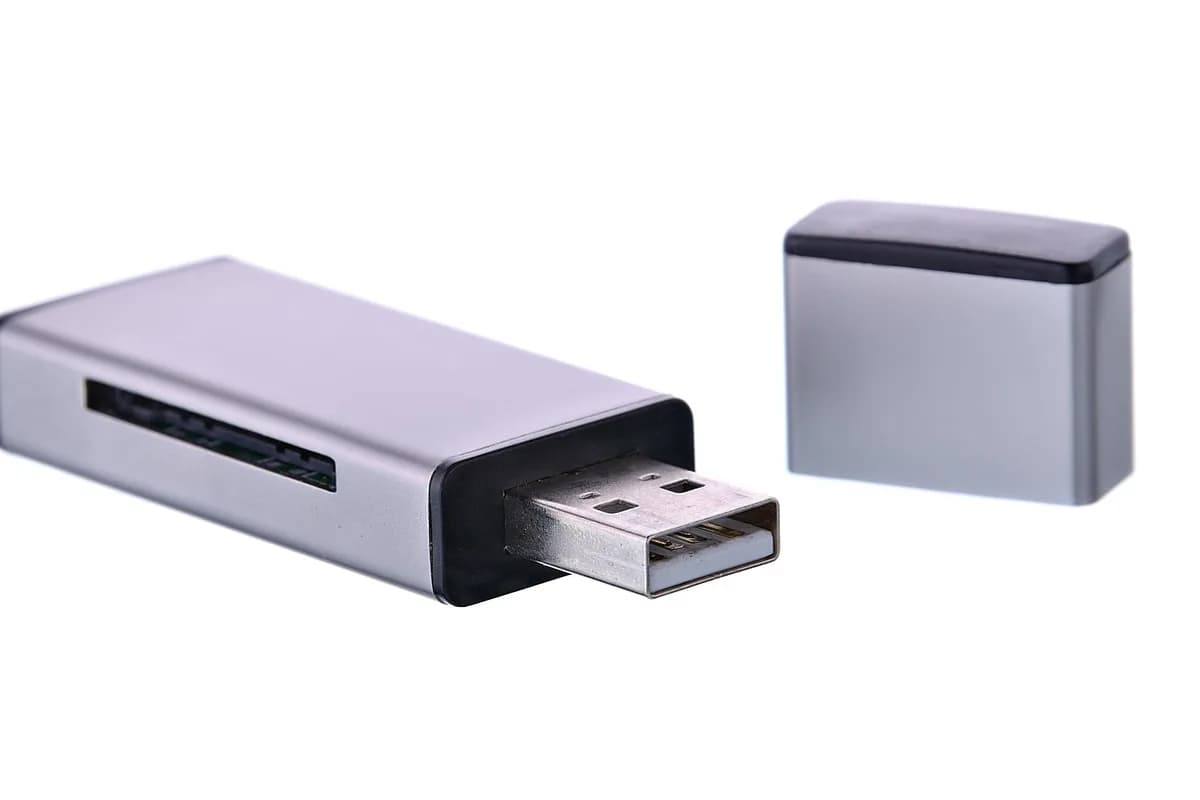
Downloads, the desktop and old phone photos.
One per area of life, with clear names and dates.
Copy what you keep before you clear anything.
The trash isn't enough for sensitive files.
Declutter files into Evernote. The AI Assistant plans one area a week and sorts files to keep or delete.
Copy everything you might keep to an external drive or cloud backup before you delete or move files.
Delete installers, duplicates and anything you can download again; move the rest into folders.
One per area of life, such as Home, Money, Work and Photos, with subfolders by year.
Use a consistent pattern with the date first, like 2026-11 Lease renewal.pdf, so files sort in order.
Deleting or reformatting can leave files recoverable. For tax returns, account statements and IDs, use software that overwrites the data, such as a Secure Erase tool.
Before you donate, sell or recycle a computer or phone, back it up and erase it with the device's reset and erase tools.
| Folder | What goes in | Example file name |
|---|---|---|
| 1Backup | A full copy before you start | Backup 11-08 |
| 2Downloads | Empty; nothing stays here | None |
| 3Home | Lease, insurance, manuals | 2026-11 Lease.pdf |
| 4Money | Tax returns, statements | 2025 Tax.pdf |
| 6Old laptop | Erased with Secure Erase before donating | None |
They are not the same. Only overwriting makes files hard to recover.
| Method | What happens | Use it for |
|---|---|---|
| Move to trash | The file sits in a holding area you can restore from | Everyday files |
| Empty trash or reformat | Removes the file from view, but data may still be recoverable | Files that aren't sensitive |
| Secure erase or overwrite | Writes new data over the old, so it is hard to recover | Tax, bank, medical and ID files; old drives |
Source: CISA, "Effectively Erasing Files" and "Proper Disposal of Electronic Devices".
Copy it, or save it to your Evernote account and tick it off over a weekend.
Backup done on [date] to [drive / cloud]
Downloads emptied: [yes]. Desktop cleared: [yes]
Top folders: [Home], [Money], [Work], [Photos]
Naming pattern: [YYYY-MM] [what it is]
Sensitive files securely erased: [which]
Old devices wiped: [device], on [date]
4.4
2,100+ reviews on G2

4.4
8,200+ reviews on Capterra

4.4
73,000+ reviews on App Store

248M
Registered users

Back up first, then empty your Downloads folder and desktop.
A few top-level folders by area of life, subfolders by year, and file names that start with the date.
Not fully. A deleted file may go to the trash, and even after emptying it or reformatting, data may be recoverable. Use secure erase software for sensitive files.
Back up what you need, then erase the drive with a tool that overwrites the data before you donate, sell or recycle it.
Delete duplicates and blurry shots first, then keep your favorites by year or event. Back up the ones you keep in more than one place.
For example, a short pass on Downloads each week and the desktop once a month.
Keep your declutter plan and the files you need to sort in one notebook.
Ask the AI Assistant to create a digital declutter checklist for your computer, one area a week, starting with a backup.
Put the files you are unsure about in one note. Ask the Assistant to read them and make a table: what each one is, keep or delete, and a new name.
Ask it to add a 15-minute task to clear your Downloads every Saturday. The task repeats, with a reminder.
Bring documents into notebooks with Import folders, see every attachment in the Files view, and let search find words inside your PDFs and images.
Start for free