Web Clipper mit Cloud-Synchronisation

Über uns
Deutsch
Web Clipper mit Cloud-Synchronisation
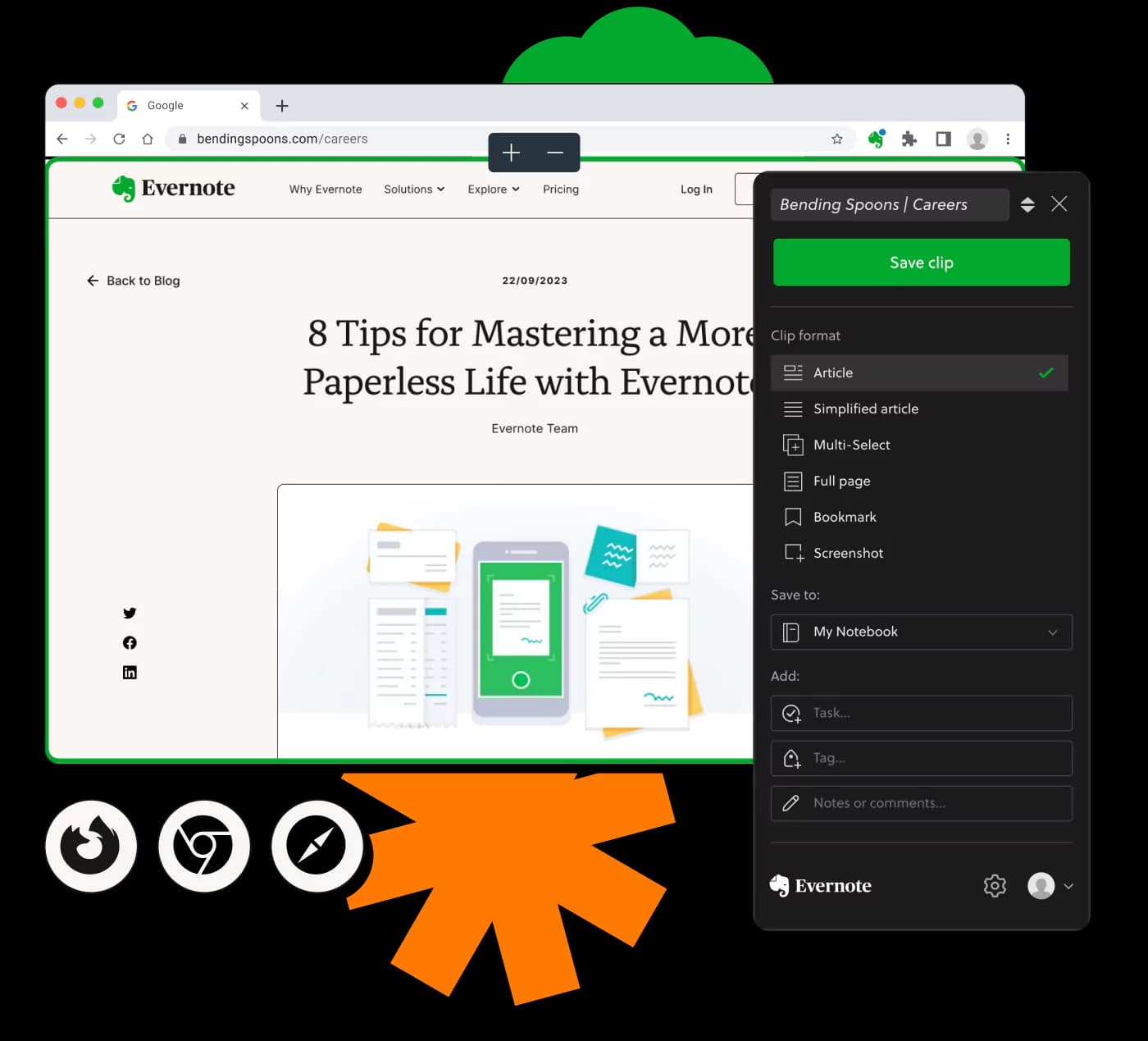
Erfassen Sie Webinhalte mühelos mit Cloud-Synchronisation.
Von Millionen weltweit vertraut
4.4
2.100+ Bewertungen auf G2
4.4
8.200+ Bewertungen auf Capterra
4.4
73.000+ Bewertungen im App Store
248 Mio.
Registrierte Benutzer
5 Mrd.
Erstellte Notizen
2 Mio.
Täglich erstellte Notizen
Unbegrenzter Zugriff auf alle unsere Tools












Häufig gestellte Fragen
Ein Web Clipper ist ein Werkzeug, mit dem Nutzer Webinhalte direkt aus ihrem Browser erfassen und speichern können. Es hilft dabei, Inhalte offline zu organisieren und auf verschiedenen Geräten zugänglich zu machen.
Die Cloud-Synchronisation sorgt dafür, dass die von Ihnen erfassten Inhalte automatisch in der Cloud gespeichert werden. Dies ermöglicht den Zugriff von mehreren Geräten und verhindert Datenverlust, sodass Ihre Informationen jederzeit verfügbar sind.
Ja, mit der Cloud-Synchronisation können Sie auf Ihre erfassten Inhalte von jedem Gerät, auf dem Sie angemeldet sind, zugreifen und somit die Kontinuität zwischen Ihren Sitzungen sicherstellen.
Web Clipper mit Cloud-Synchronisation bieten Bequemlichkeit und Effizienz, indem sie Ihre Clips in der Cloud speichern. Einfache Zugänglichkeit über Geräte hinweg und automatische Backups schützen Ihre Daten und steigern die Produktivität.
Ja, Sie können einen Web Clipper auf einem iPhone verwenden, indem Sie ihn über einen Browser oder eine speziell entwickelte App aufrufen, um sicherzustellen, dass Ihre Clips mit Ihrem Cloud-Konto synchronisiert werden.
Um die Cloud-Synchronisation einzurichten, melden Sie sich in Ihrem Web Clipper-Konto an und aktivieren die Synchronisationsoptionen in den Einstellungen. Ihre Clips werden dann automatisch in der Cloud gespeichert.
Je nach Funktionen des Clippers können Sie möglicherweise Inhalte direkt teilen oder durch geteilte Cloud-Ordner zusammenarbeiten, um Teamwork und Ideenaustausch zu fördern.
Wenn Sie das Speicherlimit überschreiten, müssen Sie möglicherweise Ihre Clips verwalten, um Speicherplatz freizugeben. Alternativ bieten einige Dienste zusätzlichen Speicherplatz mit kostenpflichtigen Plänen an.
Ja, eine Internetverbindung ist erforderlich, um Ihre Clips mit der Cloud zu synchronisieren, damit Ihre Daten automatisch gespeichert und aktualisiert werden können.
Ja, Sie können Inhalte von jeder Website erfassen, einschließlich Gaming-Seiten, solange diese in Ihrem Webbrowser zugänglich sind. Dies hilft beim Speichern von Spielbewertungen, Artikeln und mehr.
Jeder Dienst hat möglicherweise unterschiedliche Cloud-Speicherlimits. Überprüfen Sie die Kontoeinstellungen für spezifische Details, um eine effiziente Verwaltung Ihrer gespeicherten Inhalte sicherzustellen.
Viele Clipping-Tools verwenden Verschlüsselung, um Daten zu sichern. Es wird empfohlen, starke Passwörter zu verwenden und die Zwei-Faktor-Authentifizierung für verbesserte Sicherheit zu aktivieren.
Die meisten Web Clipper haben eine große Synchronisationskapazität, aber es ist wichtig, die spezifischen Upload-Limits eines Dienstes für den Cloud-Speicher zu beachten.
Ja, Sie können Ihre Clips in der Regel kategorisieren, taggen oder beschriften, um eine bessere Organisation zu erreichen und bestimmte Inhalte später leicht zu finden.
Überprüfen Sie Ihre Internetverbindung und Synchronisationseinstellungen. Ein Neustart der App oder des Dienstes sowie das Sicherstellen, dass Sie im richtigen Konto angemeldet sind, können die meisten Probleme lösen.