Web Clipper com Captura de Tela

Sobre nós
Português
Web Clipper com Captura de Tela
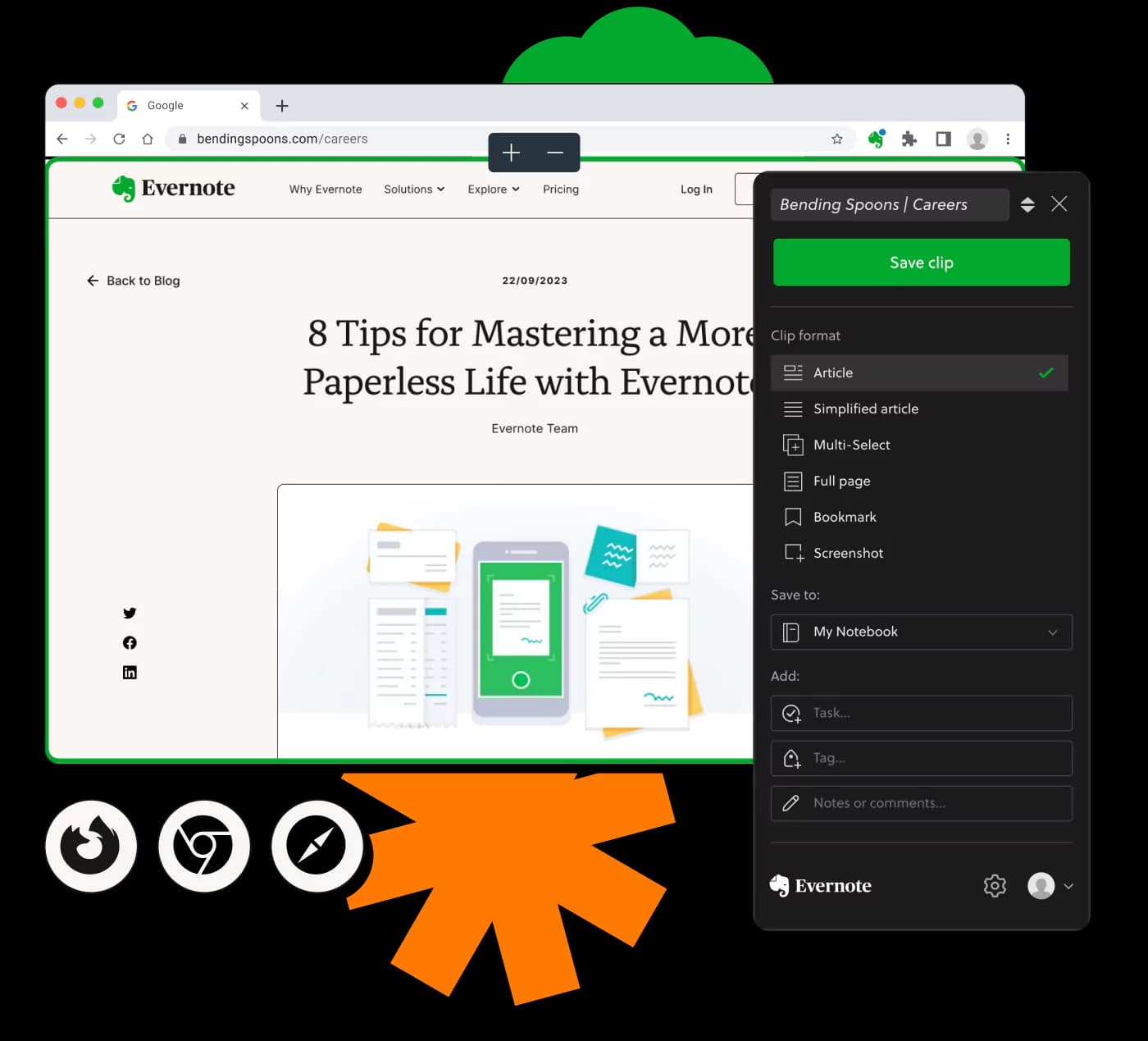
Descubra o melhor web clipper com recurso de captura de tela para capturas completas e fáceis no Windows.
Confiado por Milhões em Todo o Mundo
4.4
2.100+ avaliações no G2
4.4
8.200+ avaliações na Capterra
4.4
73.000+ avaliações na App Store
248M
Usuários Registrados
5B
Notas Criadas
2 mi
Notas Criadas Diariamente
Acesso ilimitado a todas as nossas ferramentas












Perguntas Frequentes
Um web clipper é uma ferramenta que permite capturar, salvar e gerenciar conteúdo da web diretamente do seu navegador, incluindo texto, imagens e capturas de tela completas.
Basta ativar a extensão do clipper no seu navegador, acessar a página que deseja capturar e selecionar a opção de captura de tela para salvar o conteúdo desejado.
Sim, use a opção de captura de tela de página inteira do web clipper para capturar uma página web inteira de cima a baixo em uma imagem.
O web clipper com recurso de captura de tela está disponível gratuitamente, permitindo capturar e salvar páginas da web sem custo adicional.
Sim, o web clipper com capacidades de captura de tela é compatível com Windows, permitindo cortes e capturas fáceis de conteúdo web nesse sistema operacional.
Uma captura de tela fácil refere-se a um processo de captura simples onde os usuários podem selecionar e salvar rapidamente o conteúdo web com mínimo esforço.
Sim, o web clipper permite capturar imagens juntamente com texto e outros conteúdos da web, facilitando o salvamento de páginas completas.
O web clipper é compatível com navegadores principais, como Chrome e Firefox, permitindo que os usuários capturem conteúdo diretamente do navegador de sua preferência.
Sim, os usuários podem recortar conteúdo web diretamente para o Obsidian, integrando-se perfeitamente com essa popular ferramenta de gestão do conhecimento.
Os web clippers geralmente impõem um limite de tamanho por captura para garantir a operação suave. Verifique os limites de ferramentas específicas antes de capturas grandes.
Após capturadas, as capturas de tela geralmente podem ser editadas com ferramentas de edição de imagem padrão, fora do próprio web clipper.
Não, os web clippers geralmente requerem uma conexão à internet para capturar conteúdo web ao vivo e salvá-lo com precisão.
Os web clippers geralmente não oferecem visualização histórica de capturas passadas; gerencie clipes usando software integrado como o Evernote ou Obsidian.
Use a ferramenta de seleção do clipper para destacar e capturar seções específicas de uma página web, focando o clipe em áreas exatas de interesse.
O número de capturas de tela que você pode fazer pode ser limitado pela memória do sistema ou pelas configurações individuais da ferramenta, por isso é útil verificar as capacidades específicas do seu clipper.