Web Clipper mit Screenshot-Funktion

Über uns
Deutsch
Web Clipper mit Screenshot-Funktion
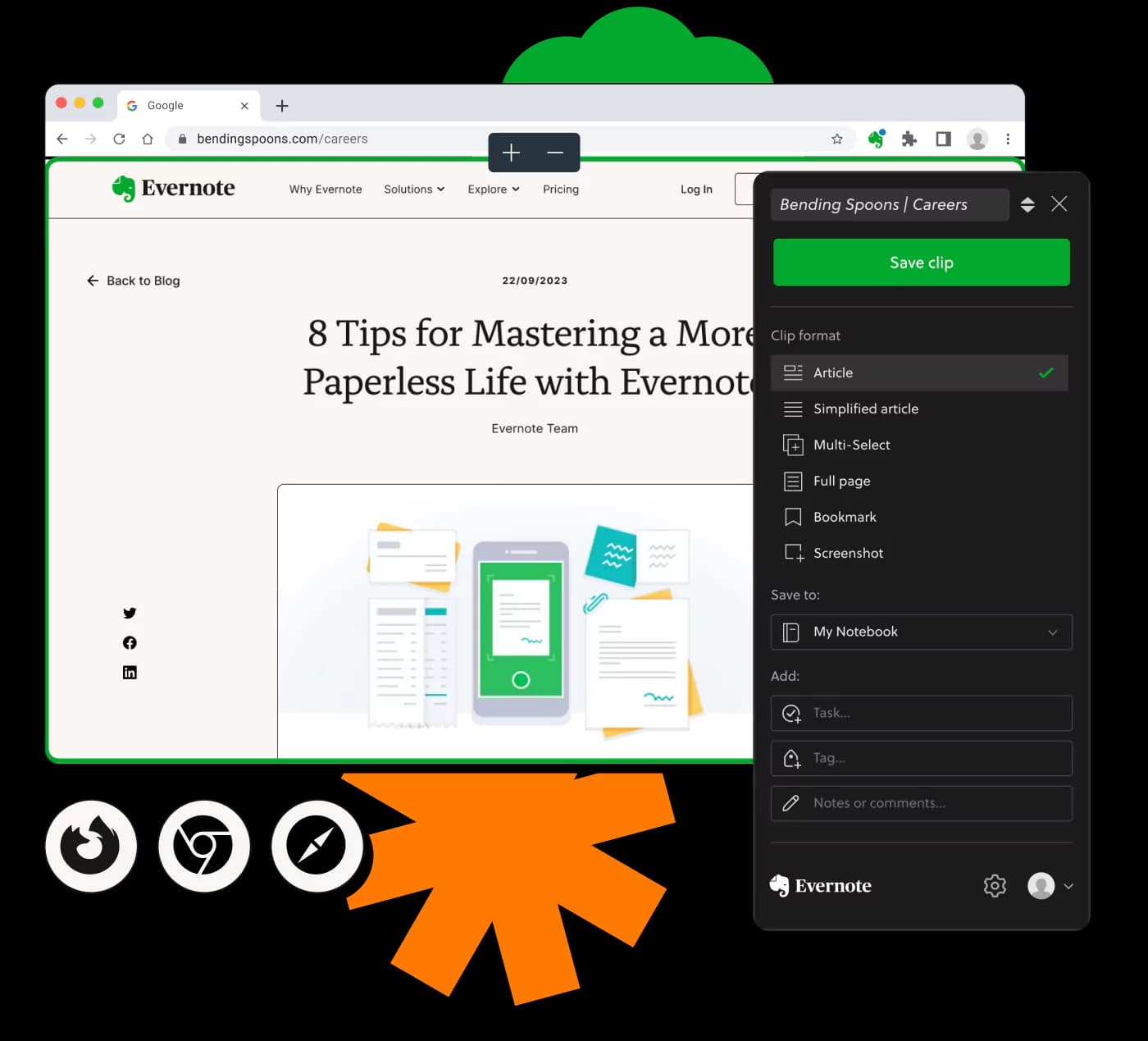
Effizienter Web Clipper mit Screenshot-Erfassung für Windows 10 und iOS
Von Millionen weltweit vertraut
4.4
2.100+ Bewertungen auf G2
4.4
8.200+ Bewertungen auf Capterra
4.4
73.000+ Bewertungen im App Store
248 Mio.
Registrierte Benutzer
5 Mrd.
Erstellte Notizen
2 Mio.
Täglich erstellte Notizen
Unbegrenzter Zugriff auf alle unsere Tools












Häufig gestellte Fragen
Ein Web Clipper mit Screenshot-Funktion ermöglicht es, Webinhalte und Bilder durch Screenshots zu speichern. Er ist nützlich zum Organisieren und Verwalten von Online-Informationen und kann auf verschiedenen Geräten und Browsern verwendet werden.
Um ein Screenshot-Tool in Windows 10 zu verwenden, installieren Sie eine kompatible Web Clipper-Erweiterung. Damit können Sie Screenshots von Webseiten machen, die dann gespeichert und organisiert werden können.
Ja, Sie können mit einem Web Clipper aufgenommene Screenshots direkt auf Ihrem Gerät speichern. Nach der Erfassung können die Bilder verwaltet und bei Bedarf abgerufen werden, wodurch Ihre Produktivität und Organisation verbessert wird.
Viele Web Clipper mit Screenshot-Funktion sind kostenlos verfügbar. Sie bieten oft essenzielle Funktionen, die es ermöglichen, Screenshots effizient zu erfassen, zu speichern und zu organisieren.
Ja, Sie können einen Web Clipper für Chrome herunterladen, der eine Screenshot-Funktion enthalten. Diese Browser-Erweiterung erleichtert das Erfassen und Speichern von Webseitenbildern direkt aus Ihrem Chrome-Browser.
Ja, der Web Clipper mit Screenshot-Funktion ist für iOS-Geräte verfügbar. Dies macht es bequem, Webinhalte direkt von Ihrem iPhone oder iPad zu erfassen und zu speichern.
Die Screenshot-Funktion speichert Bilder, indem sie ein Bild des ausgewählten Webinhalts macht, das dann auf Ihrem Gerät oder in der Cloud für einfachen Zugriff und Organisation gespeichert wird.
Der Web Clipper mit Screenshot-Funktion unterstützt mehrere Geräte, darunter Windows, macOS, iOS und Android. Dies stellt sicher, dass Sie Webinhalte unabhängig von Ihrem Gerät erfassen und organisieren können.
In der Regel gibt es kein spezifisches Limit für die Dateigröße einzelner Screenshots. Die Speicherkapazität Ihres Geräts oder der Cloud-Dienste könnte jedoch die Anzahl der gespeicherten Screenshots begrenzen.
Die Bearbeitungsmöglichkeiten variieren je nach Tool, und nicht alle Web Clipper bieten Bearbeitungsfunktionen im Tool. Für erweiterte Bearbeitungsoptionen benötigen Sie normalerweise einen externen Bildeditor.
Nein, der Web Clipper mit Screenshot-Funktion ist nicht auf Windows 10 beschränkt. Er unterstützt auch andere Betriebssysteme und Geräte, einschließlich macOS, iOS und Android-Plattformen.
Ein Capture-Card-Leser wird für Web Clipping und Screenshot-Aufnahmewerkzeuge nicht benötigt, da diese typischerweise digital innerhalb von Software oder Browser-Erweiterungen arbeiten.
Web Clipper benötigen normalerweise eine Internetverbindung, besonders für das Speichern in der Cloud. Offline-Erfassung könnte je nach spezifischen Funktionen des Tools eingeschränkt sein.
Ja, viele Web Clipper mit Screenshot-Funktion sind kostenlos auf Chrome verfügbar. Installieren Sie einfach eine kompatible Erweiterung, um mit dem Erfassen und Speichern von Webinhalten zu beginnen.
Um den Web Clipper herunterzuladen, besuchen Sie den Erweiterungsshop Ihres Browsers (z.B. den Chrome Web Store für Chrome) und wählen Sie einen kompatiblen Web Clipper mit Screenshot-Funktionen aus.