Web Clipper mit Screenshot-Tool

Über uns
Deutsch
Web Clipper mit Screenshot-Tool
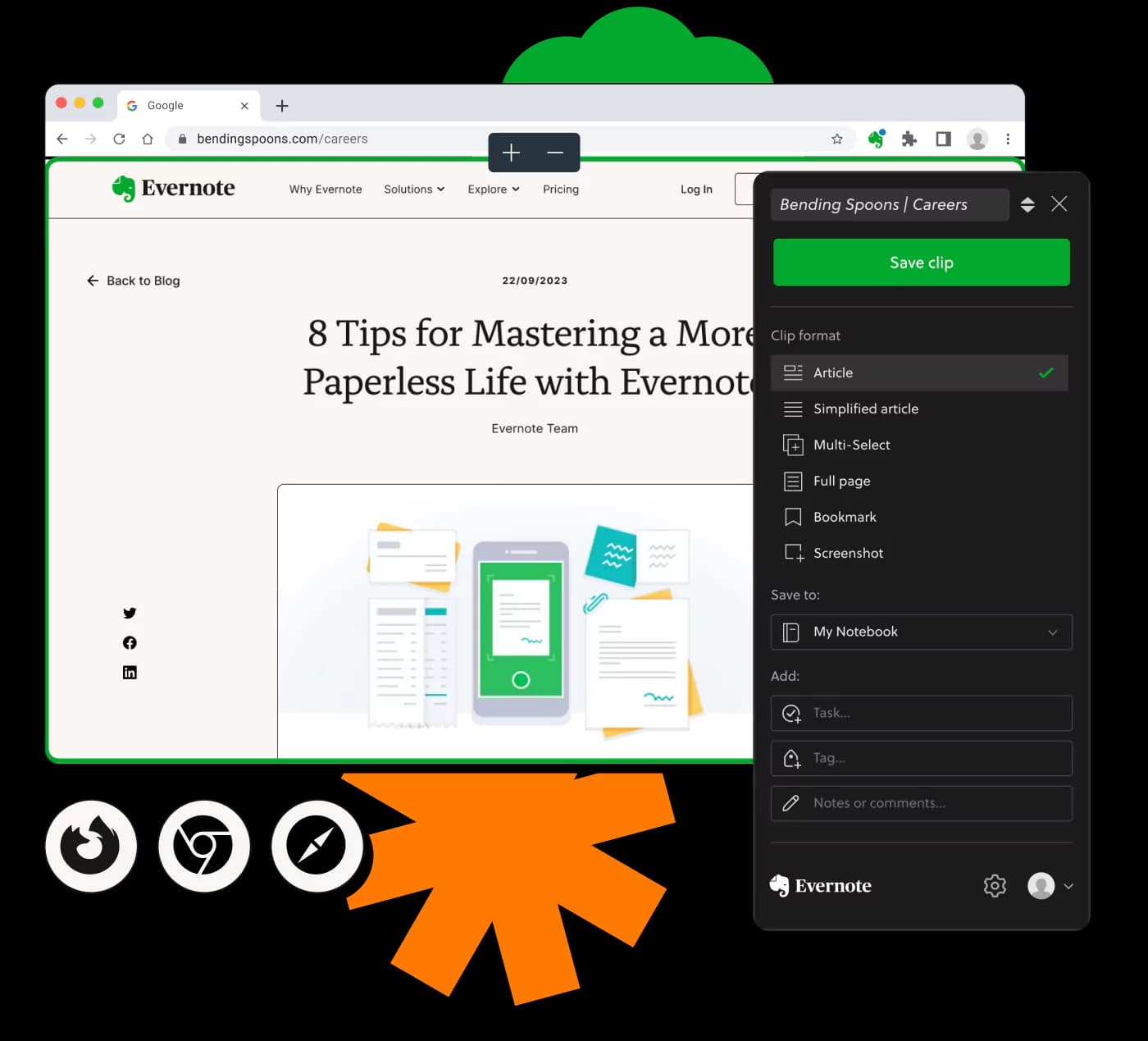
Der ultimative Web Clipper mit Screenshot-Tool für effiziente Online-Recherche
Von Millionen weltweit vertraut
4.4
2.100+ Bewertungen auf G2
4.4
8.200+ Bewertungen auf Capterra
4.4
73.000+ Bewertungen im App Store
248 Mio.
Registrierte Benutzer
5 Mrd.
Erstellte Notizen
2 Mio.
Täglich erstellte Notizen
Unbegrenzter Zugriff auf alle unsere Tools












Häufig gestellte Fragen
Ein Web Clipper mit Screenshot-Tool ermöglicht es Nutzern, Bilder von Webseiten direkt aus ihrem Browser aufzunehmen und zu speichern. Er vereinfacht das Sammeln von Informationen und Bildern für Recherche oder Dokumentation.
Die Web-Screenshot-Funktion erfasst den sichtbaren Bereich einer Webseite oder einen ausgewählten Teil. Nutzer können diese Screenshots zur späteren Referenz speichern, was bei der Inhaltsorganisation und -freigabe hilft.
Ja, der Web Clipper mit Screenshot-Tool ist für Windows verfügbar. Es integriert sich nahtlos in Ihren Browser, sodass Sie Screenshots von jeder Webseite einfach aufnehmen können.
Absolut. Der Web Clipper mit Screenshot-Tool unterstützt Mac-Nutzer und bietet die gleiche Funktionalität, um Screenshots direkt aus ihren Browsern aufzunehmen und zu speichern.
Ja, das Tool ist als Chrome-Erweiterung verfügbar, mit der Nutzer Screenshots direkt im Browser ausschneiden und erfassen können.
Ja, der Web Clipper mit Screenshot-Tool ist kostenlos verfügbar. Nutzer können ihre Webinhalte ohne Kosten erfassen und organisieren.
Ja, das Tool kann ganze Webseiten erfassen, sodass selbst Bereiche jenseits des Bildschirms als vollständiger Schnappschuss erfasst werden.
Sie können die Web Clipper- und Screenshot-Tool-Erweiterung aus dem Erweiterungsspeicher Ihres Browsers herunterladen, was eine schnelle Installation und einfachen Zugriff ermöglicht.
Das Tool unterstützt primär beliebte Browser wie Chrome. Überprüfen Sie den Erweiterungsspeicher Ihres bevorzugten Browsers auf Verfügbarkeit.
Wenn das Screenshot-Tool nicht funktioniert, stellen Sie sicher, dass Ihr Browser und die Erweiterung aktuell sind. Zu den Lösungsschritten könnte das Zurücksetzen der Erweiterung oder das Überprüfen der Browserberechtigungen gehören.
Ja, mit dem Tool erfasste Screenshots können innerhalb Ihres bevorzugten Dateimanagementsystems oder einer speziellen App organisiert und kategorisiert werden.
Nein, der Web Clipper mit Screenshot-Tool benötigt eine Internetverbindung, da er innerhalb der Browserumgebung arbeitet.
Das Tool setzt keine spezielle Dateigrößenbeschränkung für Screenshots, die Leistung kann jedoch je nach Fähigkeiten des Webbrowsers variieren.
Das Tool erfordert normalerweise manuelles Speichern nach der Aufnahme von Screenshots, obwohl einige Browser Einstellungen bieten könnten, um diesen Prozess zu optimieren.
Um die Kompatibilität mit Windows 10 sicherzustellen, sollten Sie Ihren Browser und die Web Clipper-Erweiterung aktualisieren. Die meisten Erweiterungen sind so konzipiert, dass sie nahtlos über moderne Windows-Versionen hinweg funktionieren.