Herramienta Segura de Escaneo de Documentos

Sobre nosotros
Español
Herramienta Segura de Escaneo de Documentos
Gestiona tus documentos sin esfuerzo con nuestra Herramienta Segura de Escaneo de Documentos.
Millones de personas en todo el mundo confían en nosotros
4.4
2,100+ reseñas en G2
4.4
8,200+ reseñas en Capterra
4.4
73,000+ reseñas en App Store
248 M
Usuarios registrados
5.000 M
Notas creadas
2 M
Notas creadas diariamente
Acceso ilimitado a todas nuestras herramientas












Preguntas Frecuentes
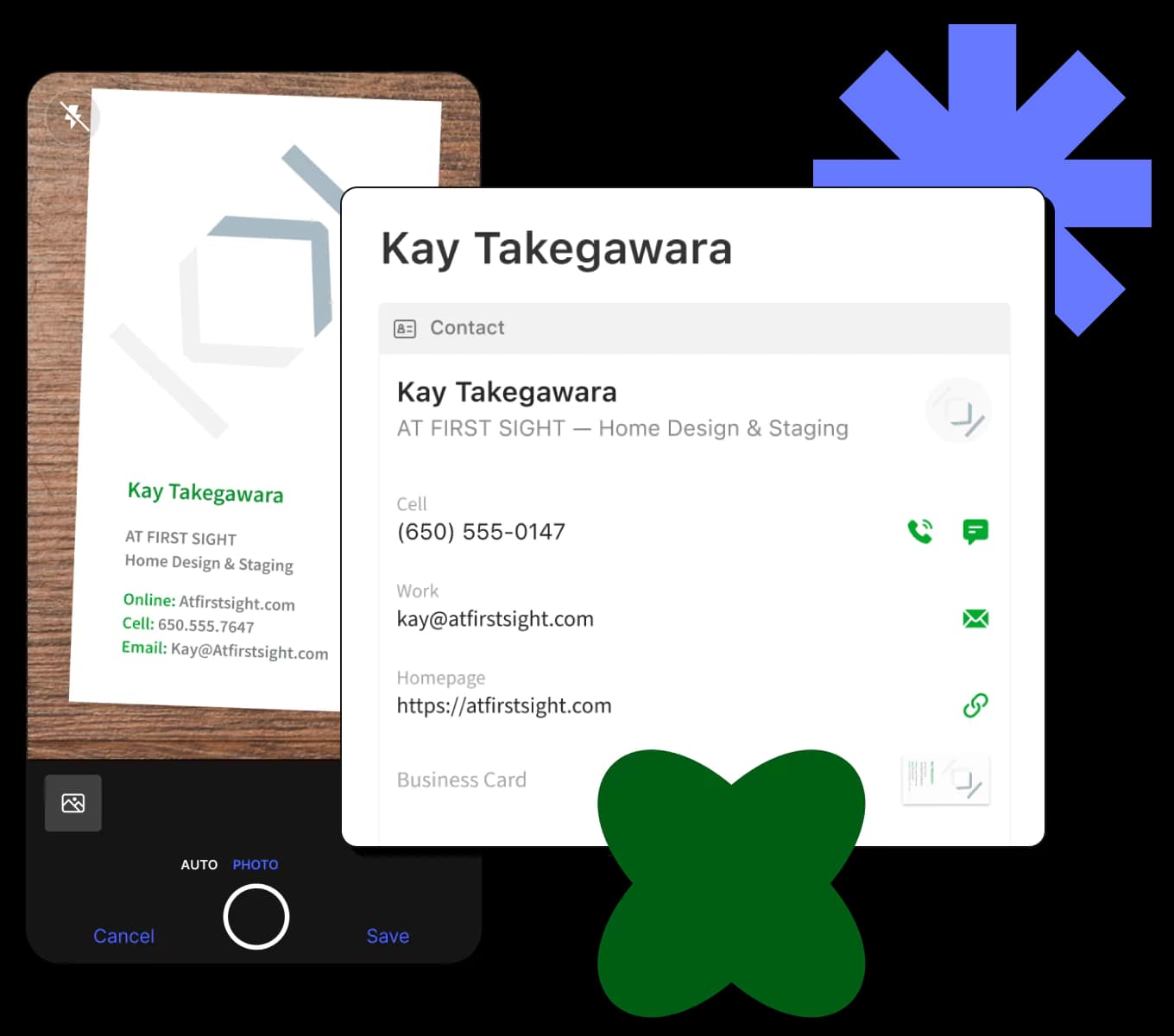
La Herramienta Segura de Escaneo de Documentos digitaliza documentos a través de cargas de archivos, transcribiéndolos y convirtiéndolos automáticamente en texto listo para editar y resumir.
Sube tus archivos de documentos, como .txt o .jpeg, y la herramienta los transcribe de manera segura en texto, garantizando que tus datos estén preparados eficientemente para su posterior edición.
Sí, la herramienta puede procesar imágenes como .jpg o .png utilizando tecnología OCR, convirtiéndolas en texto para editar o resumir.
La herramienta admite archivos de texto (.txt, .md), imágenes (.jpg, .png) y varios formatos de audio/video (.mp3, .wav, .mp4) para transcripción.
Sí, los documentos escaneados pueden resumirse en formatos más cortos como párrafos, puntos destacados o correos electrónicos, ayudándote a condensar la información eficientemente.
La herramienta se enfoca en un escaneo seguro al procesar eficientemente texto de varios formatos de archivo sin compartir detalles específicos de privacidad o seguridad.
Si las notas manuscritas se escanean y se guardan como imágenes (por ejemplo, .jpg), la herramienta puede usar OCR para procesarlas, siempre que la escritura sea legible.
Los archivos pueden tener hasta 100 MB. Los archivos más grandes deben dividirse para su procesamiento, asegurando una transcripción y gestión de texto eficiente.
Sí, después del escaneo, puedes usar la variante Reformular para ajustar el tono o estilo del texto según tus necesidades.
Sí, se requiere un mínimo de 300 caracteres para las variantes Resumir y Escribir Correo, asegurando que haya suficiente contenido para trabajar.
Sí, los archivos de audio como .mp3 o .wav pueden transcribirse en texto, facilitando la conversión de palabras habladas en contenido escrito.
No, la herramienta requiere una conexión a internet para funcionar, garantizando un procesamiento y gestión de texto en tiempo real.
La herramienta no permite la edición directa de los resultados. La salida puede copiarse a otro editor de texto para cualquier revisión.
La herramienta se enfoca en procesar documentos, pero no ofrece almacenamiento. Es posible que necesites guardar los resultados externamente después del procesamiento.
Sube tus notas de reuniones, selecciona el formato apropiado para resumir como el estilo de Reunión, y la herramienta condensará la información eficientemente.