Annoter une Page Web en Ligne

À propos de nous
Français
Annoter une Page Web en Ligne
Annoter Efficacement des Pages Web en Ligne avec Notre Outil
Fiable pour des millions de personnes dans le monde
4.4
2 100+ avis sur G2
4.4
8 200+ avis sur Capterra
4.4
73 000+ avis sur l'App Store
248 M
Utilisateurs enregistrés
5 Md
Notes créées
2 M
Notes créées quotidiennement
Accès illimité à tous nos outils
Transcrire des fichiers en texte

Convertir des fichiers

Compresser des fichiers

Modifier des PDF et images

Réécrire du texte avec IA

Convertir du texte en audio

Prendre et rédiger des notes

Créer des diagrammes avec IA

Détecter le contenu généré par IA

Compter les mots et les caractères

Générateur de citations

Prise de notes

Stockage de documents

Questions fréquemment posées
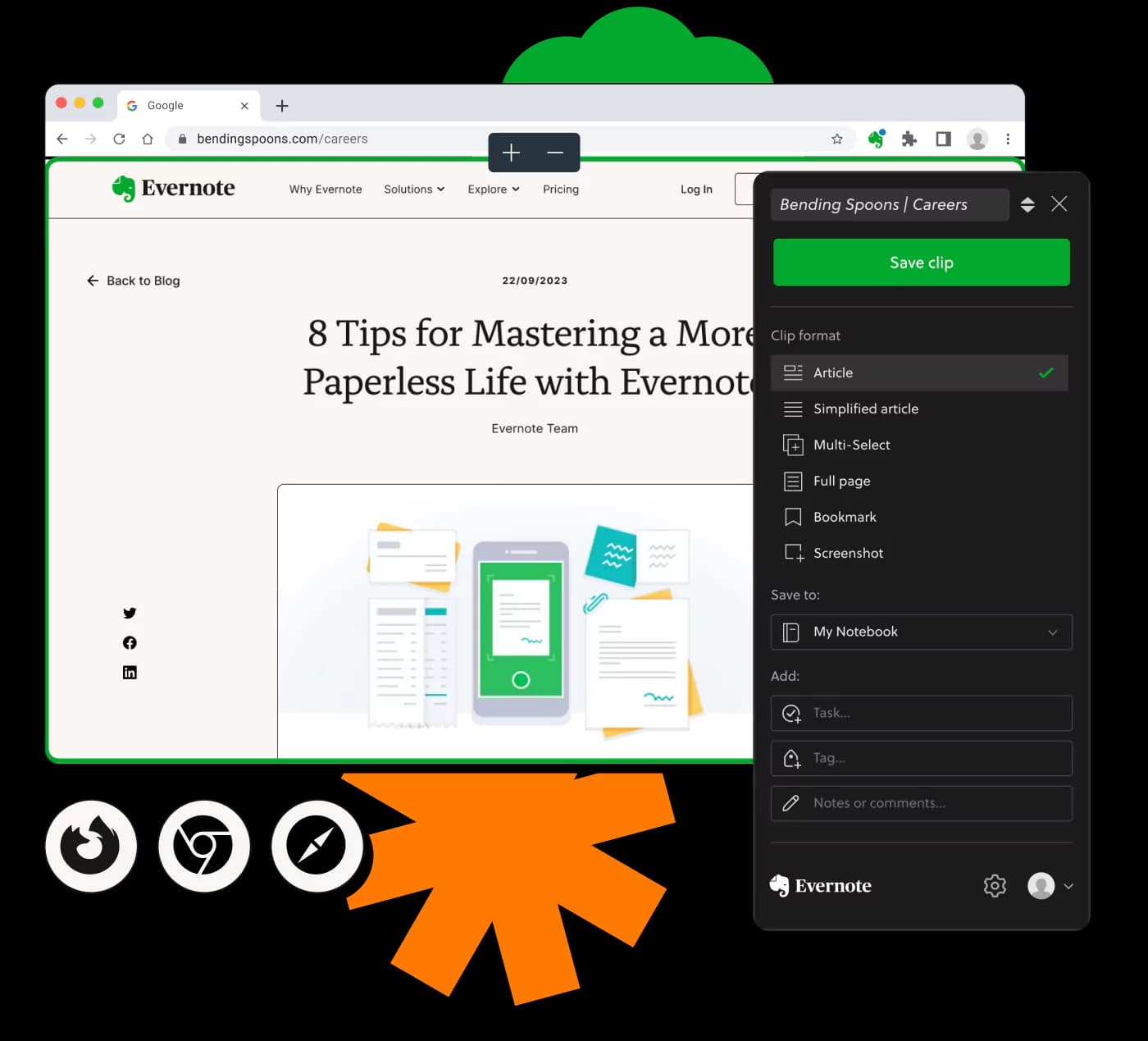
Pour annoter une page web, ouvrez-la dans votre navigateur préféré. Utilisez un outil d'annotation en ligne pour surligner, commenter ou ajouter des notes directement sur le contenu. Les outils sont disponibles en tant qu'extensions de navigateur ou fonction intégrée dans certains navigateurs.
L'annotation en ligne consiste à ajouter des notes, commentaires ou surlignages au contenu web à l'aide d'outils numériques. Cela permet une interaction directe avec la page, utile pour l'étude, la recherche ou la collaboration.
Oui, vous pouvez annoter des pages web dans Google Chrome en utilisant des extensions de navigateur conçues pour l'annotation. Ces outils permettent de surligner du texte, d'ajouter des commentaires et de partager les annotations avec d'autres.
Une infobulle web apparaît comme une boîte informative lorsque vous passez la souris sur ou cliquez sur certains éléments d'une page web. Elle est souvent utilisée pour fournir un contexte supplémentaire ou des instructions sans encombrer le contenu principal.
Un exemple de référence de page web démontre comment citer correctement une page web dans divers styles de citation, s'assurant de créditer correctement la source d'information lors de l'annotation ou de son utilisation dans vos projets.
Pour annoter dans MS Edge, utilisez les fonctionnalités intégrées pour l'annotation en ligne qui vous permettent de surligner du texte, de prendre des notes et de sauver votre travail. Les extensions de navigateur peuvent également améliorer cette fonctionnalité.
Oui, il existe plusieurs outils d'annotation en ligne gratuits. Ceux-ci vous permettent de surligner, commenter et partager vos pages annotées sans coût. Consultez la boutique d'extensions de votre navigateur pour des options gratuites populaires.
Annoter du contenu en ligne implique d'utiliser des outils numériques pour ajouter des commentaires ou des surlignages sur un texte de page web. Cela est facilité par les extensions ou les fonctionnalités intégrées de navigateurs comme Chrome et Edge.
Oui, les outils d'annotation en ligne sont idéaux pour les étudiants. Ils aident à surligner les points importants, à ajouter des notes pour les matériaux d'étude et à collaborer avec des pairs sur des recherches ou projets.
Les annotations peuvent être utilisées dans des projets de conception web pour suggérer des modifications, fournir des retours et souligner des zones à améliorer directement sur les maquettes de pages web ou les sites en direct.
Pour les outils d'annotation autorisant les uploads de fichiers, la taille maximale est généralement de 100 Mo. Pour des fichiers plus volumineux, envisagez de les scinder avant de les télécharger pour éviter les restrictions de taille.
La plupart des outils d'annotation en ligne ne fournissent pas un aperçu en temps réel des annotations. Après avoir effectué des annotations, elles doivent être enregistrées ou traitées pour voir le résultat final.
Bien que de nombreux outils offrent diverses options d'annotation, les styles personnalisés au-delà des présélections fournies ne sont souvent pas disponibles. Adhérez aux styles prédéfinis pour uniformiser.
En général, les annotations ne peuvent pas être modifiées directement après enregistrement. Apporter des modifications nécessite la réouverture ou le rechargement de la page, puis la création de nouvelles annotations basées sur vos révisions.
Les annotations Google permettent aux utilisateurs d'ajouter des commentaires, explications ou notes sur le contenu web, améliorant l'expérience d'étude ou collaborative en ligne grâce à des perspectives partagées.