Capturar Tela com Web Clipper

Sobre nós
Português
Capturar Tela com Web Clipper
Capture Telas do Windows Facilmente com Web Clipper
Confiado por Milhões em Todo o Mundo
4.4
2.100+ avaliações no G2
4.4
8.200+ avaliações na Capterra
4.4
73.000+ avaliações na App Store
248M
Usuários Registrados
5B
Notas Criadas
2 mi
Notas Criadas Diariamente
Acesso ilimitado a todas as nossas ferramentas












Perguntas Frequentes
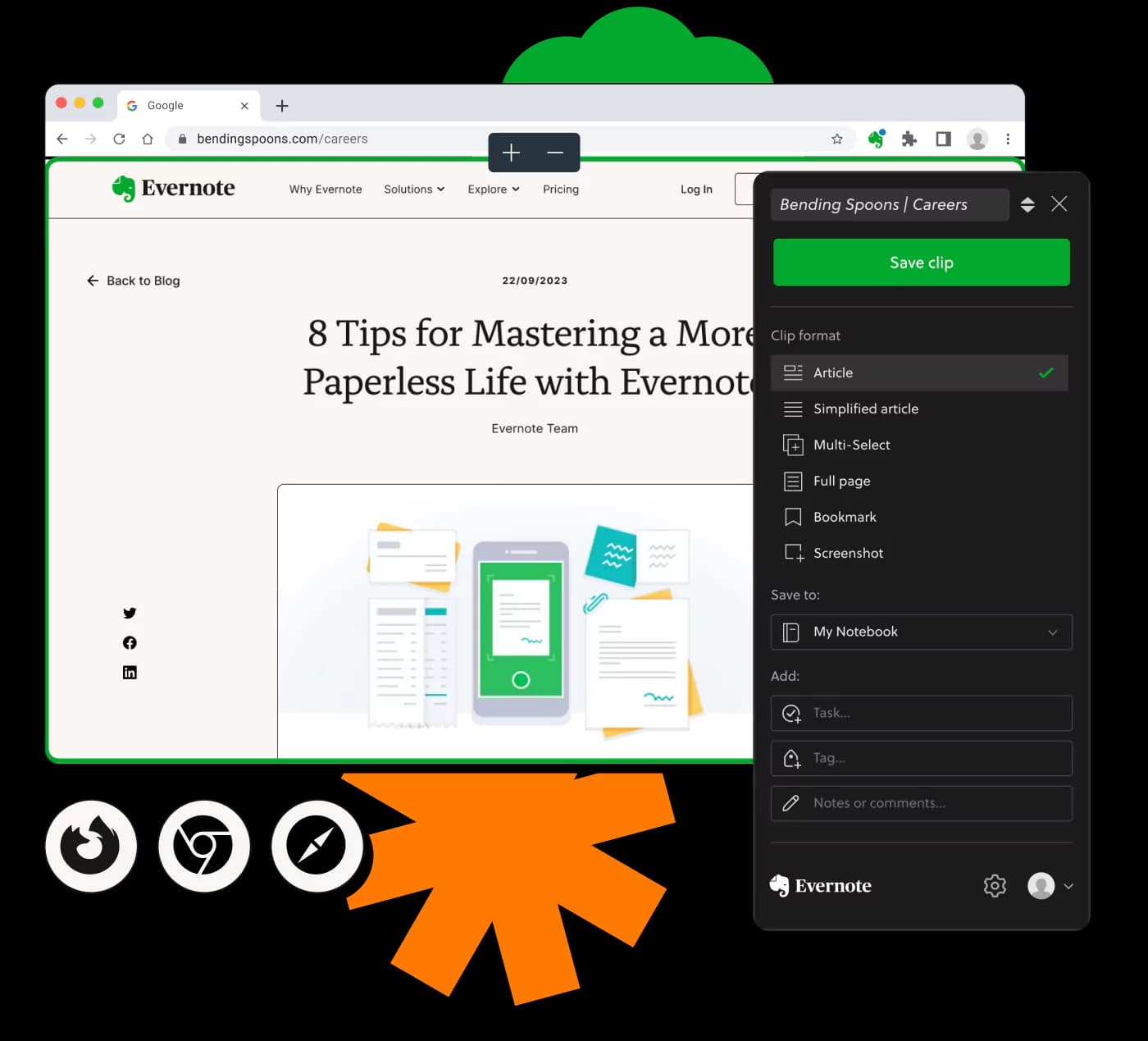
O Capturar Tela com Web Clipper permite capturar e exportar vídeos, manipular capturas de tela e usar o modo de tela cheia em dispositivos Windows de forma eficaz.
Para usar o web clipper em tela cheia, ative a opção de modo de tela cheia nas configurações da ferramenta. Isso permite capturas de tela abrangentes com facilidade.
Sim, o web clipper permite exportar vídeos após a captura, possibilitando escolher o formato e o destino dos seus arquivos exportados.
Sim, o web clipper é equipado para capturar áudio durante as gravações de tela, possibilitando documentação de vídeo mais completa.
Configure atalhos de tecla nas configurações do web clipper no Windows 11 para otimizar as tarefas de captura, garantindo operação rápida e eficiente.
Se o seu web clipper não está funcionando, verifique a conexão com a internet, a compatibilidade do navegador e certifique-se de que não há conflitos ou restrições de software.
O web clipper geralmente captura uma janela por vez, mas você pode alternar manualmente entre janelas durante a captura.
O web clipper suporta vários formatos de vídeo para exportação, incluindo tipos comuns como MP4 e MOV, facilitando o compartilhamento e a reprodução.
Pode haver restrições com base nas capacidades do sistema ou no tamanho do arquivo, garantindo que os vídeos sejam gerenciáveis e eficientes em termos de armazenamento.
Sim, você pode capturar telas de projeções, desde que haja conectividade adequada e ajuste das configurações.
Sim, o modo de captura em tela cheia está disponível no Windows 10, aumentando a versatilidade e usabilidade da ferramenta em diferentes versões do Windows.
O web clipper geralmente funciona em navegadores populares, embora seja aconselhável verificar as notas de compatibilidade específicas na documentação do clipper.
A edição direta de vídeos não está disponível no web clipper; use software de edição de vídeo dedicado após a captura para modificações.
Além da exportação direta, você pode usar serviços de nuvem ou outros métodos de compartilhamento de arquivos, se suportados pelas configurações do web clipper.
Não, o web clipper requer uma conexão com a internet para funcionar plenamente, pois depende de operações baseadas na web.