Clippa pagina web su Evernote

Chi siamo
Italiano
Clippa pagina web su Evernote
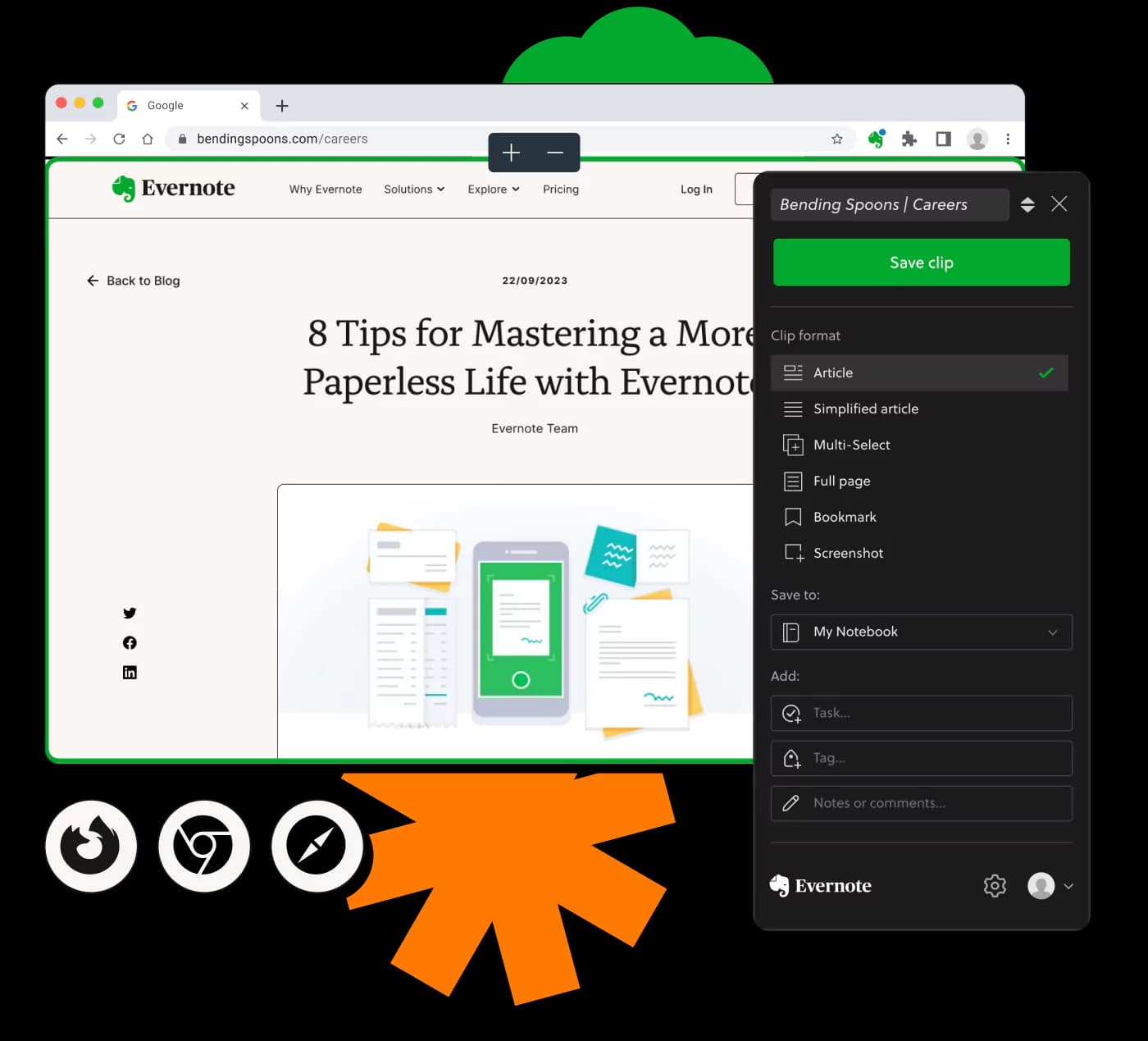
Apprendi la gestione del Web Clipping con Evernote Web Clipper
Apprezzato da milioni di persone in tutto il mondo
4.4
2.100+ recensioni su G2
4.4
8.200+ recensioni su Capterra
4.4
73.000+ recensioni su App Store
248 Mln
Utenti registrati
5 mld
Note create
2 M
Note create quotidianamente
Accesso illimitato a tutti i nostri strumenti













Domande Frequenti
Evernote Web Clipper è un'estensione del browser che ti permette di salvare il contenuto delle pagine web direttamente nel tuo account Evernote. Ti aiuta a organizzare e accedere alle informazioni per riferimento futuro, rendendolo uno strumento prezioso per la ricerca e l'archiviazione.
Per installare Evernote Web Clipper, visita la libreria delle estensioni del tuo browser, come Chrome, Firefox o Edge, e cerca Evernote Web Clipper. Clicca su 'Aggiungi' o 'Installa' per integrarlo nel tuo browser.
Sì, Evernote Web Clipper può essere utilizzato su Safari. Installalo dalla Safari Extensions Gallery e inizia a salvare pagine web direttamente nel tuo account Evernote.
Sì, Evernote Web Clipper è gratuito da usare. Puoi scaricarlo e installarlo nel tuo browser senza alcun costo, permettendoti di salvare facilmente contenuti web.
Dopo aver installato l'estensione Evernote Web Clipper su Chrome, basta cliccare sull'icona nella barra degli strumenti mentre navighi sulla pagina. Scegli quale parte della pagina vuoi salvare e archiviala nel tuo taccuino Evernote.
Sì, puoi rimuovere Evernote Web Clipper accedendo al gestore delle estensioni o componenti aggiuntivi del tuo browser, trovando Evernote Web Clipper, e selezionando l'opzione per rimuoverlo o disinstallarlo.
Web Clipper è eccellente per salvare sezioni di articoli accademici, pagine web o qualsiasi contenuto online necessario per la ricerca. Ti aiuta a tenere traccia delle fonti e organizza le informazioni per un facile inserimento e recupero.
Sì, Web Clipper è disponibile per Firefox. Puoi installarlo tramite il sito dei componenti aggiuntivi di Firefox e iniziare a salvare contenuti su Evernote direttamente da Firefox.
Sì, Evernote Web Clipper ti consente di salvare interi articoli, semplificando il processo di raccolta di informazioni da varie fonti in un unico luogo.
Web Clipper non consente un uso offline e la modifica deve essere effettuata successivamente in Evernote. Richiede una connessione internet per salvare i contenuti.
Per usare Web Clipper su Edge, installa l'estensione dal negozio componenti aggiuntivi di Edge. Puoi quindi salvare i contenuti selezionando l'icona dell'estensione mentre navighi.
Assolutamente. Puoi inserire intere pagine web o porzioni selezionate direttamente in Evernote, organizzandole nei tuoi taccuini per un facile accesso.
Puoi fare uno screenshot di qualsiasi parte di una pagina web con Web Clipper selezionando l'opzione di screenshot. Questa immagine viene poi salvata nel tuo account Evernote.
Scarica semplicemente Evernote Web Clipper dal negozio delle estensioni del browser preferito e clicca sull'icona nel browser una volta installato per iniziare a salvare.
Il contenuto salvato con Evernote Web Clipper è automaticamente sincronizzato nel tuo account Evernote, quindi accessibile su qualsiasi dispositivo dove hai Evernote installato e effettuato l'accesso.