ウェブページでテキストをハイライトする方法

私たちについて
日本語
ウェブページでテキストをハイライトする方法
ウェブページのテキストをハイライトしてアクセシビリティを向上させる方法
世界中で数百万人に信頼されています
4.4
G2で2,100件以上のレビュー
4.4
Capterraで8,200件以上のレビュー
4.4
App Storeで73,000件以上のレビュー
2.5億人
登録ユーザー
50億件
作成されたノート数
200万
毎日作成されるノート













よくある質問
ウェブサイトの制限やブラウザの制限が原因かもしれません。ウェブクリッピングツールを使用するか、ブラウザの設定を調整してみてください。
お使いのオペレーティングシステムやブラウザ設定で高コントラストモードを有効にします。これにより、テキストと背景の色が変更され、視認性が向上します。
ウェブサイトがテキストの選択を許可しているか確認してください。一部のサイトではコピーを防ぐためにハイライトを無効にしています。ブラウザのJavaScript設定を確認してください。
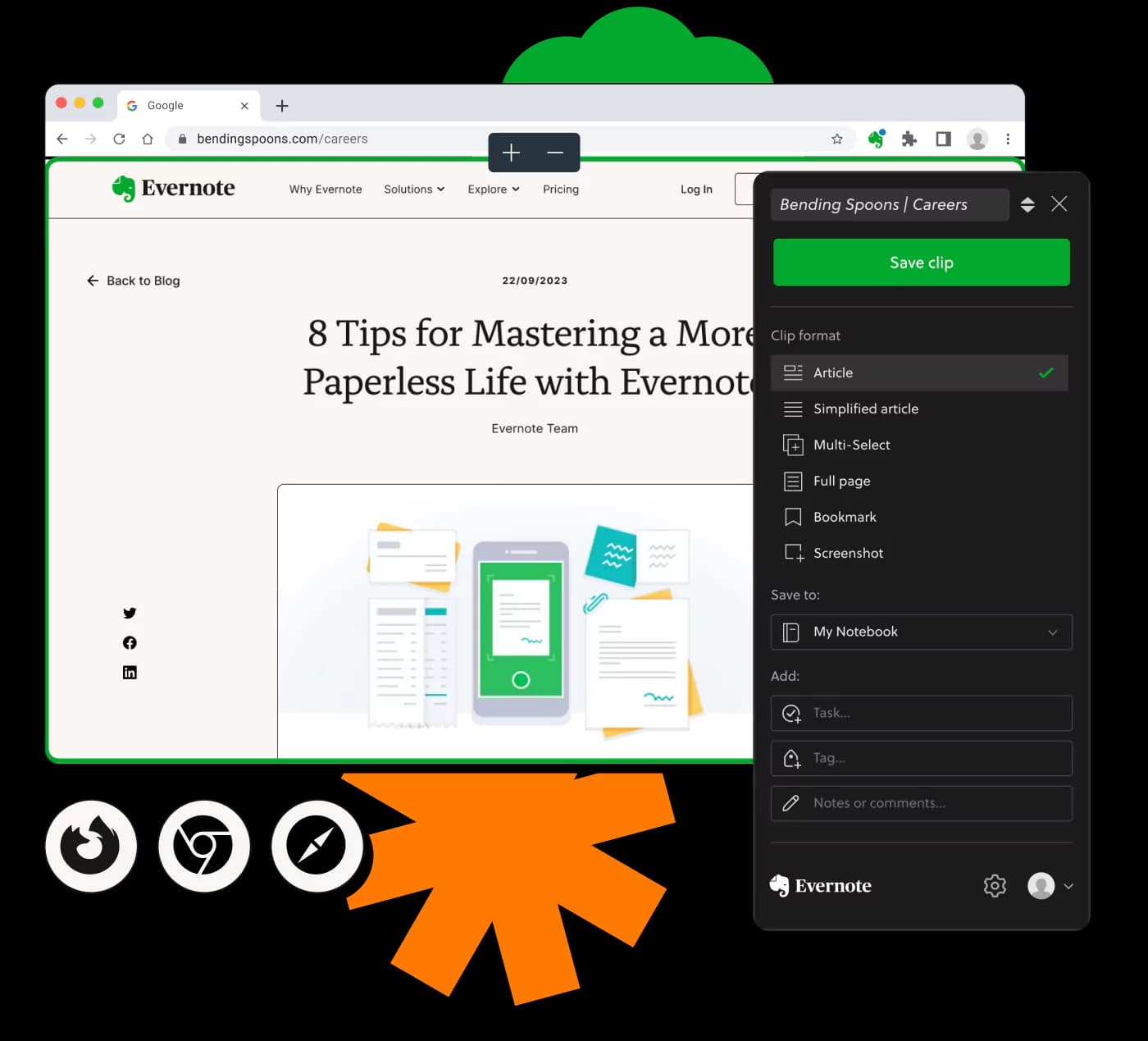
EvernoteやOneNoteなどのウェブクリッパーやブラウザエクステンションは、リサーチや読書のためにオンラインでテキストをキャプチャしてハイライトできます。
システムのディスプレイ設定を変更するか、ブラウザの開発者ツールを使用してハイライト色を調整します。OSやブラウザによって異なります。
CSSを使用して、ハイライトしたテキストの周りに枠線を追加できます。CSSスタイルシート内で'border'プロパティを使用してカスタマイズしてください。
HTML要素内で'style'属性を使用します。'color'CSSプロパティを適用してテキストの色を変更します。例: <span style='color:red;'>.
Obsidian自体にはウェブクリッピングをサポートしていませんが、プラグインやエクステンションを使用すれば、ノート内でハイライト機能を強化できます。
ブラウザの設定でダークモードに切り替えるか、強制的にダークテーマにするエクステンションを使用します。夜間や低光中の読みやすさが向上します。
JavaScriptは、リアルタイムで要素のスタイルを変更して動的なスタイリングを可能にします。'element.style.property'を使ってプログラムで変更します。
はい、多くのエディターやブラウザはShift+矢印キーなどのショートカットでテキストをハイライトすることをサポートしています。アプリケーションや設定により異なります。
ブラウザの開発者ツールを使用してサイトのCSSを一時的に変更できます。'Elements'タブでスタイルを直接編集して即座に効果を確認します。
ハイライト自体は資源をほとんど消費しませんが、大規模なCSSの変更やスクリプトはブラウザのメモリ使用量を増加させる可能性があります。
ほとんどのブラウザは大規模なハイライトを問題なく処理しますが、非常に大きなテキスト選択ではパフォーマンスが低下することがあります。
許可されている場合、エクステンションはデータにアクセスできます。プライバシーに影響を与えるため、エクステンションをインストールするときは許可の範囲を確認してください。