

Some of your most important meetings won’t end up on your calendar. You might have an emergency team meeting at the last minute, or a client call out of the blue. By the time you think of hitting record, the key points have already been made.
Meeting detection in Evernote for Mac and Windows notices when a call starts and reminds you to hit record. Select the notification, and Evernote records your meeting, giving you a full transcript and summary of what was discussed.
Meeting detection is off until you turn it on. It's available in Evernote for Mac and Windows, not on mobile or Evernote Web.
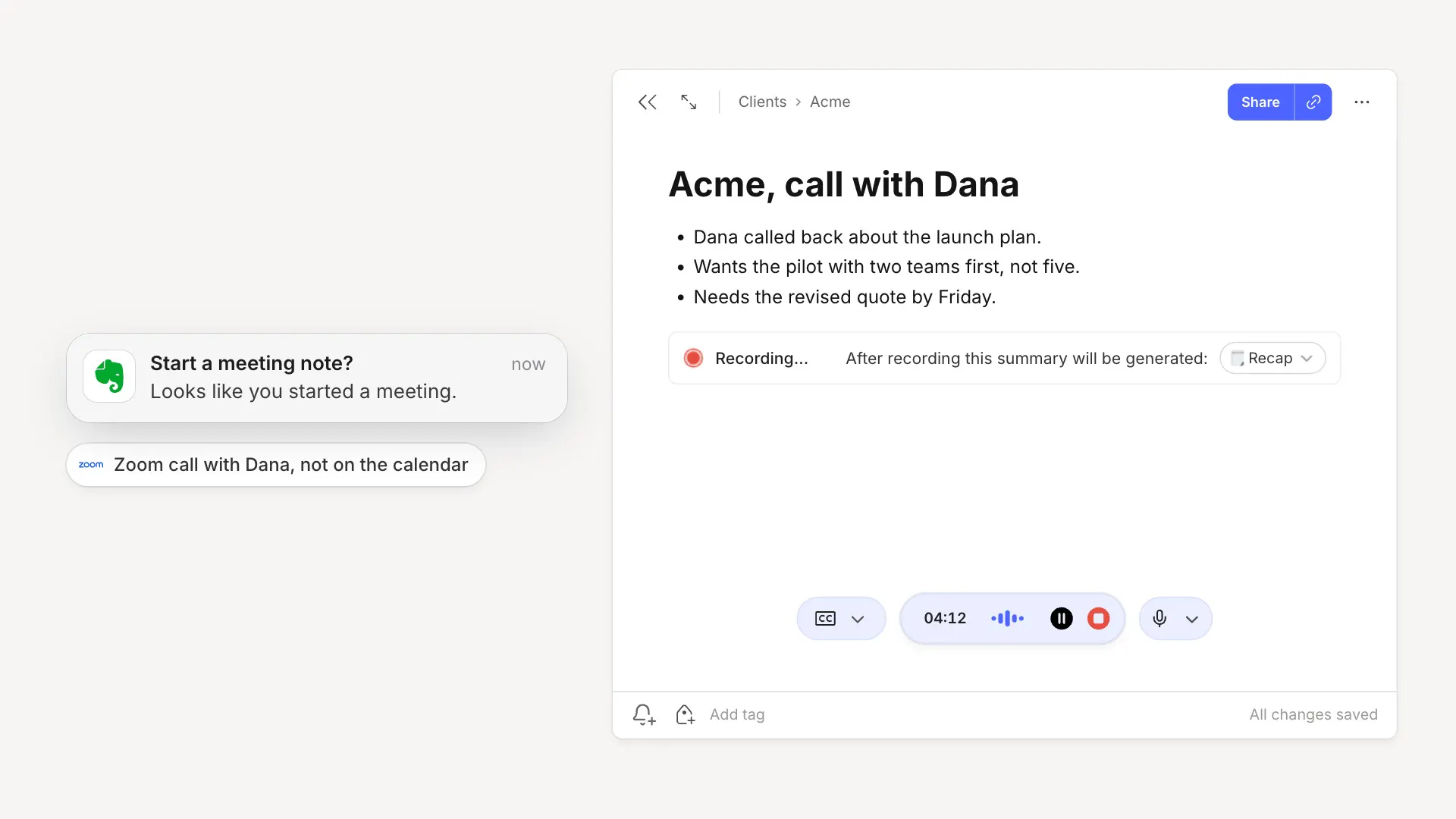
Meeting detection now works even when the meeting isn’t on your calendar. As well as checking your calendar, Evernote is alerted when one of your meeting apps starts using your microphone, such as Zoom, Microsoft Teams, Google Meet, Webex, GoToMeeting, Slack, Discord, FaceTime, or Whereby. That way, it can remind you to record the meetings that never get an invite, like an informal check-in with your manager or an external meeting planned entirely through Slack.
⏹️ A reminder when the call ends
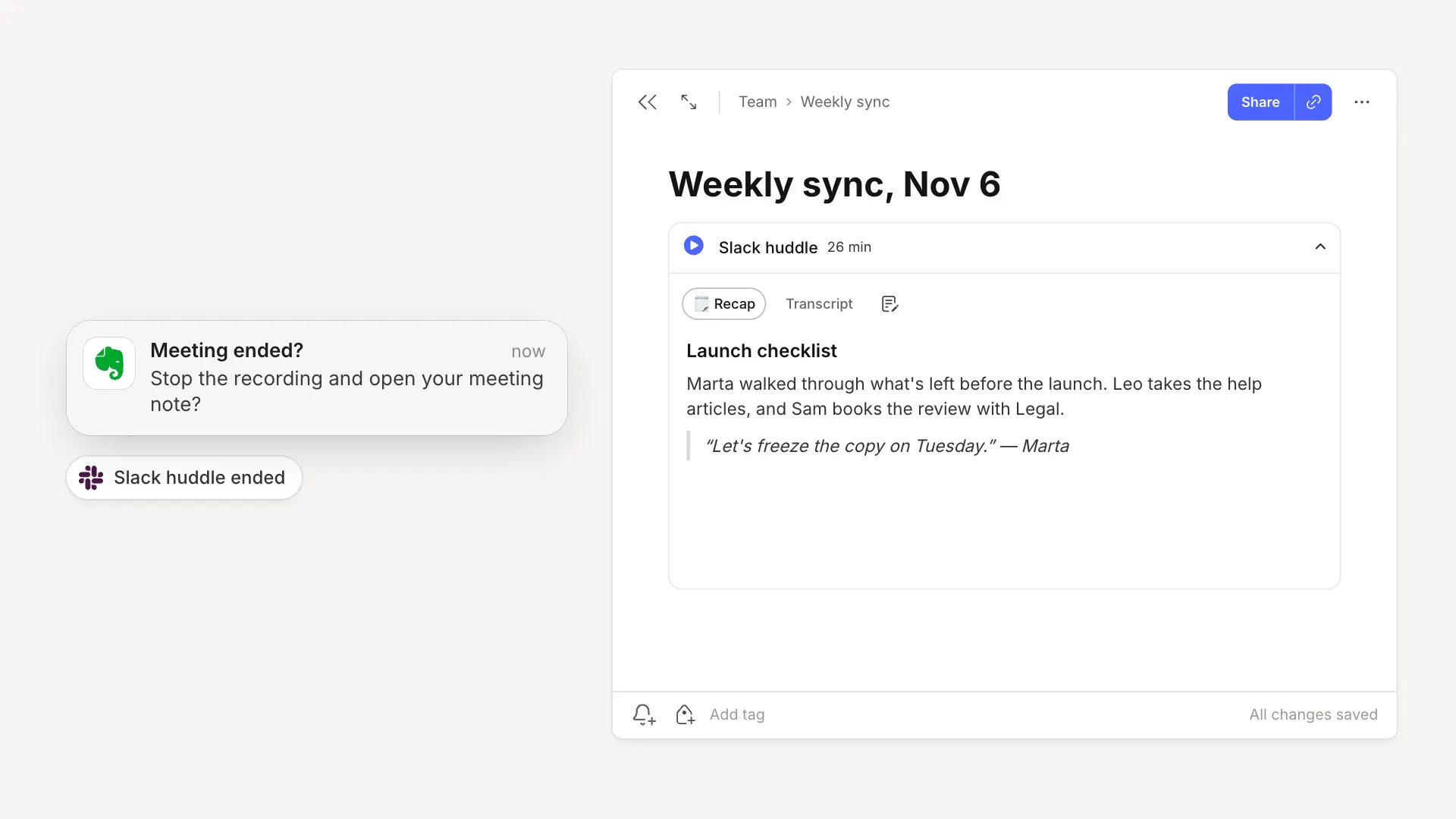
Ever accidentally kept recording for hours after a meeting was over? When the call ends, Evernote reminds you to stop recording and open your meeting note, so the note ends where the meeting did.
Once you click stop recording, Evernote gives you a full transcript showing you what was said by each person speaking, and a summary of the meeting. From here, you can search back through what was said anytime or share it with anyone who missed the call.
⚙️ Set it up in a minute
- Open Settings › Notifications.
- Find Meeting detection and select Set up.
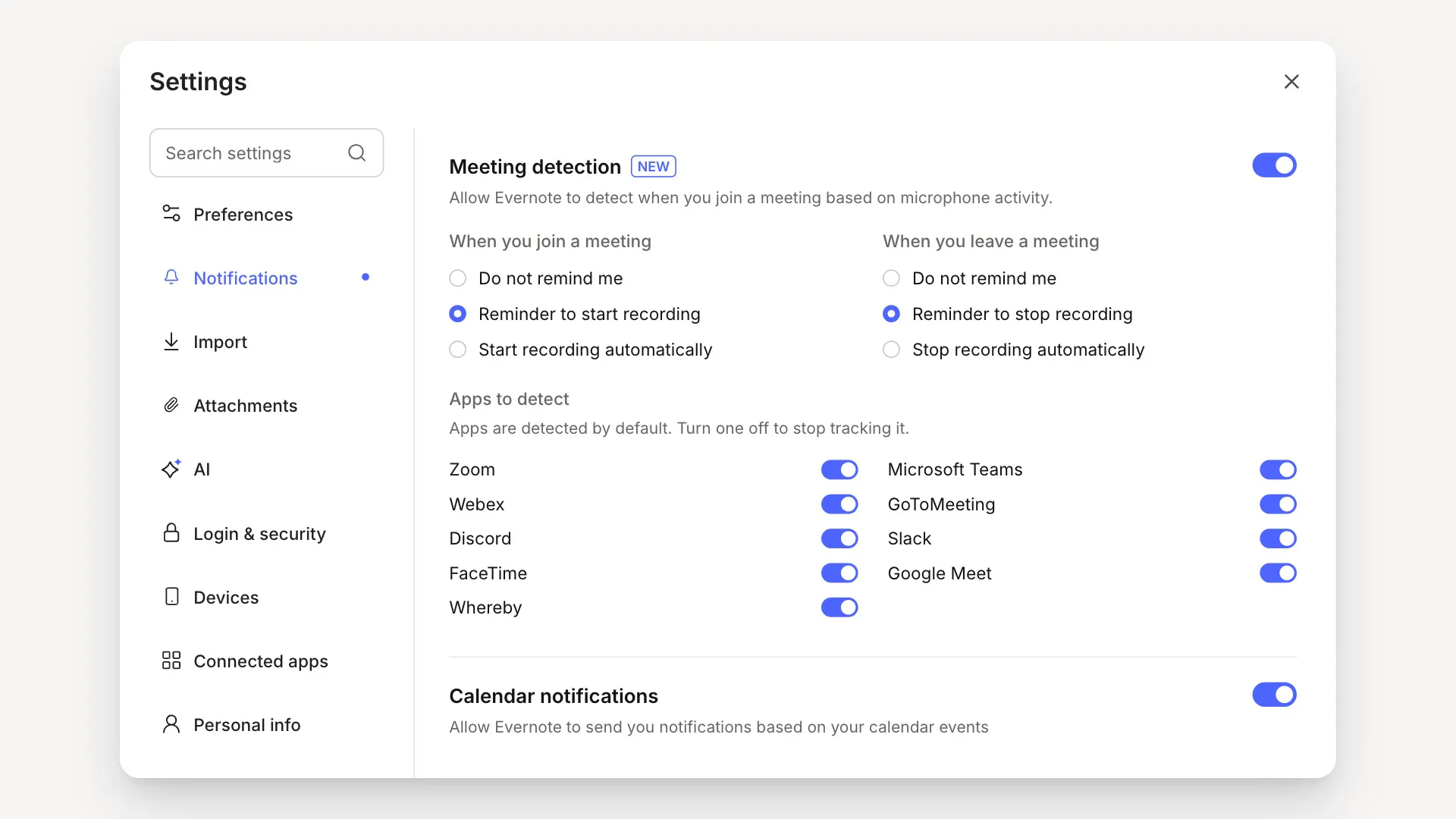
- Allow the permissions Evernote asks for. On a Mac, these are notifications, microphone access, and Screen & System Audio Recording, the permission that lets Evernote recognize calls in your browser. On Windows, you only need to allow the notifications permission.
You may need to restart Evernote after changing system permissions. Then choose how meeting detection works:
- When you join a meeting. Evernote can remind you to start recording or start recording automatically when it detects that a meeting has started.
- When you leave a meeting. Evernote can remind you to stop recording or stop recording automatically when it detects that a meeting has ended.
- Apps to detect. Every supported app is detected by default. You can turn off detection for any app whose calls you don't want to record.
If you connect the meeting note to a calendar event afterwards, Evernote names the note after that event.
🔒 You stay in control
- It's off until you turn it on. You can switch meeting detection off again anytime in Settings › Notifications.
- It doesn't listen to your calls. Evernote is only alerted when an app starts using your microphone in a meeting, and it never hears what's said.
- Nothing is recorded without you. A recording only starts when you click record from the notification, unless you choose automatic recording in Settings.
- Let everyone on the call know you’re recording.
Meeting detection is available in the latest version of Evernote for Mac and Windows. Update the app, turn it on in Settings › Notifications, and try it on your next call. Tell us on X or Reddit what meeting detection has stopped you from forgetting to capture.
Thanks for being part of Evernote,
💚 The Evernote team