
How to take notes and manage documents with Evernote
Notes come in every shape: typed text, a photo of a whiteboard, a PDF, a voice memo, a screenshot. Evernote keeps them all in one place and makes them searchable, so you can find what you saved long after you saved it.
The guides below cover taking notes, scanning, PDFs, screenshots and screen recordings, transcription, summaries, templates, phone backups and keyboard shortcuts. Each one gives a direct answer first.
Each guide then shows the Evernote way to do it: capture the file into a note, find it later with search, and ask the AI Assistant to summarize or explain it.
What helps you manage notes in Evernote

Capture anything into a note
Type, scan a page, clip a web page or attach a file. Each one becomes a note you can organize and search.
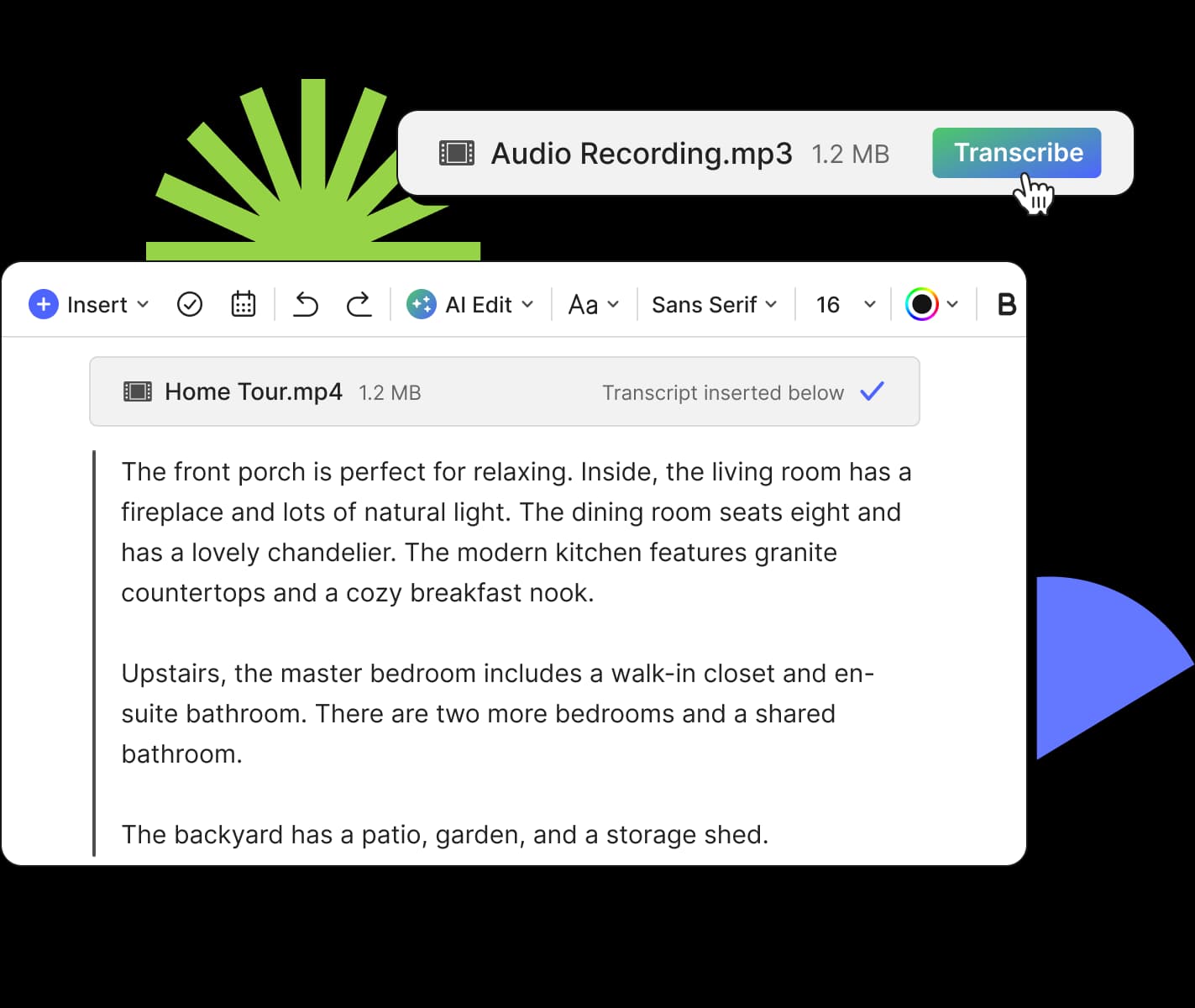
Transcribe and summarize
Transcribe audio and video in a note, then ask the AI Assistant to summarize the transcript, a PDF or a long note.

Search inside every file
Search finds words in notes, PDFs, Office files, scans and photos.
Screenshots
9 guides
Transcription
7 guides
Productivity
5 guides
Documents
4 guides
Devices
4 guides
Summaries
4 guides
Note-taking
4 guides
Frequently asked questions
Can Evernote summarize a PDF?

Yes. Attach the PDF to a note and ask the AI Assistant to summarize it or answer questions about it.
Can I make my own templates?
Yes. Save any note as a template and start new notes from it. You can also ask the AI Assistant to create a template for you.
Does Evernote work offline?
Yes. In the Evernote desktop app, notes stay editable offline and sync when you are back online.
Can I find text inside a screenshot?
Yes. Evernote recognizes the words in images, so a search finds text inside a screenshot you saved.
Put all your notes in one place
Typed, scanned, clipped or recorded, and all of it searchable.
Start for free