
🧩 What is an MCP connector?
An MCP, short for Model Context Protocol, is what enables AI tools like ChatGPT and Claude to work with other apps. Once you add Evernote's dedicated MCP connector to ChatGPT or Claude, you can use them to search your notes, create new ones, and update existing ones at your request.
🔌 How to use Evernote with ChatGPT and Claude
The connector works both ways. Your Evernote content goes into your AI tool, which can use it to create drafts, do research, generate visuals, and provide answers or advice. And it operates in Evernote, creating, editing, and organizing your notes at your request.
💬 Bring your AI work into Evernote
Save the whole conversation. You've spent an evening with your AI tool comparing two job offers. Your conversation has the salary figures, the commute times, the respective perks, and the questions you still need answered. Ask it to "save this whole conversation to my Career notebook," and it's saved to Evernote, for you to search and refer back to in the future.
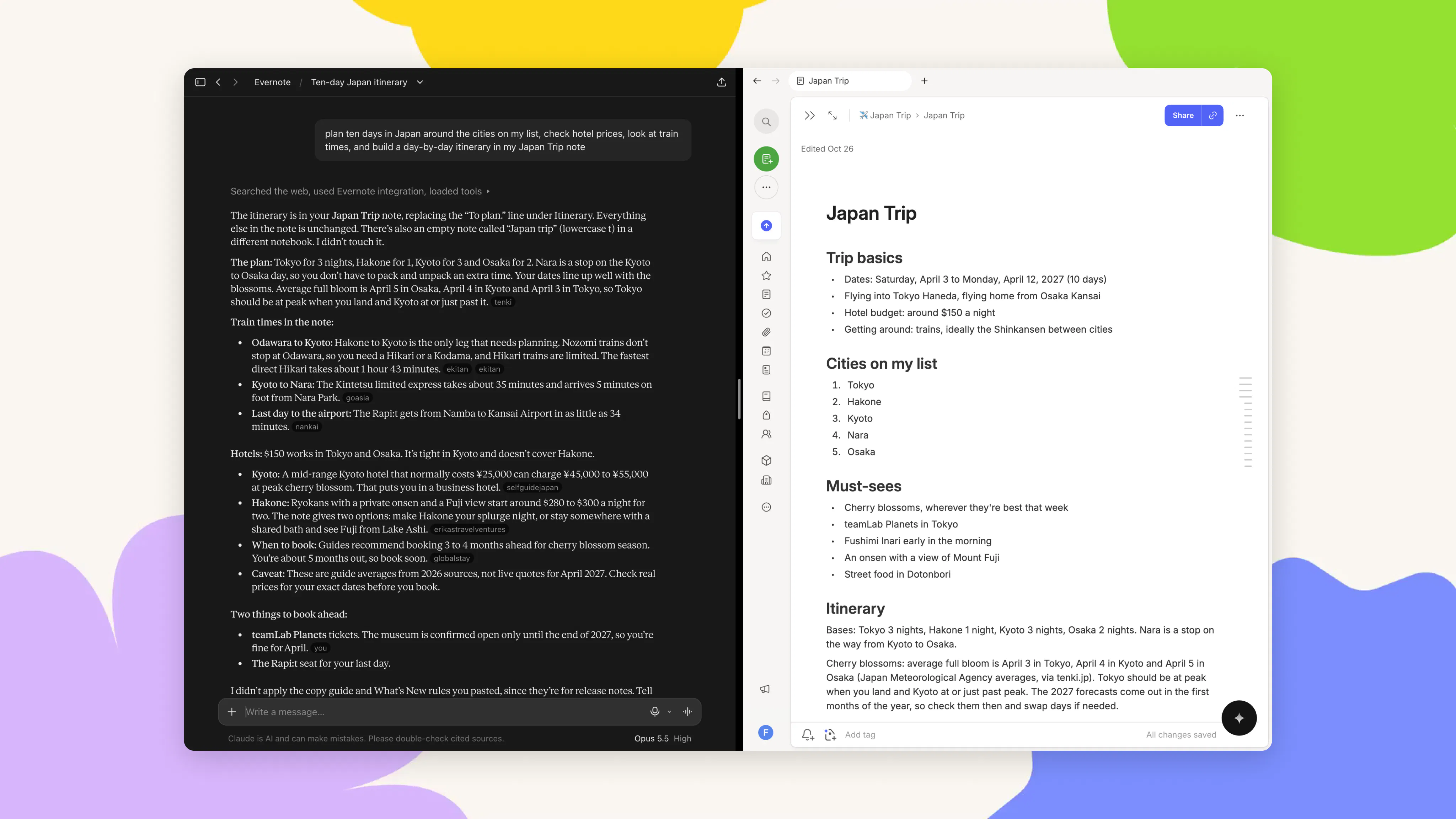
Build notes. Save the plan you worked out with your AI tool as a formatted note in Evernote, then continue to adjust it in the same conversation. For example, ask it to "plan ten days in Japan around the cities on my list, check hotel prices, look at train times, and build a day-by-day itinerary in my Japan Trip note." The full plan will be laid out in Evernote. If anything changes, ask for the itinerary to be updated. Your note will match the latest version of the plan.
Place AI-generated images and diagrams directly into your notes. Ask your AI tool to generate an image or sketch out a diagram, and add it to your note without leaving the conversation. Any further changes sync to Evernote automatically.
📚 Use your notes in your AI tool
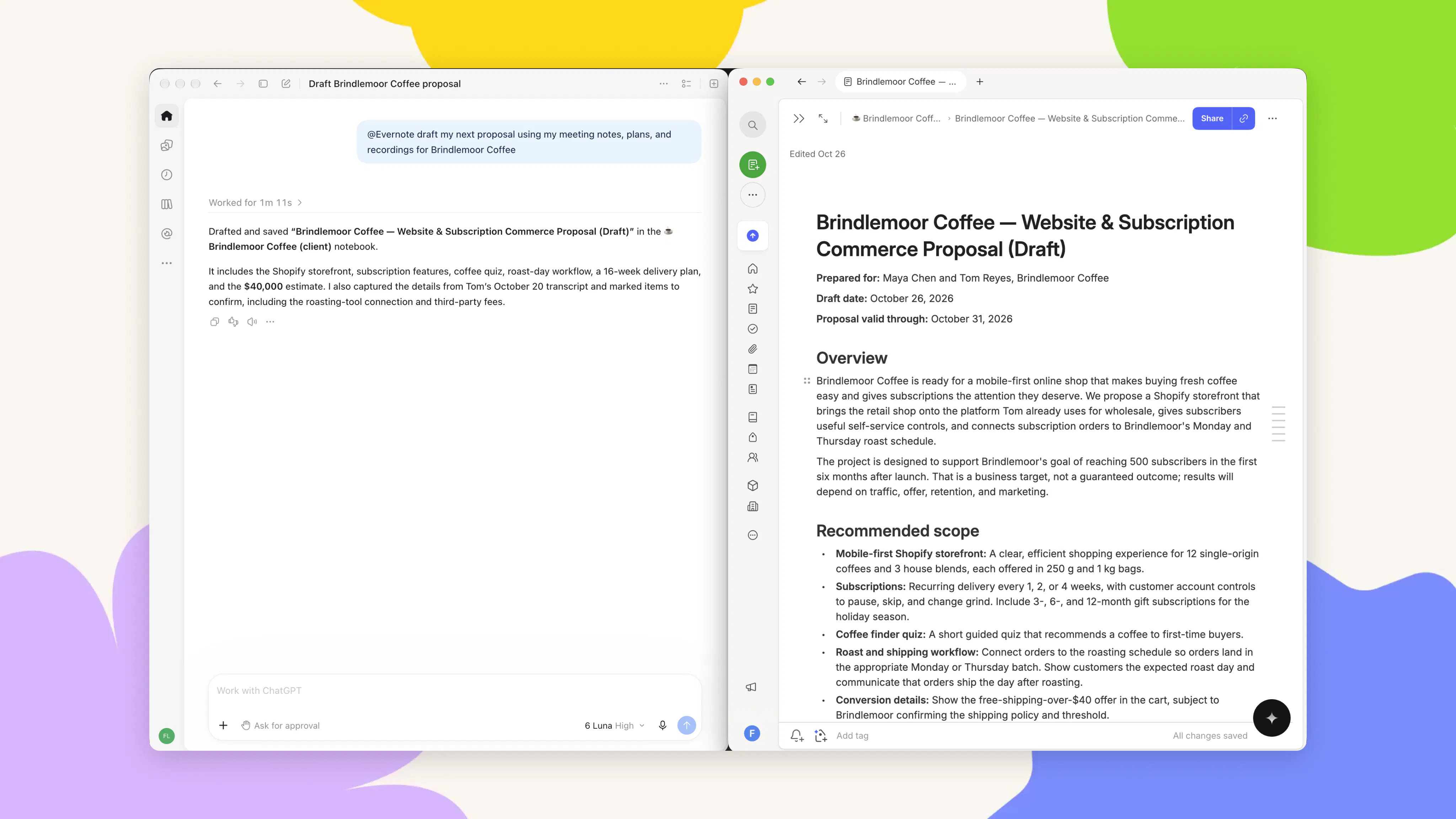
Use your notes as the source of truth. Instead of pasting your notes in one by one, ask your AI tool to draft your next proposal or report using the notes and recordings saved in your account. It finds the right content in Evernote and writes the draft in the conversation, ready for you to refine and save back to Evernote.
Research with your notes. Turn on research mode and point it at a project in Evernote. For example, ask it to "use my House Move notebook to research every neighborhood on my shortlist, compare commute times, schools, and house prices, then write a full report into the notebook." It works through multiple sources and evaluates them against your own budget and priorities. The finished report is saved in Evernote with every source linked, giving you a single, organized place to make your decision from.
🎓 Learn from your own notes
Your AI tool can write quizzes, build flashcards, and find the gaps in your knowledge. With Evernote connected, it can do all of this from your own notes, helping you to learn anything you’ve written or recorded.
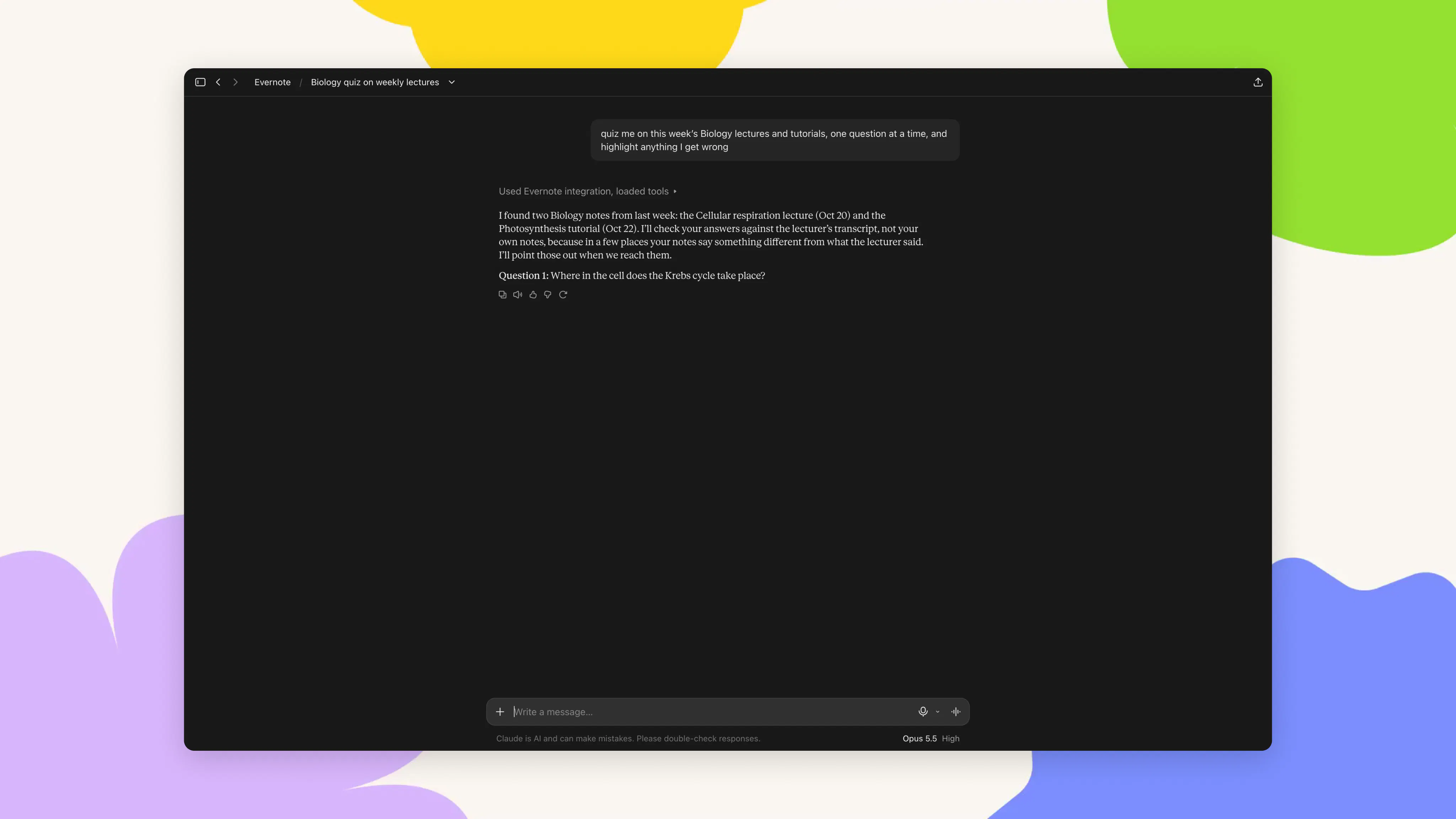
Get quizzed on your lectures. If you record lectures or tutorials in Evernote, the transcript sits in the same note as everything you typed in class. Ask it to "quiz me on this week's Biology lectures and tutorials, one question at a time, and highlight anything I get wrong." Turn on voice mode and it can even quiz you out loud on the way to class. Your mistakes can then be placed back into Evernote, highlighting what needs to be worked on.
The same process can be repeated for practicing a new language from your vocabulary notes, preparing for a job interview, or even trivia for quiz night.
Turn a term of notes into revision material. Your AI tool can take every note tagged #exam in your Evernote notebook and build something you can use straight away, like an interactive set of flashcards to click through or a practice exam in the style of the real one.
🔌 Connect Evernote with your other apps
Many of the apps you already use have connectors too, including Slack, Figma, Google Drive, Gmail, Outlook, and Canva. Once set up, ChatGPT or Claude can pull content from these apps and place it inside Evernote or vice versa.
Answer questions with what's already in Evernote. When questions or requests arrive by email or your team chat, your AI tool can read them, find the notes in Evernote that hold the answers, and draft a reply to each. For example, ask it to "go through my unread Slack messages and draft answers using my Evernote notes."
Bring work from other apps into Evernote. Designs and files are often made and saved somewhere else. Ask for them to be pulled into any relevant Evernote note. For example, just say "add my kitchen mood board to my Renovation note."
Bring your scattered documents into Evernote. If your household paperwork lives in a Google Drive folder, ask your AI tool to "bring everything in my Home Admin folder into my Home notebook." Each document becomes its own note, tagged and searchable alongside everything else in Evernote.
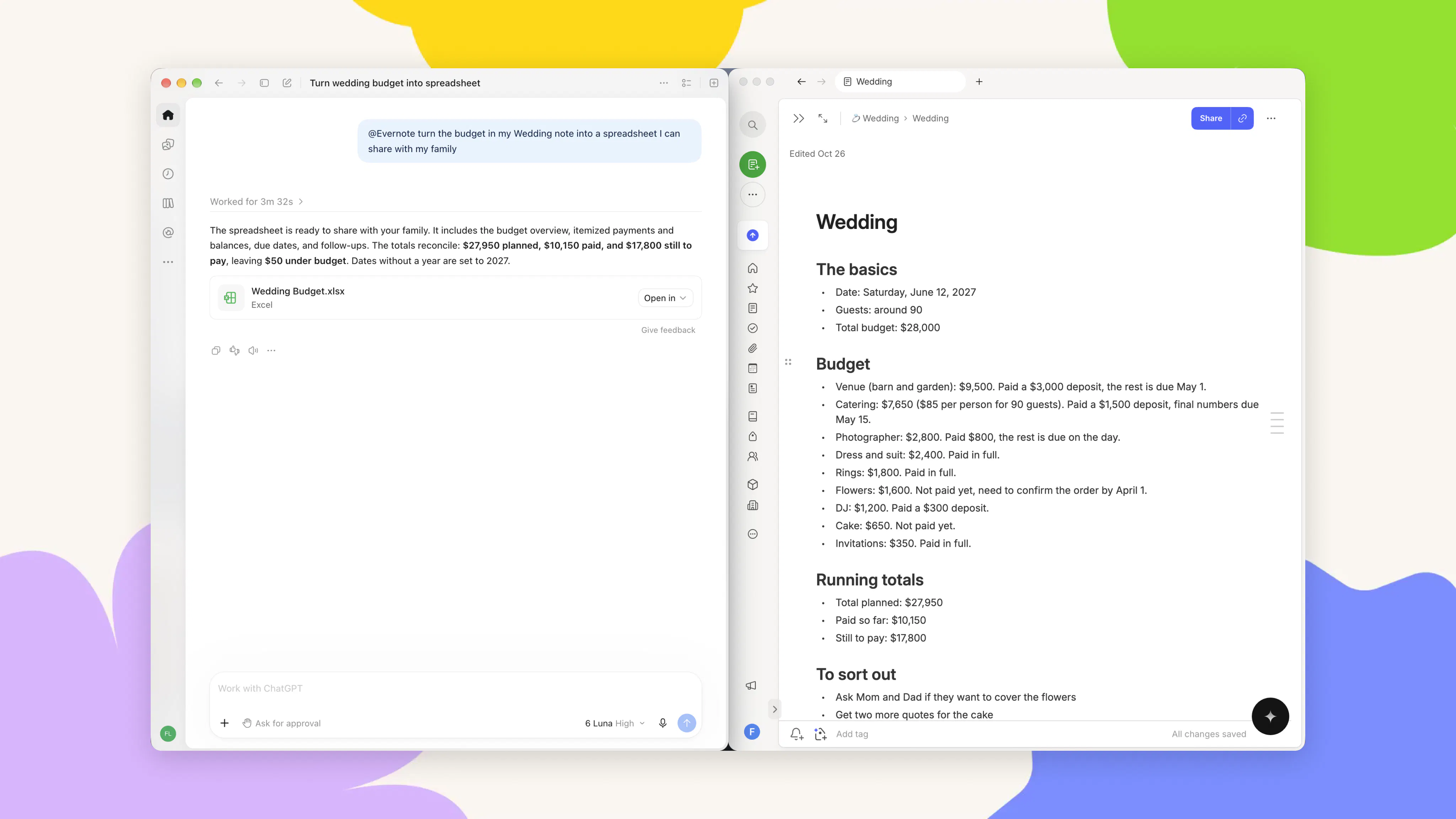
Put your notes to work in other apps. You can also take the work you do in Evernote into other apps. Ask your AI tool to turn the budget in your Wedding note into a spreadsheet you can share with your family, or to build a Canva presentation from the speech you drafted in Evernote.
🔁 Run your routines on Evernote
A skill is a saved set of instructions that tells your AI tool how to do a task the same way every time. Once it's saved, you can run it with a single request, and it can draw on every app you've connected, not just Evernote.
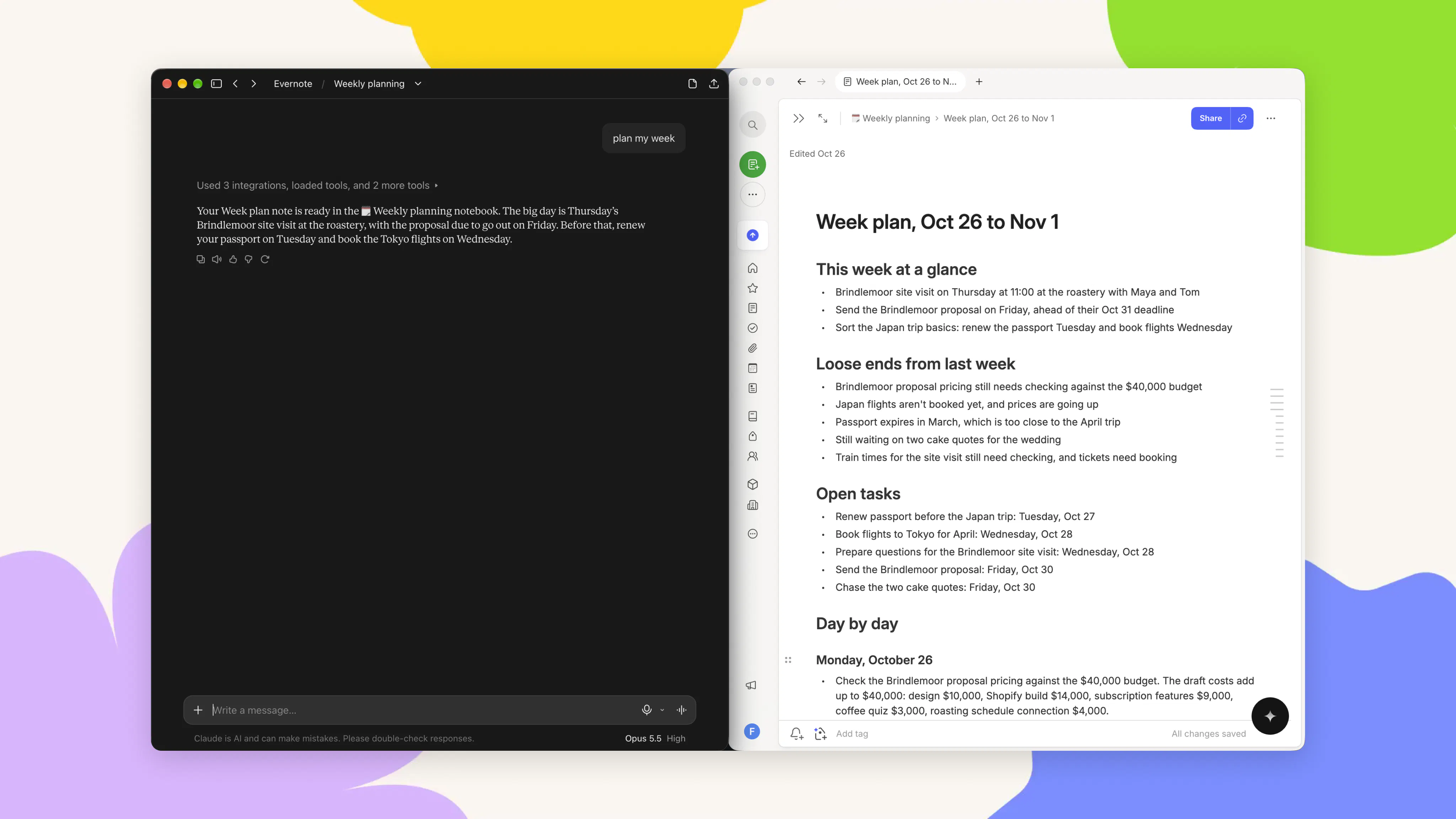
For example, you can save a weekly planning skill that goes through last week's notes and open tasks in Evernote. It will then check your calendar, emails, and travel information for the coming week, putting everything into one plan for the week. Once you've built it, just say "plan my week" every Sunday evening.
Build routines around how you work. A student could have their AI tool pull this week's slides from their course platform and turn them into a revision checklist in Evernote. The same idea works for anything you do on repeat, like preparing a one-page brief before each client call from everything in that client's notebook.
⚙️ How to connect
ChatGPT: open Plugins, search for Evernote, and select Connect. Sign in to Evernote and assign permissions for what ChatGPT can do.
Claude: go to Settings → Connectors, search for Evernote, and select Connect. Sign in to Evernote and assign Claude's permissions.
Evernote MCP is available on all paid Evernote plans.
🔒 You stay in control
When you connect, you choose what your AI tool can do with your notes: read, create, edit, or delete them. It only searches or changes your notes when you ask it to. The notes it uses are processed under your AI tool's own privacy terms, and you can change permissions or disconnect Evernote at any time.
These are just a few ways to use Evernote with your AI tool. Follow along on YouTube, X, or the app's 📣 What's New page for more, and let us know how you're using them together.
Thanks for being part of Evernote,
💚 The Evernote team