
We all know that after a meeting ends, details start to slip away. Who offered to send the contract terms? Was the deadline the 14th or the 19th? What exactly did the client say about pricing?
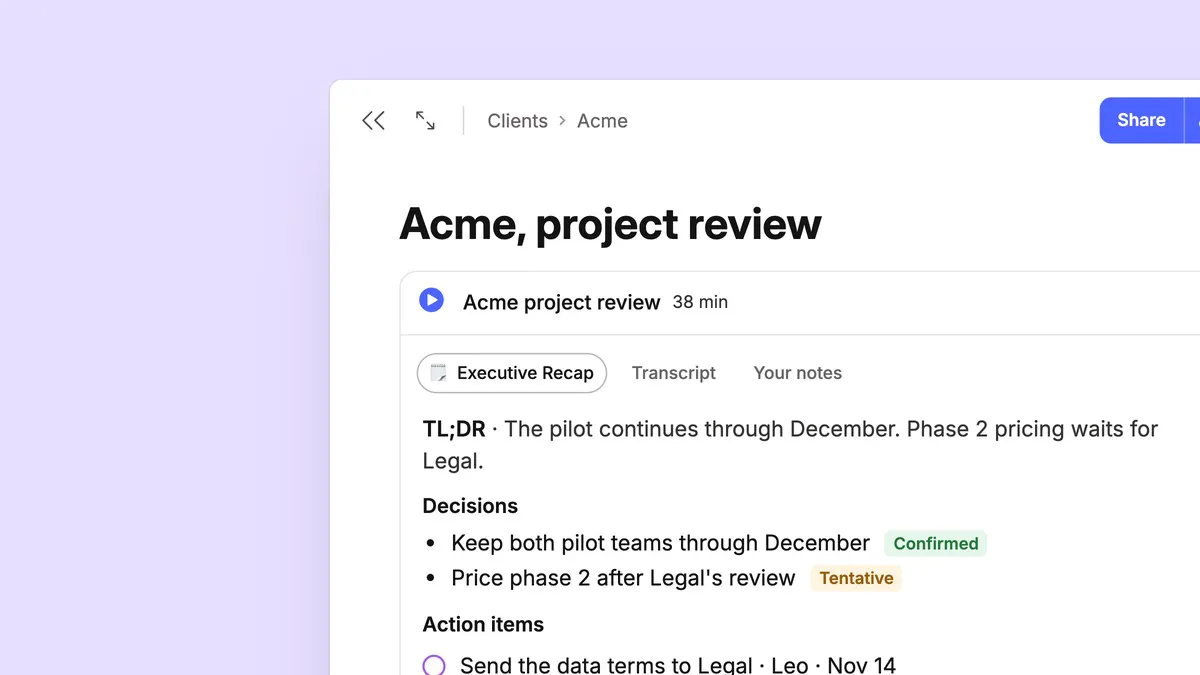
Meeting Recorder keeps the whole conversation in your note: the notes you typed, a transcript that shows who said what, a summary in the style you need, and the audio to go back to.
In this blog, we show you how to find, use, and set up each of these seven features:
- Start recording in one click. Record from the note toolbar or a calendar reminder, or let meeting detection remind you on Mac and Windows, even when the call isn’t on your calendar.
- Type your own notes while you record. Your notes sits next to the transcript, and Evernote uses them together with the transcript to write your summary.
- Follow the conversation live. On desktop and web, turn on live transcription to read and search what’s being said while the meeting is still going.
- See who said what. The transcript is split by each person speaking, and you can name each one, with suggestions from your calendar.
- Get a summary in the style you need. Choose one of six styles or write your own, then create a to-do list, a recap of the main decisions, or a draft follow-up email.
- Go back to any moment. Search for a word that was said, jump to it on the waveform, and replay it from 0.5× to 2×.
- Stay in control. Choose how your audio is transcribed and which AI features you use.
Meeting Recorder is available to all Evernote users on desktop, mobile, and Evernote Web. A few features are desktop only, and we've noted which.
⏺️ Start recording your meetings with one click
Open the note for the meeting, or create a new one, and select Meeting recorder in the toolbar at the top of the note. On your phone, tap Recorder on the Create screen.
When you're the only one talking, choose Voice note instead. It gives you a quick transcription, without naming each person speaking.
Two things help you remember to press record:
Calendar reminders. With your calendar connected, Evernote can remind you to join the meeting and start recording at the time it's scheduled to start.
Meeting detection. When Zoom, Microsoft Teams, or another meeting app starts using your microphone, Evernote for Mac and Windows reminds you to record, even if the call isn't on your calendar. Turn it on in Settings → Notifications. Learn more.
📝 Combine your live notes and the transcript during meetings
On desktop and web, Meeting Recorder records both your microphone and your computer's audio, so it records everyone on the call.
The recording card has three tabs: your summary, Transcript, and Your notes. While you record, it opens on Your notes, so you can type what matters to you as the meeting goes: a question for later, a number to double-check. Evernote takes Your notes into account when it writes the summary. Your notes is available from 11.43 on desktop and web.
The summary tab is named after the summary you’ll get when you stop, like Executive Recap. Select the current style to switch to another of the six, such as Executive Recap, Key points, or Standup. You can also create your own by writing instructions for what your summary should focus on and how it should be laid out.
A few more things help while you record:
A live transcript. On desktop and Evernote Web, turn on live transcription to follow the conversation as it happens, and search it while the meeting is still going. To have it start every time, turn on Start live transcription automatically.
Backups as you go. On desktop, Evernote saves a copy of the audio at least once a minute, so a crash never loses the whole recording.
A reminder to stop. On desktop, a pop-up reminds you to stop recording when the meeting goes quiet or when the calendar event linked to your recording ends. Evernote Web now reminds you when the calendar event ends too. You can turn this off in Settings → Preferences → Calendar → Remind me when a recorded meeting ends.
Only need the audio? You can now stop Evernote from creating a transcript and summary when you stop recording. Select the gear in the Transcript tab, then Auto transcription and summary, and switch off whichever you don’t need. To keep those settings for future recordings, select Use as default setting. You can still create a transcript or summary later.
🗣️ After the meeting: who said what
When you stop recording, the transcript appears in the Transcript tab, split by each person speaking. Meeting recordings use Speaker recognition by default.
If you turned off Auto transcription, the Transcript tab offers Transcribe instead. Hover over it to open Transcribe options, where you can turn Speaker recognition on or off, set the language, transcribe only part of the audio with Time range, and choose the summary.
To name each person, select their label, like Speaker 2. If the meeting is on your calendar, Evernote suggests the people invited, or you can type a name. Choose Apply to all to rename that person across the whole transcript, or Apply to rename one block.
On desktop, the names show up in the summary too. Hover over a name to jump to what that person said, then press play to hear it.
✨ A summary in the style you need
Different meetings need different summaries. Pick the one that fits:
Recap. A short summary of what was discussed.
Executive Recap. What came out of the meeting: decisions, actions, and priorities.
By topic. The discussion grouped by subject.
Key points. The headlines, fast.
Timeline. The meeting in the order it happened.
Standup. Who did what, what's next, and blockers, by person.
Evernote remembers the style you picked last and uses it for your next meeting.
When none of these fit, write your own. In the summary picker, select Create your prompt and give it a title. Next, choose where the prompt can be used by selecting Meeting summary under Works in. Then write what the summary should cover and how it should be laid out. Your prompt then appears next to the other styles for every meeting.
Summary styles change how the summary itself is written. The follow-ups under the summary create something new from it: select one to get a to-do list, a recap of the main decisions, or a draft follow-up email. For anything else, select Ask follow-up and type your own question.
▶️ Go back to any moment
The audio from your meetings stays in your note. On desktop and Evernote Web, the player shows the waveform with the avatar of whoever is speaking, so you can see who spoke when and jump to the part you need. You can slow it down to 0.5× or speed it up to 2×.
Search what was said. Evernote search finds words spoken in a recording and highlights the moment on the waveform.
Replay the live transcript. If you used live transcription, it opens next to the player and follows along with the audio.
Keep the file. Rename or download the recording from its menu.
⚙️ Good to know
- Meeting Recorder transcribes more than 50 languages.
- Transcription works on audio up to 2 hours long and 1 GB in size.
- You can record without an internet connection. When you’re back online, select Transcribe in the Transcript tab to create the transcript and summary.
- A summary needs a few lines of conversation to work from.
🔒 You stay in control
Tell people you're recording. Ask everyone in the meeting before you start.
Choose how audio is transcribed. Evernote’s own transcription model keeps your audio entirely within Evernote. For audio that’s hard to hear, you can switch to an external model from a third-party provider instead. Make the switch in Settings → AI features, or from the gear in the Transcript tab.
Live transcription is your choice. It sends audio to our speech-to-text provider, and Evernote asks for your consent before you turn it on.
AI features are optional. To record audio without transcripts or summaries, open Settings → Preferences → AI features and turn off AI Transcription.
Your notes and the new recording settings are available from 11.43 on desktop and web. Some features, like the new audio player, need the latest version of Evernote, so update the app to get them.
Try Meeting Recorder in your next meeting, and tell us on X or Reddit what you'd like it to do next. Your feedback helps shape everything we build.
Thanks for being part of Evernote,
💚 The Evernote team