
After over three years of development, including the introduction of v11 in January, we’re closer than ever to making Evernote your true ‘second brain’—a powerful, flexible, and dynamic tool that helps you create, remember, and grow. Since January, we've built on that foundation with 115+ improvements focused on four things you do every day: writing and building your notes, working with AI, capturing audio effortlessly, and using Evernote on the go.
Most of these improvements were inspired by our long-time users. We're hugely grateful to the people who share their feedback with us week after week. Together, we’re building the tool you need, with faster editing, more flexible formatting, advanced AI capabilities, and better mobile workflows.
Keep reading for an in-depth look at how Evernote has evolved in the first half of 2026 and where we’re headed next. You can also see the full list of 115 improvements or watch the video presenting our highlights:
📝 Notes & navigation: The ultimate canvas for your thoughts, ideas, and plans
Your notes should keep up with the way you think—whether that’s a quick checklist, a project plan, or a personal dashboard pulling together text, tasks, links, files, and reminders. These are the core workflows where your second brain takes shape: writing, structuring, and moving through your content with ease. That’s why we’ve spent the past few months investing heavily in these areas. Here are the highlights:
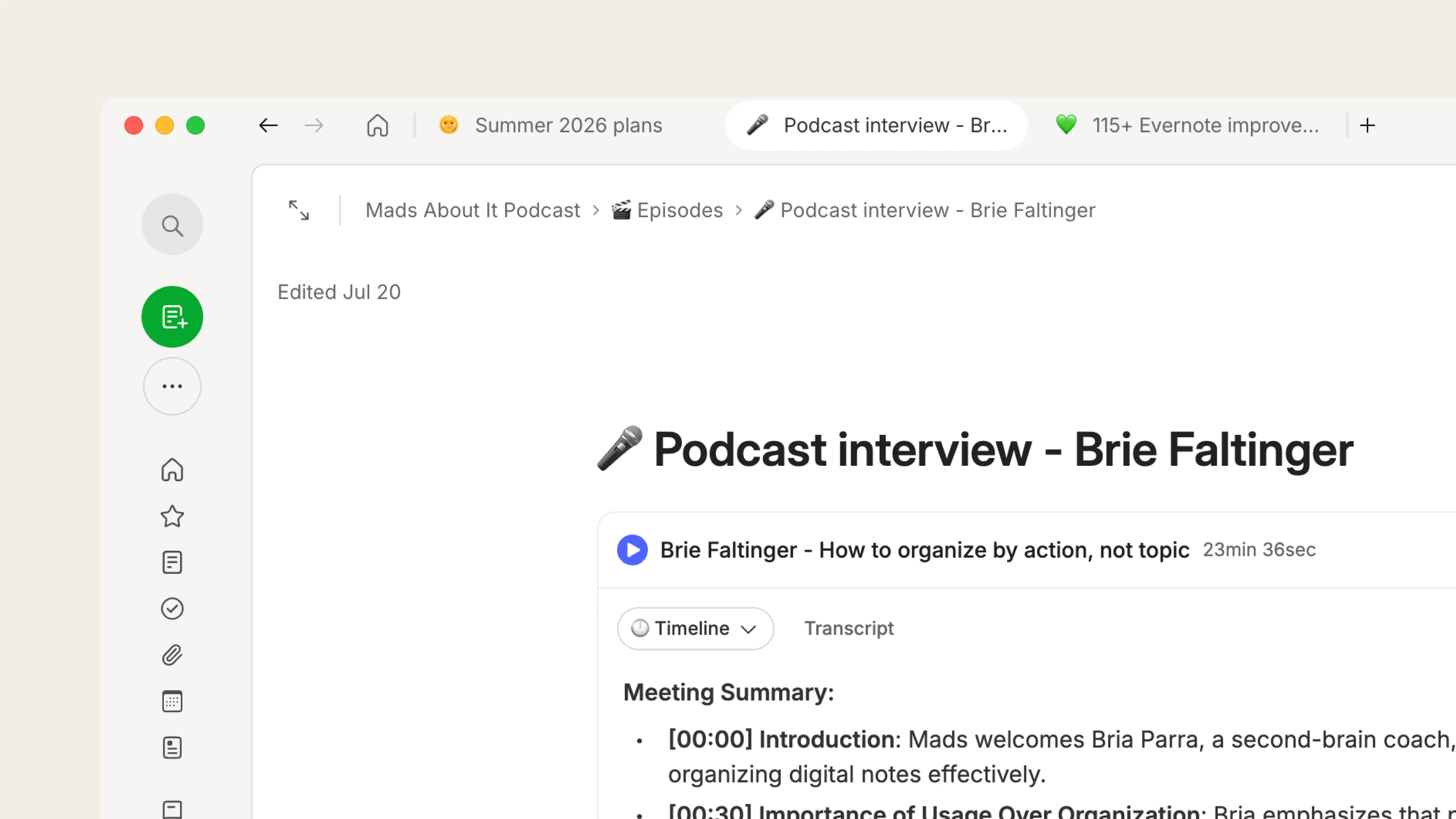
Tabs. One of the most requested updates we’ve made to the Editor is Tabs. As notes grow into longer, more complex workspaces, tabs make it much easier to move between different pieces of work without losing your place. Whether you’re comparing ideas, jumping between related notes, or keeping a project open alongside supporting material, tabs help you stay oriented as you work. You can now also drag to reorder tabs, pin them to the left, and open different account sections in new tabs too, like your calendar.
New types of @ mentions. Type @ to mention a note, notebook, stack, or space, or # to tag inline—linking a specific idea, task, or paragraph to the wider context it belongs to. You can now use @ to mention people too, making it easier to collaborate in shared notes.
New inline toolbar. Keep your favorite editing tools within easy reach with Evernote's new inline toolbar. The updated design makes it possible to style text and adapt content without reaching for a menu and losing your train of thought.
Callout blocks. Callout blocks make key points stand out, drawing your eye to important parts of a note with customizable colors and emojis for added personality.
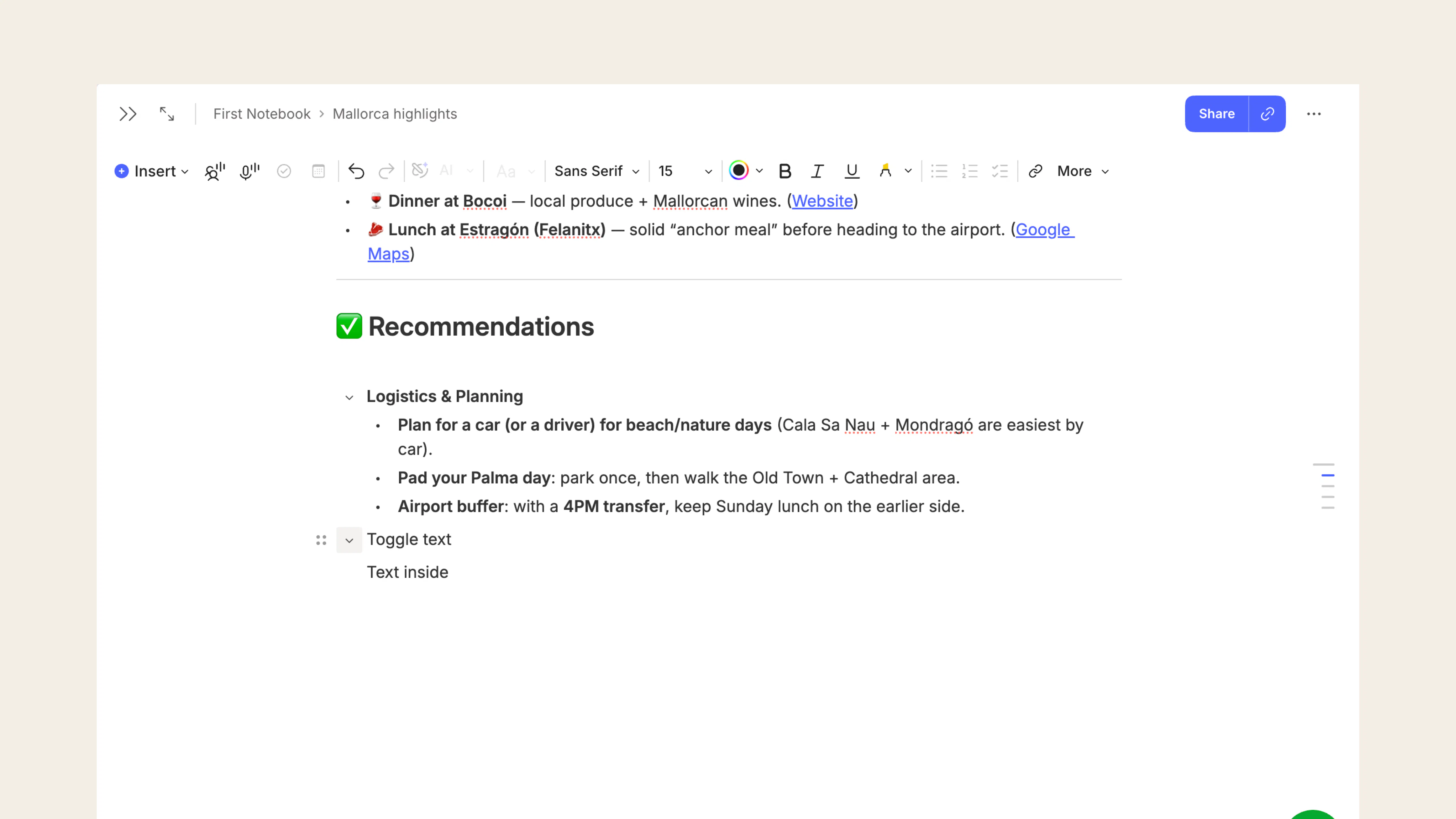
Toggle blocks. Headers have always been collapsible, but now you can create even more layers inside your notes by adding toggles on regular text. That means long notes stay tidier, with more structure and less clutter.
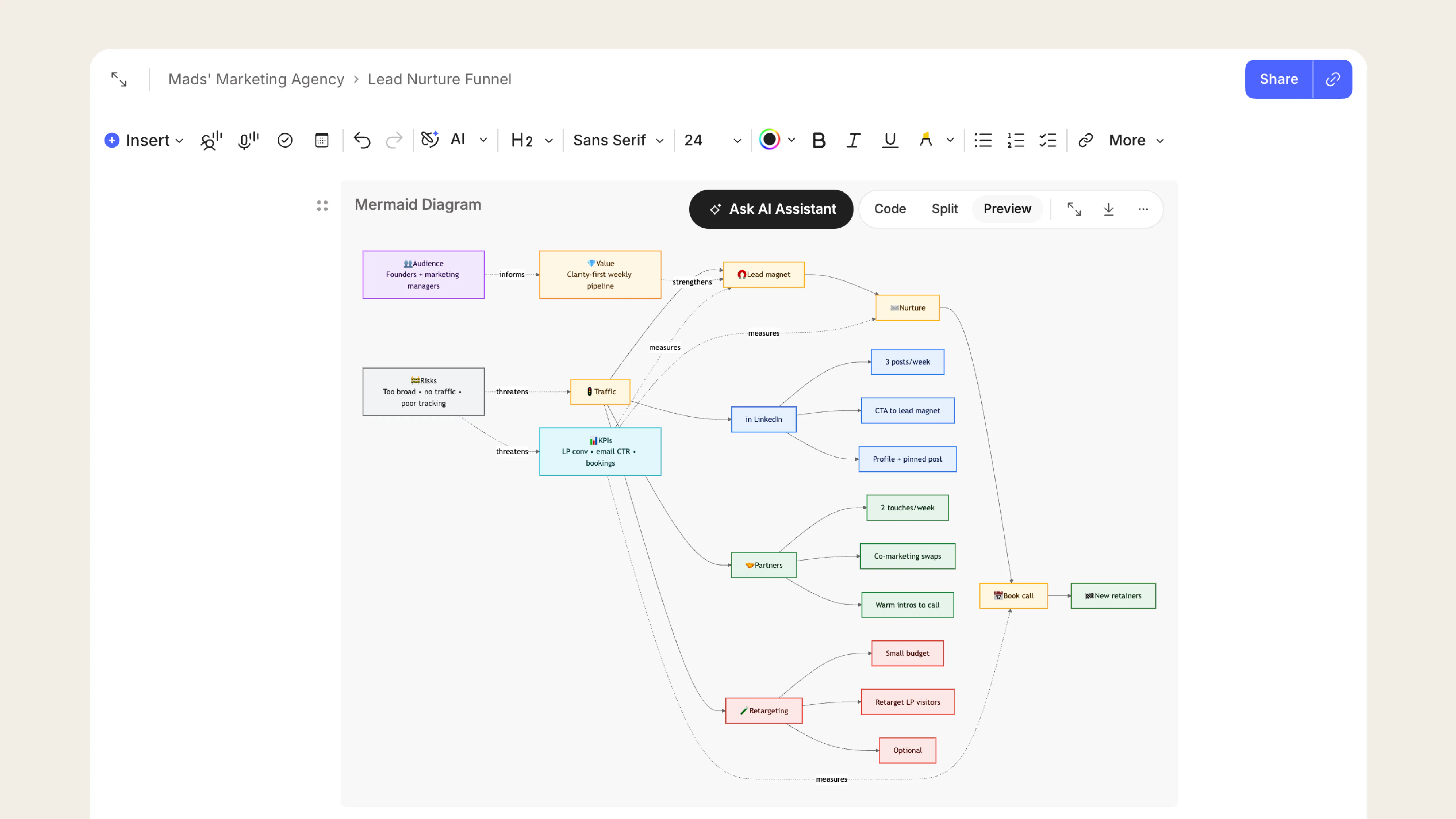
Mermaid diagrams. Turn a few lines of text into a flowchart or diagram, directly inside your note. Mermaid diagrams are a fast way to map a complex process, design a decision or logic flow, or illustrate how your ideas connect, without switching to another tool. Not sure where to start? Ask AI Assistant to build the diagram for you, so you get the visual without needing to learn any special syntax.
And that’s not all. We’ve also introduced Link View options, text wrapping around images, a more powerful Insert menu, richer Slash commands, floating table of contents, inline HEIC image support, and many other quality-of-life improvements to make writing in Evernote smoother than ever.
🦾 AI tools: maximize your productivity
Evernote’s AI Assistant is the built-in chat in Evernote, designed to use your notes and context to give you more relevant help. Because it works with the notes, tasks, and ideas you already trust Evernote to hold, it can tailor its responses to your context.
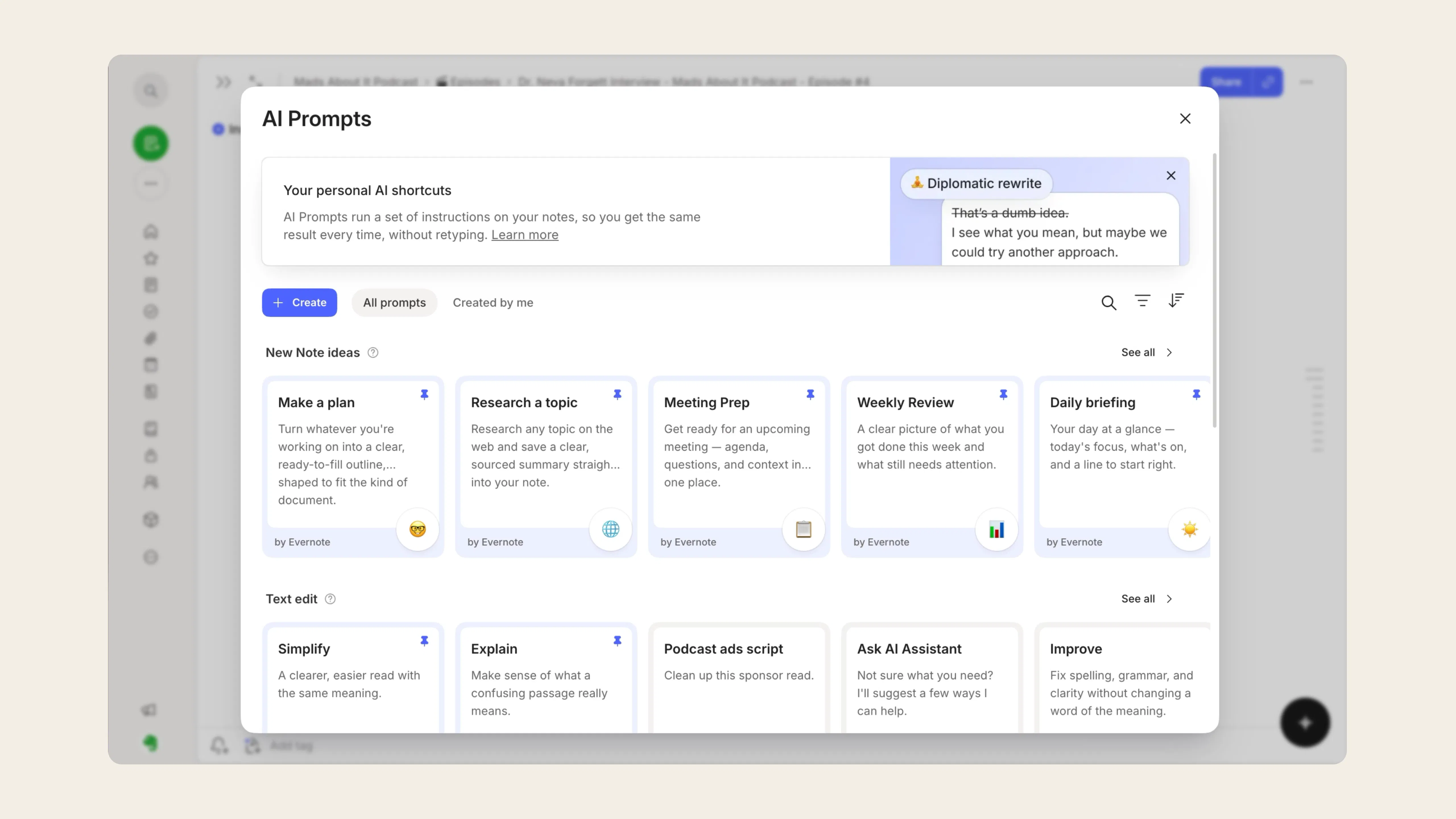
AI Prompts. Create a reusable AI workflow once, then run it whenever you need it—on an empty note, selected text, a transcript, or a recording. For recurring work like summarizing notes, drafting follow-ups, or turning rough ideas into a clean structure, you save the whole process instead of retyping the request each time. You can also @-mention AI Prompts in a conversation to trigger the workflow.
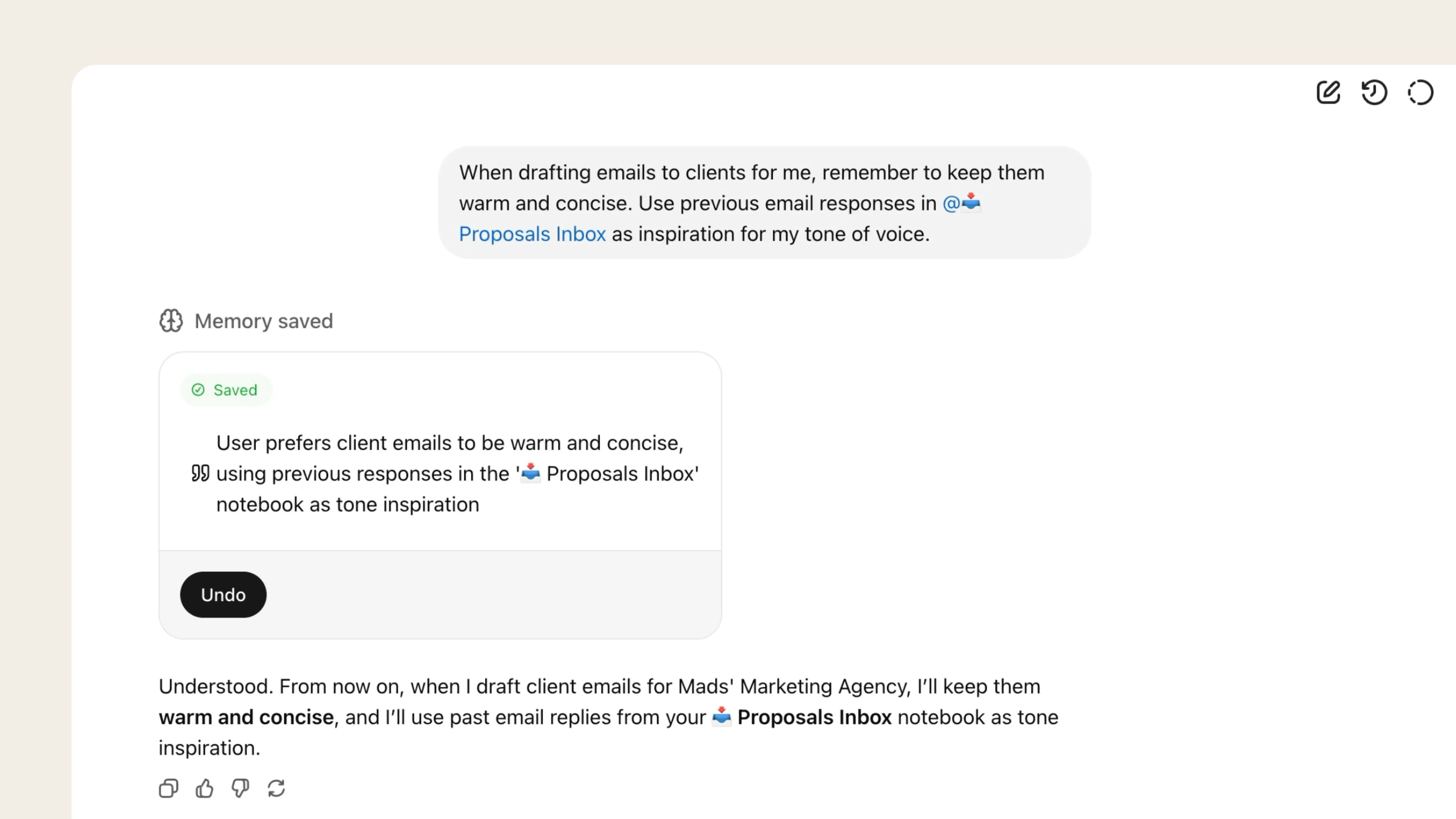
AI Memory. Instead of re-explaining your preferences, context, or working style every time, tell AI Assistant what matters once and it remembers to tailor all future responses to that preference.
Update multiple items at once. AI Assistant now helps you take action across your account in more ways than ever before: it can create and update tasks and reminders, tidy up your tags and notebooks, set up templates, and rename notes. So a request like "turn these meeting notes into a task list" can happen in a single interaction, rather than through several separate manual steps.
MCP. You asked for a way to connect Evernote to other assistants—so we built a solution. Through our new MCP (Model Context Protocol), you can connect Evernote to AI tools like Claude and ChatGPT. Once connected, you can work with your notes right inside those tools.
🎙️ AI Transcribe: Capture audio, effortlessly
We've introduced major improvements on how Evernote captures and transforms audio so you never miss important information from the conversations that matter—the back-and-forth of a meeting, the key points in a lecture, an answer in an interview.
Improved transcripts. Earlier this year we improved nearly every step of the audio transcription process. You can start recordings from more places throughout the app, including the toolbar, Calendar, and Meeting Notes. You also can set a transcription language and translate automatically when needed, transcribe audio up to 2 hours long, and keep transcription running in the background while you work in other notes.
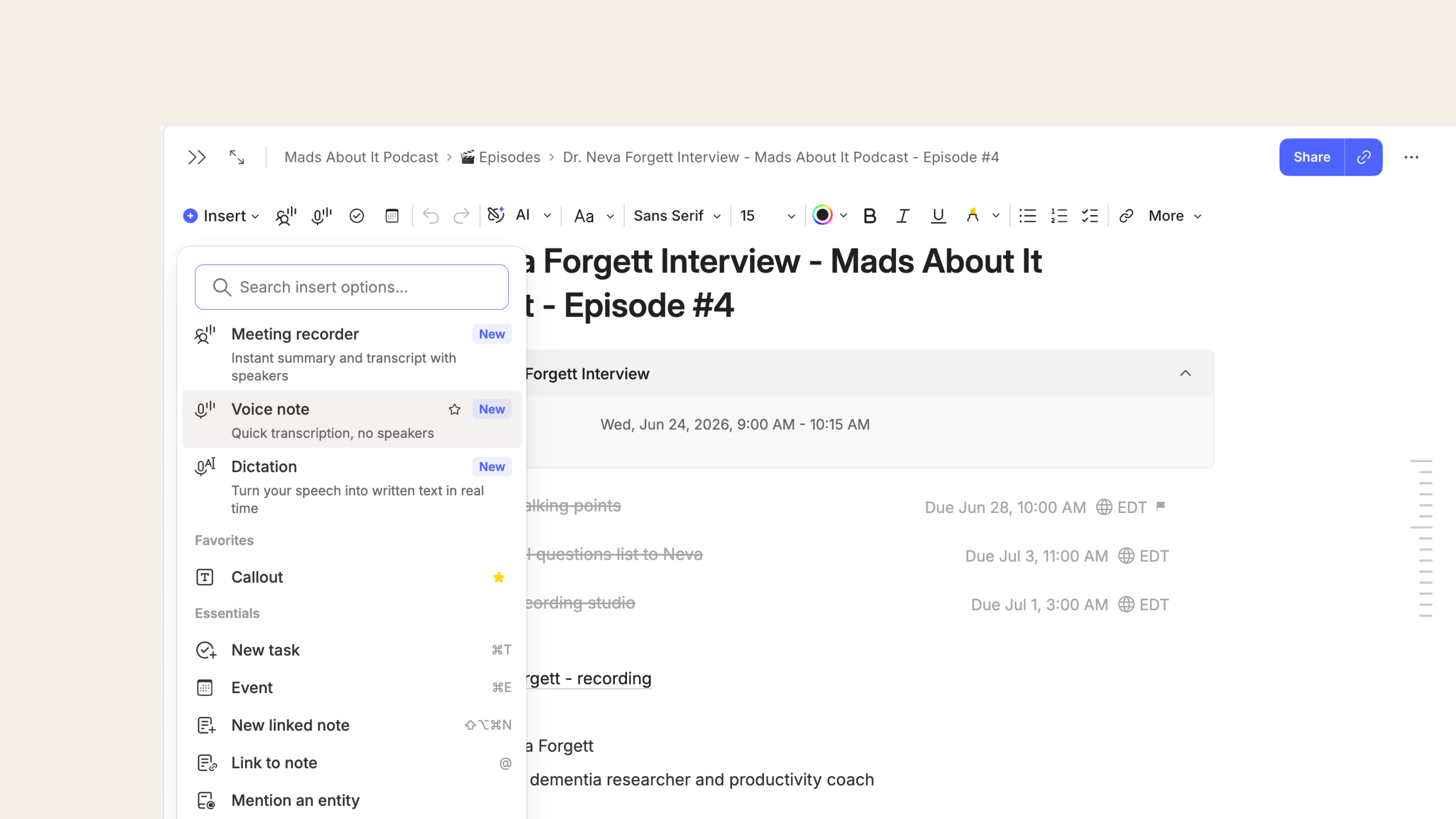
Recording modes. We redesigned the audio recording experience around two different needs: meeting recordings and voice notes. Meeting recorder helps you capture conversations with multiple people, while Voice note is built for a single-voice recording you want to capture in your notes.
Live transcription. Follow along as you record with the live transcript appearing in a floating, draggable panel. From there, you can also start a conversation with AI Assistant mid-recording to ask questions or get a recap of the conversation so far.
Automatic transcription. Upload an audio file and Evernote automatically transcribes it, turning the recording into a searchable, editable note without any extra steps.
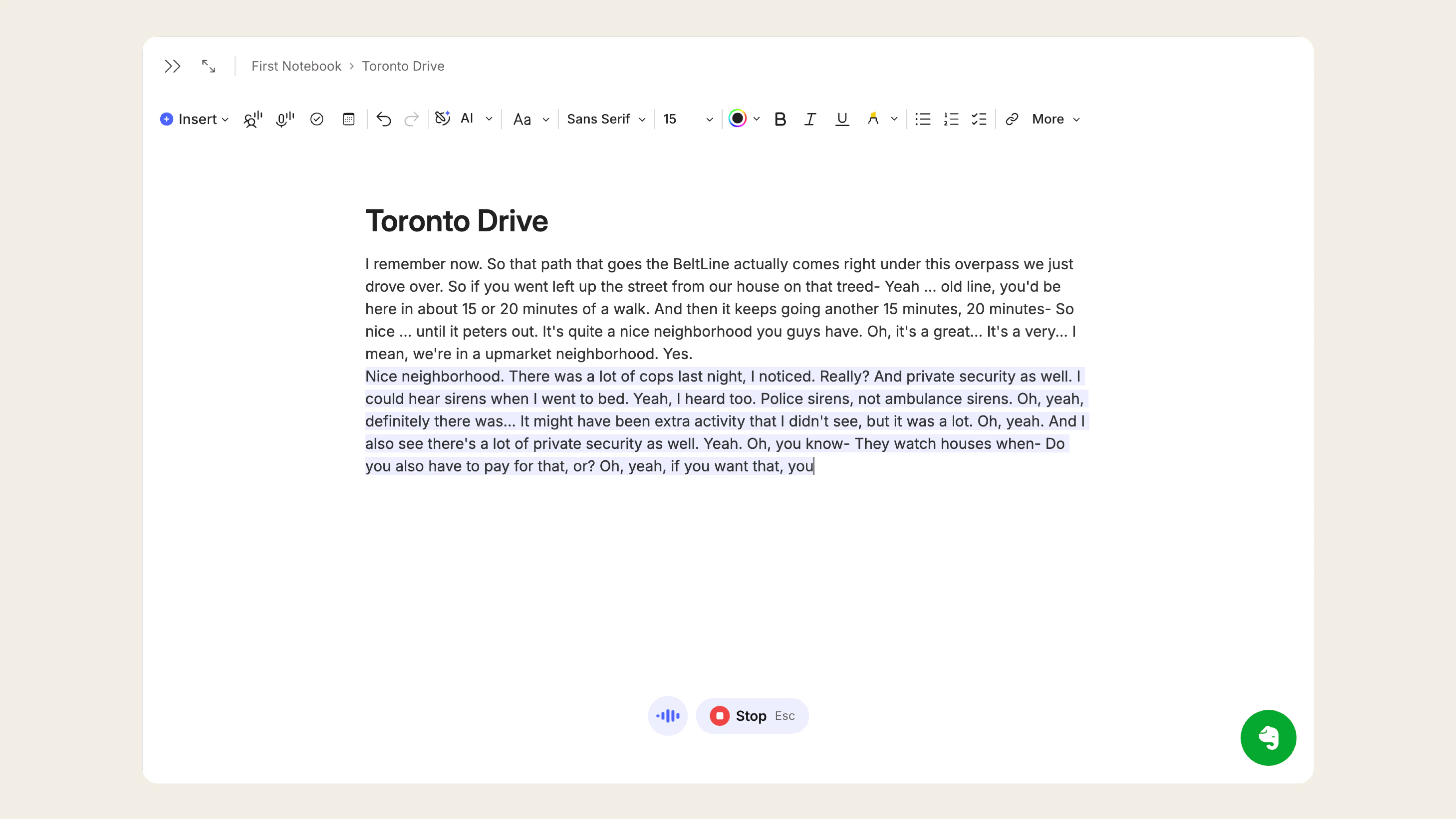
Dictation. You might be surprised how differently your ideas flow when you're not tied to the keyboard. Some people would rather talk through an idea than write and think at the same time. The new dictation feature lets you do exactly that: talk to Evernote and watch the words appear in real time in your note as you say them.
Taken together, these updates make it easier to turn spoken ideas, meetings, and recordings into searchable, editable notes you can return to, refine, and build on inside Evernote, with less manual work involved.
📱 Evernote Mobile: The best of Evernote, wherever you are
So much gets captured on the go: a whiteboard after a meeting, a receipt, a handwritten note, a document to scan, a thought you dictate while walking, or a task you remember between appointments. That's why we’ve been working hard to make Evernote as powerful on mobile phones and tablets as it is on your desktop computer.
A better mobile editor. The redesigned formatting toolbar puts everyday tools within easy reach, and slash commands and @ mentions now work on mobile too—so you can add structure and context without leaving the keyboard.
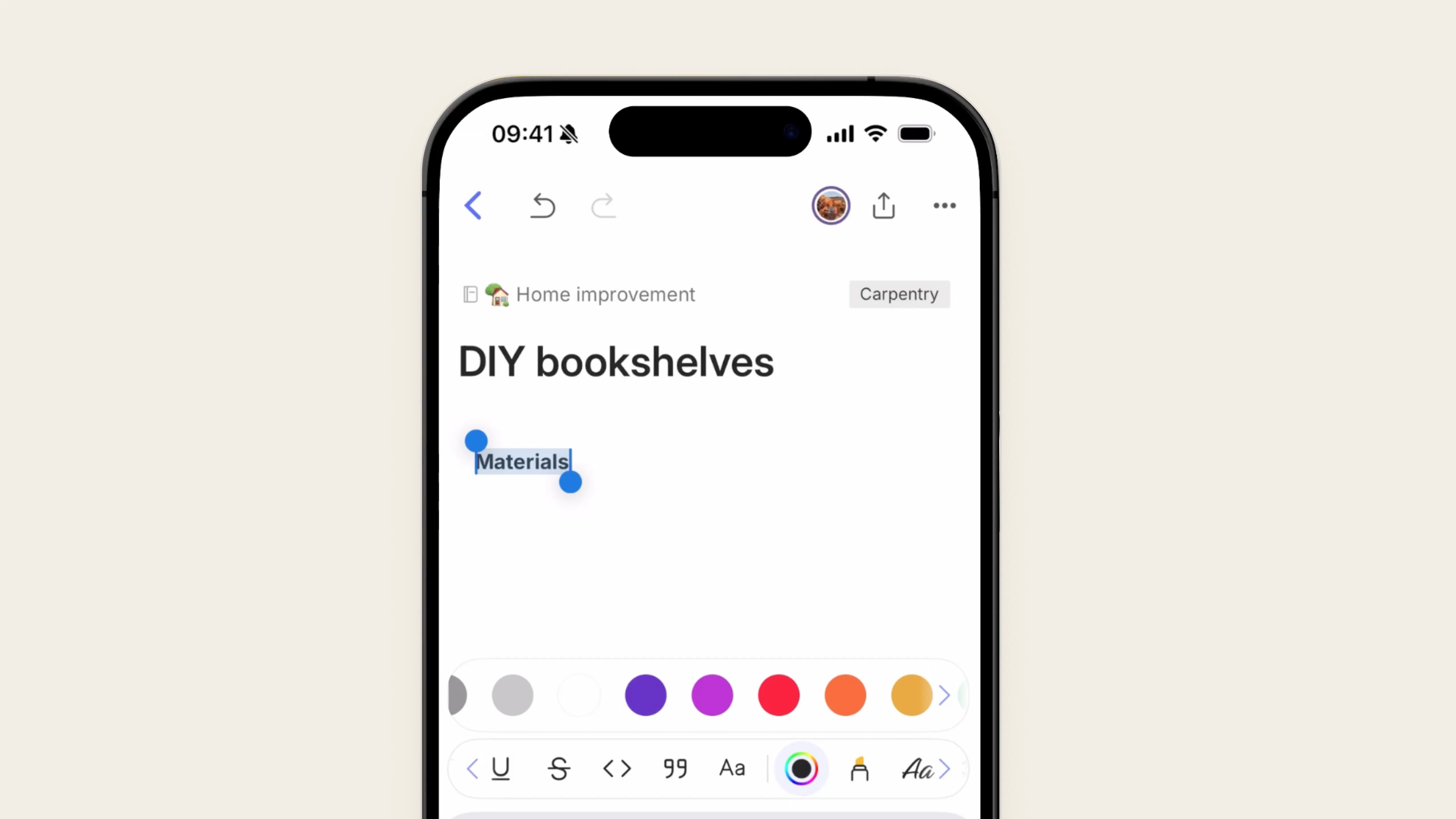
AI Assistant on mobile. The AI Assistant, including AI Prompts and AI Memory, is now available on mobile, so you can unlock the full potential of these tools from your phone and tablet too.
Mobile camera and scanning. The camera inside the Evernote mobile app has a cleaner design, with an integrated scan function, PDF support, and manual adjustments (pinch to zoom, tap to focus, and front/rear switching) that make it easier to capture important documents so they don’t get lost.
Wherever you are, capturing your ideas and important information in Evernote is now just as easy as it is when you’re at your computer—and the two systems always stay in sync.
🚀 Beyond features
Building the best second brain isn't only about launching new features. It's also about making Evernote faster, smoother, and more reliable. Many of our improvements are the smaller fixes and refinements that quietly remove friction from your everyday actions in Evernote. You can find some examples of those in the full list of improvements we made since January.
Your feedback plays an important role in the process of identifying what changes move the needle for our users. Bug reports and feature requests help shape what we prioritize and where we focus next. Share your ideas and requests with us.
We also added a new What's New page inside the app, so you have one place to catch up on recent updates and find useful resources on any feature. You'll find it at the 📣 icon in your navigation bar on Desktop, or from the menu under your profile icon on Mobile.
What’s next
The first half of 2026 was about making Evernote v11—its core workflows and new capabilities—more powerful than ever: a better Editor, deeper AI workflows, richer capture options, and a stronger mobile experience.
Next, we’re looking at improvements to some of our most-loved Editor features, including tables and tags. We’re also exploring ways to make organizing content across Evernote more efficient and intuitive, with smarter ways to categorize and sort information.
Plus, we’re working towards making every single piece of content you add to Evernote—no matter the format—searchable. Optical Character Recognition (OCR) already lets you find text inside images and files via the Search, but we want to expand that to all your audio content too. The idea is that a voice note from years ago back with an idea can be surfaced when you ask a question about your notes or are looking for mentions of a keyword in Search.
Want to keep up with everything new? Follow along on X, YouTube, or check the 📣 What's New page inside the app to see all the updates in one place.
Until next time,
💚 The Evernote team