
From budgets to trip checklists, tables keep some of your most useful notes in order.
For years, you've used tables in Evernote to hold your information. Until now, though, you couldn't reorder or filter the rows, it was easy to lose your place in a wide table, and there wasn't much in the way of customization to make a table your own. Over the last couple of months, our team has worked tirelessly to change that.
You've been asking for more from your tables, and we heard you. We've added sorting, filtering, frozen columns, a new table style menu, and plenty more small improvements.
Here's what has changed, and how you can use the new features brought to tables to make Evernote work better for you.
🧊 Keep the first column in view
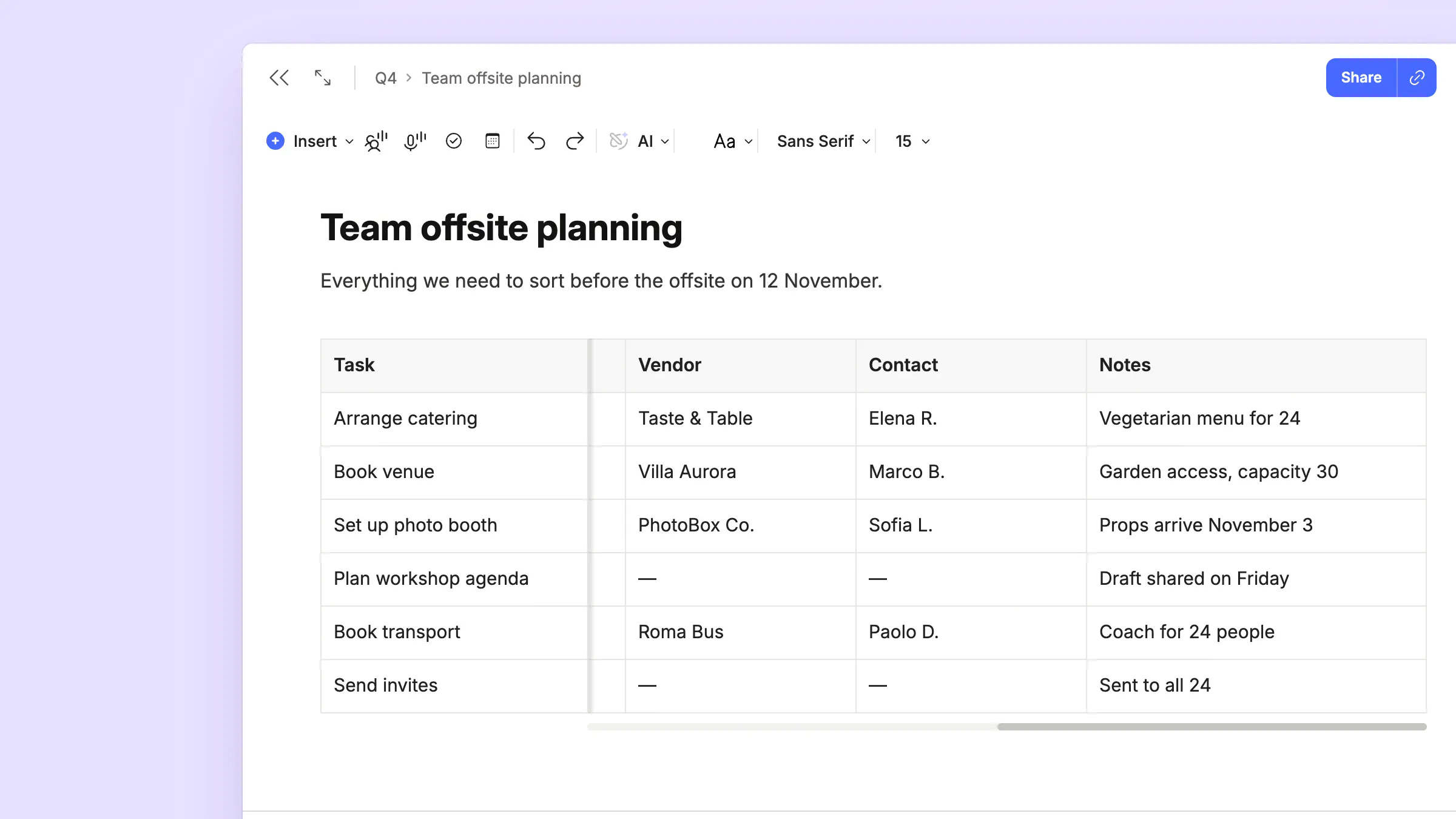
Freeze columns. Select a column, open the table options menu, and choose Freeze column. That column and every column to its left then stay on screen while you scroll through the rest of the table, so the information you use for reference is always in view. For example, freeze the first column of a project tracker, and the task names stay on screen as you scroll across, so you never have to scroll back to check which task a deadline belongs to.

🔀 Sort, filter, and customize your tables
Sorting and filtering were some of the table features you asked for most, and now they're here. Along with headers and custom borders, they make it much easier to find what you need in a table and to make the important parts stand out. You'll find them all in the table options menu, which you can open from the three dots on any cell or the dropdown above your table.
- Sort your rows alphabetically, by number, or by date, to put your information in the order you need. For example, put a list of upcoming birthdays in date order, or your expenses in order of cost.
- Filter out the rows you don't need. Tables can hold a lot of information, but sometimes all that information gets in the way of seeing only what you need. Filtering hides the rows that don't matter right now. For example, hide the books you've already read, so your reading list only shows the ones to choose from next.
- Make the top row or first column a header. It's then easier to see what each row or column holds, so you can find what you're after at a glance.
- Change your borders. Choose solid, dashed, or dotted lines, and set their width and color. Use them to make the important parts easier to pick out, or just to brighten up a plain table.
🎯 Select and style many cells at once
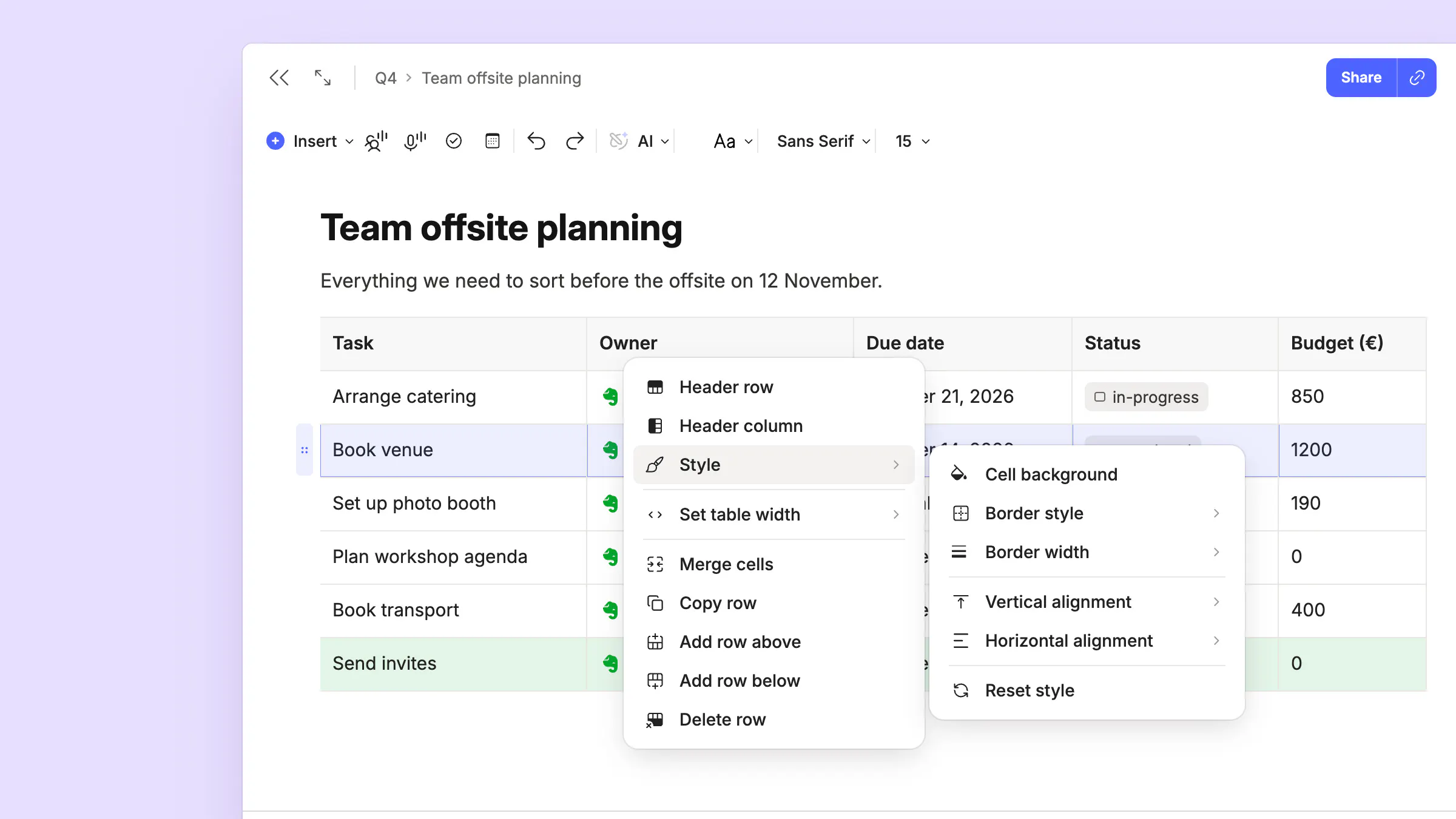
Changing cells one by one gets old fast. Save time by aligning and coloring many cells at once with the new table style menu.
Select the cells you want. Hold Ctrl on Windows or Cmd on Mac and click to pick cells that aren't next to each other. To select the whole table, click in any cell and press Ctrl+A on Windows or Cmd+A on Mac.
Then style them in one go. Open the table style menu to change the background color or text alignment of every selected cell at once. For example, color the guests who've already replied to your party invite, so you can see right away who hasn't replied yet. You can also align text to the top, middle, or bottom of a cell.
🔧 Many smaller improvements
- Make columns the same width. Distribute your columns evenly to give every column the same width in one go, so your table looks tidy without you dragging each edge by hand. To even out just a few columns, select them first.
- No scrollbar when you don't need one. The horizontal scrollbar now only appears when a table is too wide to show all its columns at once, so there's no empty scrollbar cluttering up your note.
- Margins for large tables. Large tables now have a margin on the left and right, so their content no longer sits right against the edge of the screen.
🧮 Coming soon: Basic calculations in tables
Many of you have asked for basic calculations in tables, and we’ve heard you. Soon your tables will be able to add, subtract, multiply, divide, or average the numbers in columns and rows for you, and update the result as you make changes. You’ll also be able to work out a result from only the rows you need by filtering out the rest, alongside many other improvements.
A lot of these changes came from the feedback that you gave us, so please keep it coming. Tell us on X or Reddit how you're using the new table features, and what you'd like us to add next.
Thanks for being part of Evernote,
💚 The Evernote team