

This quarter’s 62 improvements make five things you do every day easier: organizing your notes, working with PDFs and images, using AI assistance, recording your conversations, and using Evernote on the go.
Many of these improvements were inspired by your feedback. In our last recap, we said improvements to tables and searchable audio were coming next. You can now sort and filter your tables and search what was said in your older recordings. Alongside those, we’ve made Evernote easier to customize and better at capturing your meetings.
We’re immensely grateful to everyone who shares their thoughts with us week after week. You can share your feedback with us anytime. If you spot a bug or have an idea for a feature, report it straight from the What’s New page in the app so we know what to fix and build next.
Here’s an in-depth look at how Evernote evolved from July to September, and where we’re headed next. You can see many of these updates in action in our July, August, and September recap videos, and review the full list of all 62 improvements.
📝 Notes & tables: Bring order to everything you keep
The more you keep in Evernote, the more your notes need structure. A project plan is easier to follow when its table is sorted, and a long note is easier to read when you can fold away the details. That’s why this quarter we focused on the tools that keep your notes organized and easy to search. Here are the highlights:
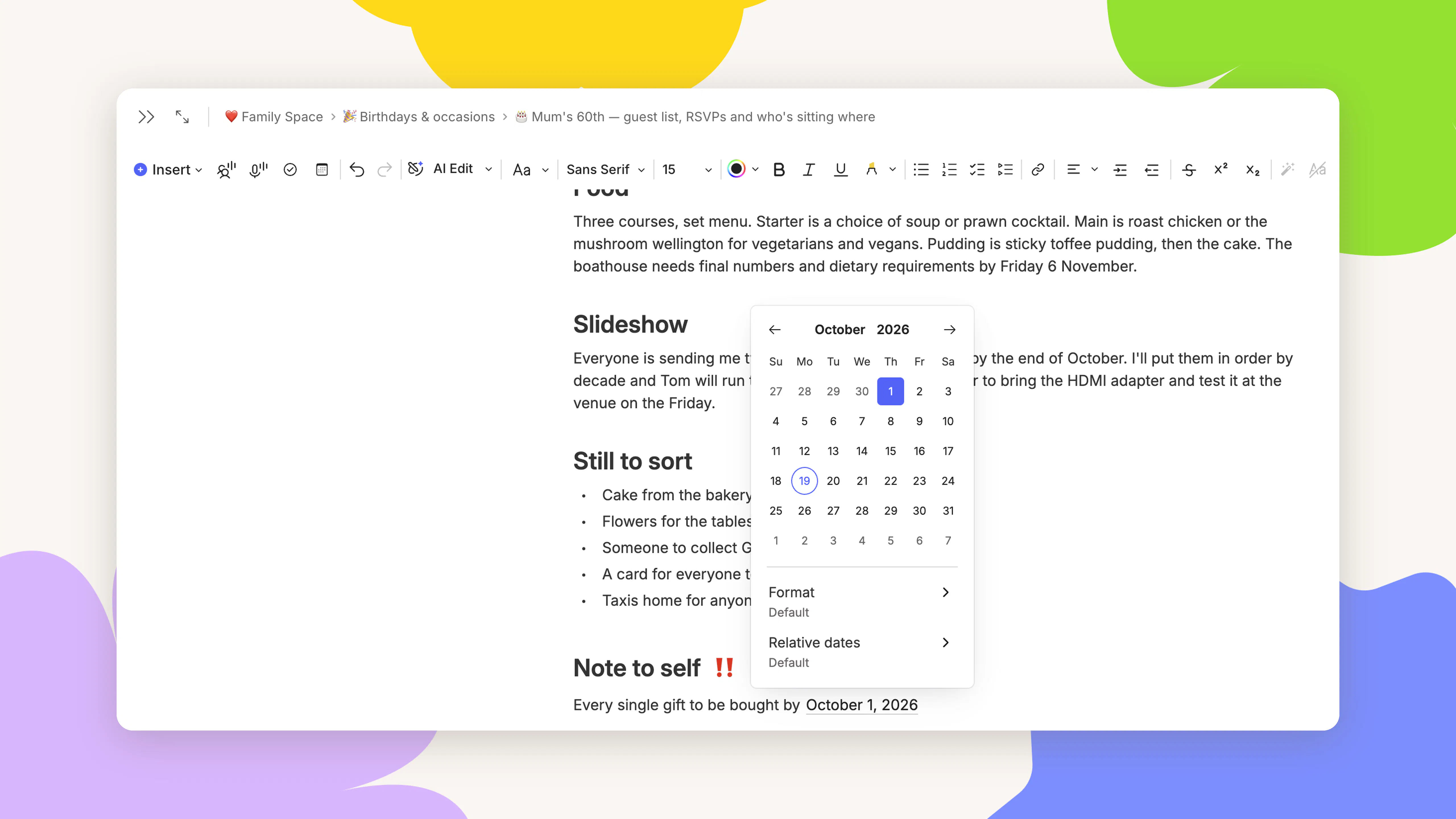
Sorting and filtering in tables. Tables are often the clearest way to lay out information in a note. Now you can sort rows alphabetically, by number, or by date, and filter out the ones you don’t need. You can also set the top row or first column as a header, and customize the style, width, and color of your borders. Open the menu from the three dots on any cell, or use the dropdown above your table.
Images in tables are easier to resize and move, and columns spread out the way you like. Pasting from Excel or Google Sheets works better too.
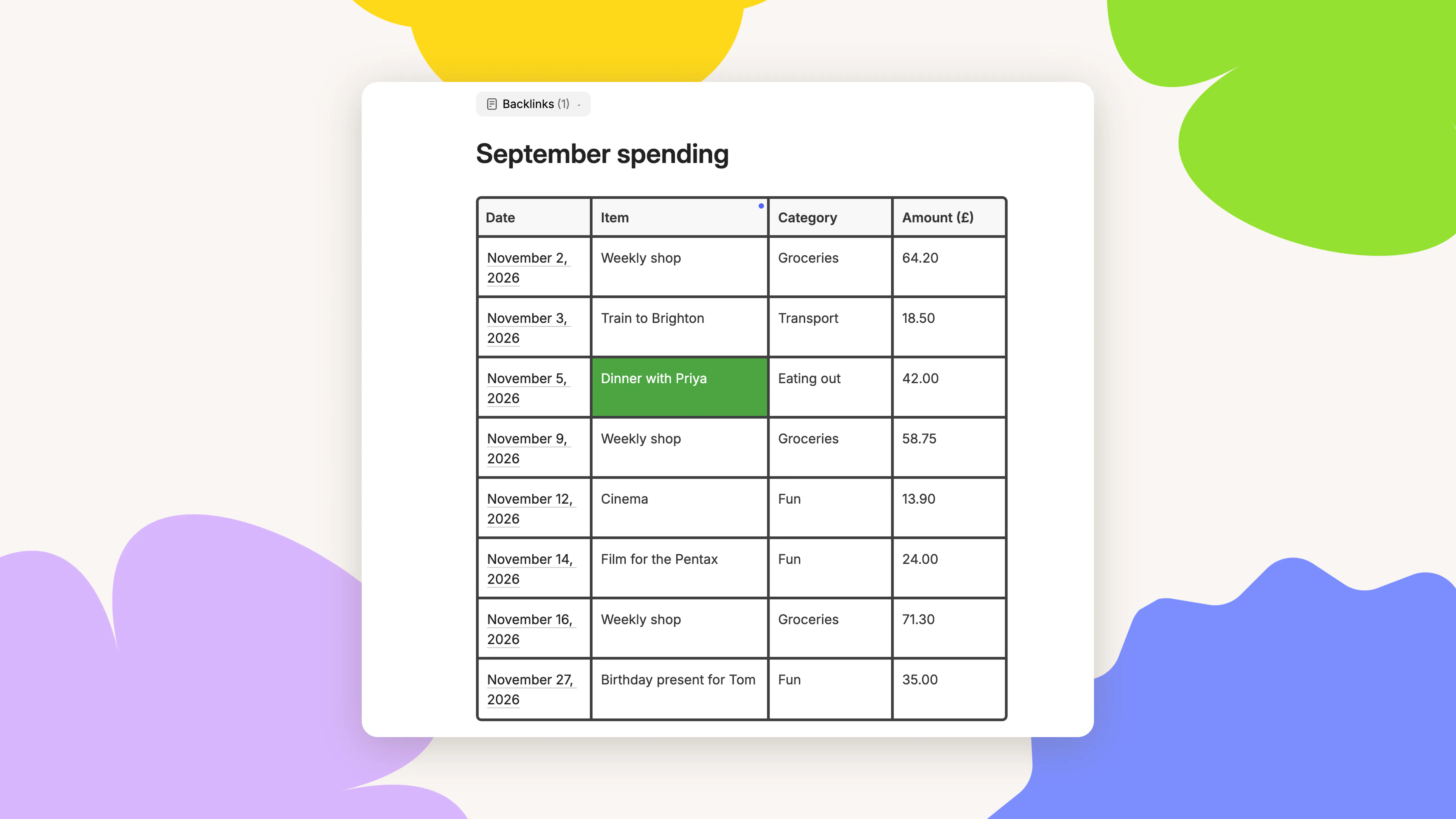
Date mentions. Type @ anywhere in a note to drop in a date that updates automatically. You can use natural language like “tomorrow,” “next Friday,” or “1st January.” You can also add relative dates to your note templates, like @Next Monday, so they always show a date that makes sense when you use them. To customize the date format and more, head to Settings, then Notes.
Toggle lists. You can now keep long lists tidy and see only the details you need with toggle lists. Turn list items into toggles, or create a toggle list straight from the formatting toolbar. Toggle titles also support @ mentions, note links, and # tags.
Page breaks. Want a section to start on a new page when you export to PDF? Type / and choose Page break. A dashed line shows where the page will split, and you can move or delete it anytime.
Jump straight to your search match. When a note contains your exact search term, opening it from your search results takes you straight to the first place it appears. Find in Note opens automatically, so you can move through the other matches. Matches inside images, PDFs, and recordings are highlighted more clearly too.
And that’s not all. We’ve also introduced Pastel and Bright highlighter palettes, more emojis to choose from, quicker ways to close tabs, and the option to request access to notes you can’t open yet, along with many other quality-of-life improvements.
📄 PDFs & images: Edit your files without leaving Evernote
So much of what you keep in Evernote isn’t typed text: contracts, receipts, slides, and scanned forms. Until now, working on those files often meant opening them in another app. This quarter, we brought more of that work into Evernote.
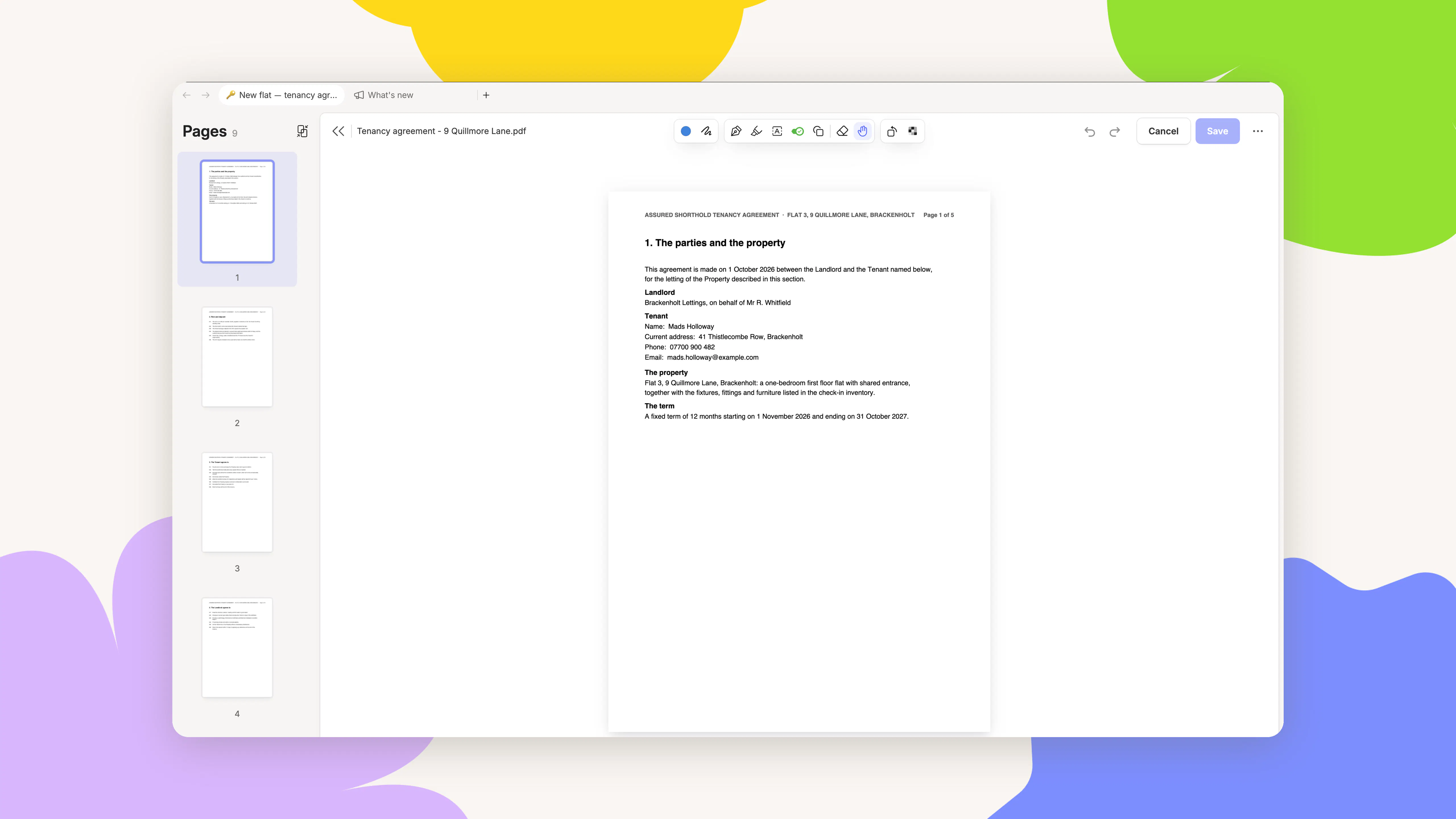
A new PDF editor. The PDF editor got a full refresh, so you can do much more without leaving your notes. Double-click any PDF to open it.
From the new page sidebar, you can delete, insert, reorder, or rotate pages. You can also merge several PDFs into one, or split one apart. Need to share a document? Blur out sensitive information, and it’s permanently removed.
It’s now easier to format text and erase annotations. The editor works on images as well, so you can draw and add text on photos and screenshots. It’s coming to mobile next.
Automatic image captions. Every image you upload now gets a caption written automatically. It stays hidden unless you select Show caption. Search can always read it, so you can find a photo by describing it, even when there’s no text in the image.

Print attachments. You can now print images, PDFs, and other attachments without leaving your note. Click the three dots on any attachment and select Print.
Cleaner prints and PDF exports. We fixed several printing and export issues, so attachment names, note titles, and page ranges come out right. Tables and Mermaid diagrams now split across pages properly, on the web app too.
🦾 AI tools: Spend less time on repetitive tasks
Because AI Assistant works with your own notes, tasks, and calendar, it can help with the work you’re actually doing. This quarter, it can take on more of the repetitive jobs, like tidying up a note or moving a meeting.
Edit Mode. Rewriting and reformatting a note by hand takes time. AI Assistant now has two modes: Ask Mode answers your questions and leaves your note as it is, while Edit Mode makes changes directly in the note. Use Edit Mode to draft, rewrite, format, or expand your writing without switching to a separate conversation. Every suggested change is highlighted, so you can accept edits one at a time or all at once.
It can also add callout blocks, Mermaid diagrams, or tables to your note. If you need a new note, it can create one and open it for you.
Calendar changes. Plans change all the time, and updating your calendar usually means stopping what you’re doing. Now you can ask AI Assistant to add, move, or cancel events without leaving the note you’re working on. For example: “Move my haircut on Sunday from 1:30pm to 2:15pm, delete football training on Thursday, and add my flight to New York on October 21st for 3pm.” Changes sync to your connected Google or Outlook calendar automatically. To connect your calendars, go to Settings, then Preferences, then Calendar.
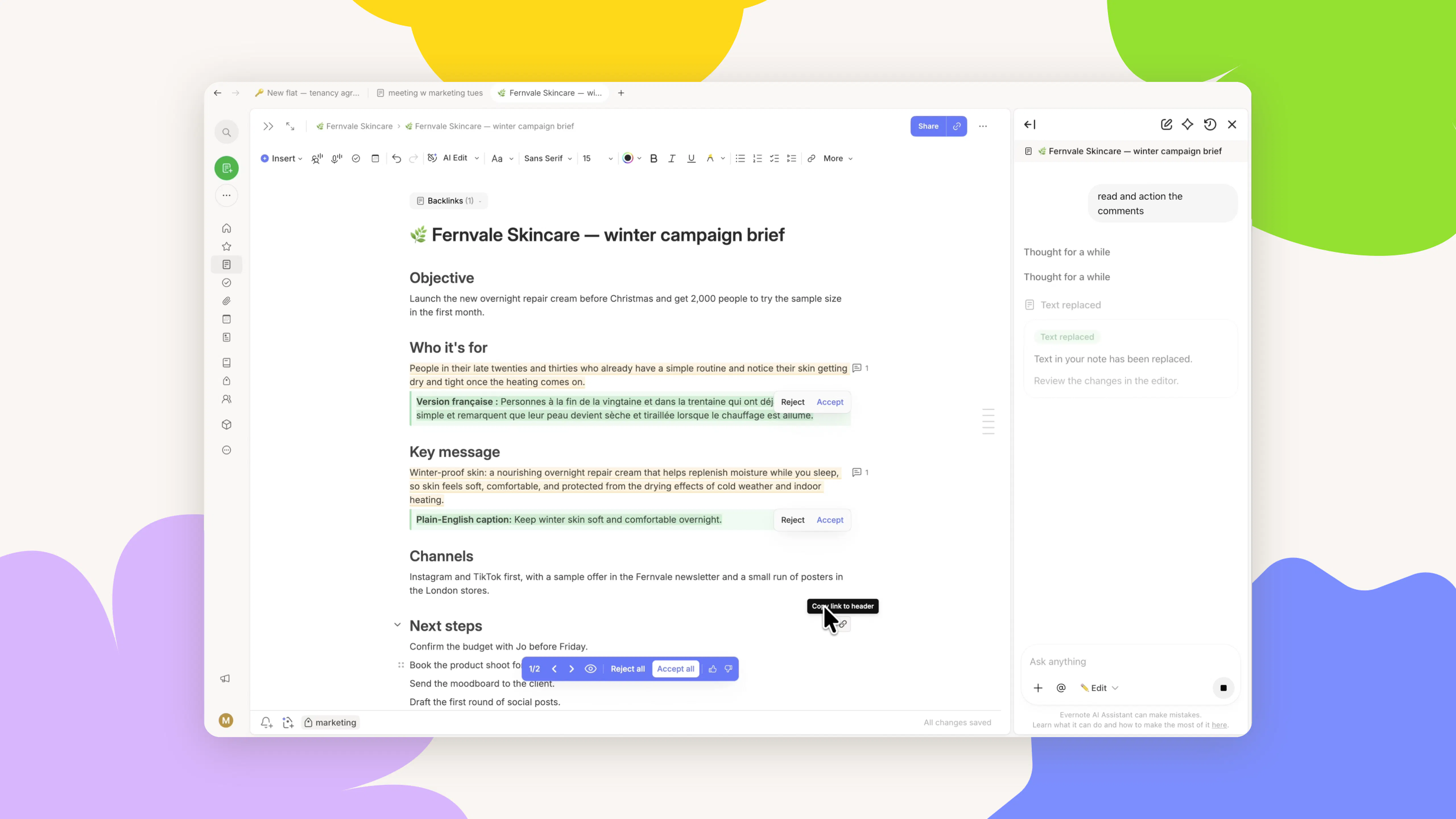
AI Assistant in your comments. AI Assistant can now act on the comments in your notes. Ask it to go through a note’s comments, and it follows the instructions you left. It can add comments of its own too.
Faster AI Prompts. Type / in the chat to run one of your saved AI Prompts, or type @ in a prompt to point it at a specific note, notebook, or tag. AI Assistant also shows the context it’s using at the top of the chat, so you always know what it’s working from.
Organize your account. You can now ask AI Assistant to create notebooks and move them between stacks, rename several notebooks at once, pin notes, or add them to Shortcuts. It can also transcribe a recording or regenerate its summary when you ask, and insert images you upload in chat straight into your note.
Evernote MCP. Earlier this year, we introduced MCP so you could connect Evernote to other AI tools. Evernote MCP is now available to all paid users, and it works with tools including Claude, ChatGPT, and Cursor. Once connected, you can ask those tools to search and read your notes, or to write new content straight into Evernote. They can also manage your tasks and organize your notebooks and tags for you.
You can now work seamlessly between Evernote and the AI tool you already prefer. Follow the quickstart guide to connect your first AI tool in under two minutes.
🎙️ Audio & video: Everything you record, transcribed
A lot of important information is said out loud rather than written down. We promised to make all of your audio searchable, and this quarter we did that for new and old recordings. We also gave you more control over how your recordings are captured and labeled.
Transcripts for older recordings. Your older audio files are now transcribed too, so you can search everything said in them, just like the text in your images and PDFs.
Video transcription. Evernote can now transcribe speech from your videos, turning what’s said into text you can read, search, and reuse. Video transcripts include speaker recognition, just like audio.
Choose your transcription model. In Settings, you can choose which model transcribes your recordings with speaker recognition. Our own model keeps your audio inside Evernote. You can also switch to an external provider.
Automatic live transcription. You can now set live transcription to start automatically for every meeting. Turn it on in Settings, under AI, then Features. When you start a recording during a calendar meeting, Evernote can also suggest linking the event to your note, even when meetings overlap.
Speaker labels. Rename a speaker once, or across the whole transcript in one go. You can also add a speaker block anywhere, or select several to rename or remove them at once.
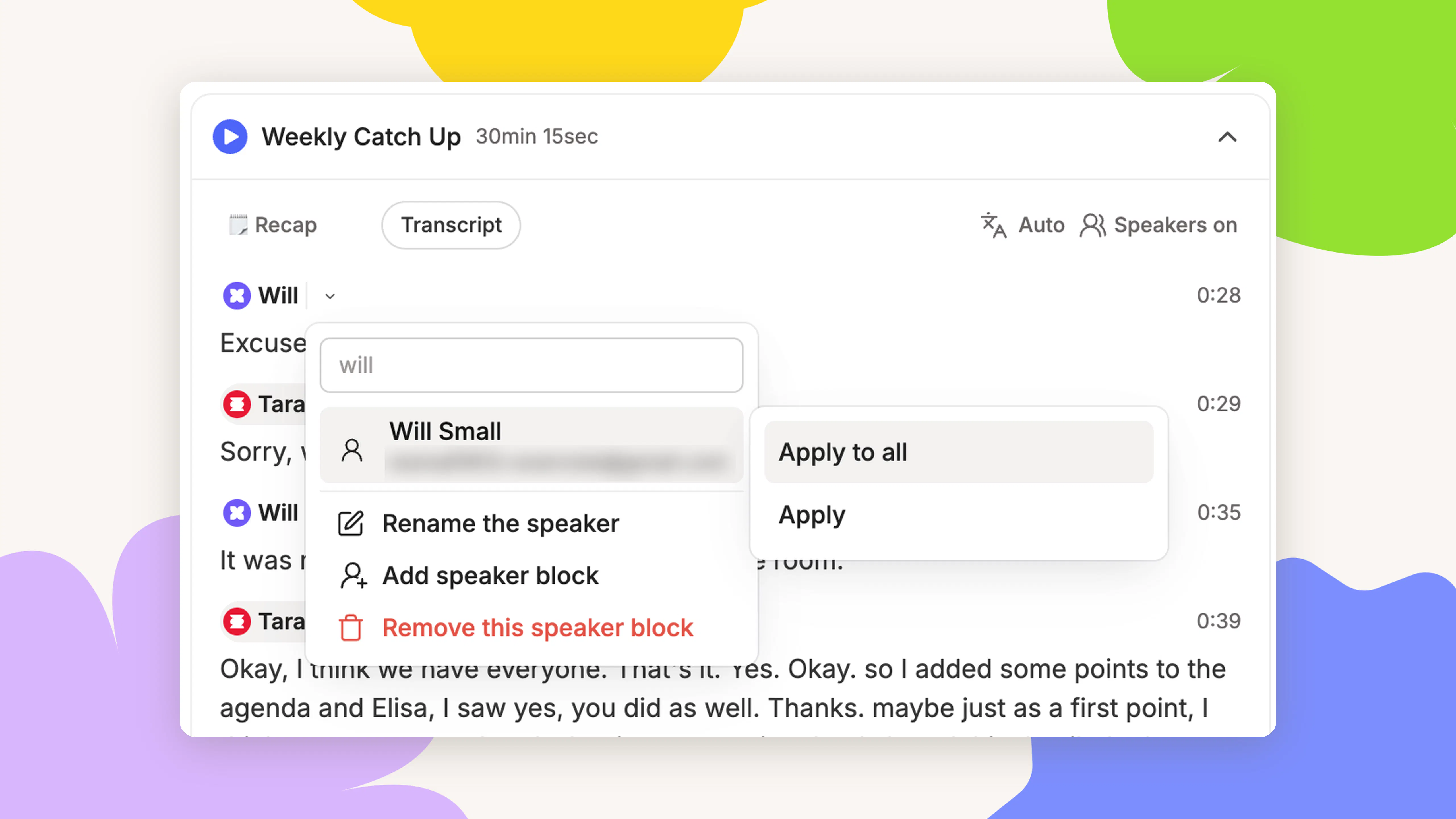
A recorder that stays with you. The audio recorder now stays visible as you move between tabs. You can pause or stop recording from anywhere in Evernote, or use it to jump back to the note where you started. That tab stays pinned until the recording ends.
The live transcription panel also stays open until you close it, and the audio player now shows how long each recording is.
📱 Evernote Mobile: Everything you need, in your pocket
Your phone is always with you, so it’s often the easiest place to save a link or check a note between meetings. This quarter’s updates make it easier to save, find, and edit your notes from your phone. Here are the highlights:
iPhone Search. Search from your iPhone’s Home Screen to see matching Evernote notes in Spotlight, then tap a result to open it. To turn this on or off, open your iPhone Settings and go to Evernote, then Search.
Floating table of contents. In a note with headers, start scrolling to reveal the table of contents icon on the right, then press and hold it to jump between sections. You can turn it on or off in Settings, under Notes.
A redesigned Share Extension. We rebuilt the Share Extension with the same components as the rest of the app, so it feels right at home on your phone. Use it to save websites, images, and more to Evernote from anywhere on your device: tap Share, choose Evernote, pick a notebook, and hit Save.
Edit Mode on mobile. Fixing typos one by one, reformatting, and adding a summary at the end are all small edits that take forever, especially on your phone. Now AI Assistant can make them for you with one request, right in your note. Try “Fix all typos and add a key-point summary at the end.” Every change is highlighted, so you decide what to keep.
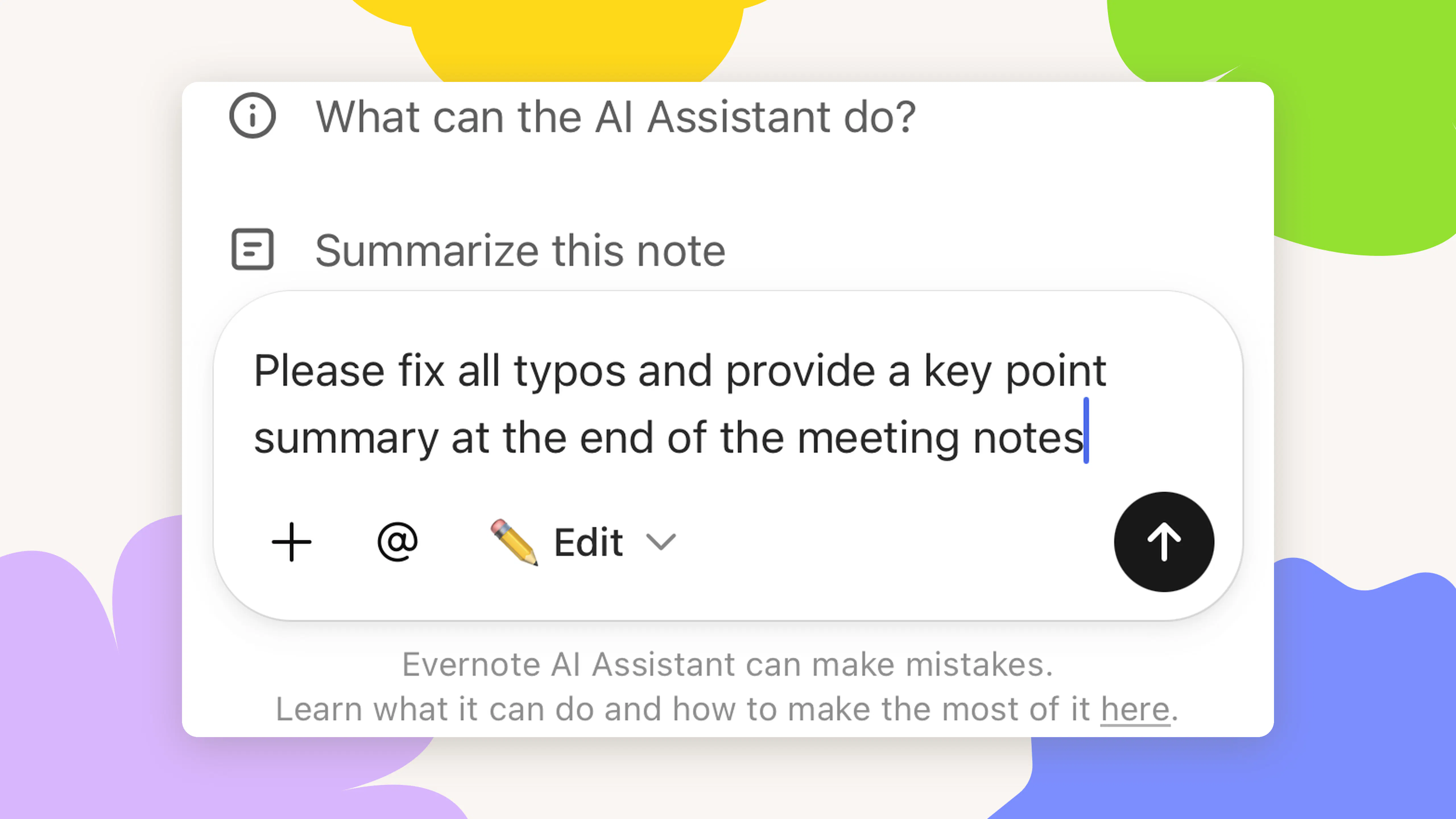
And that’s not all. Mobile search results now open your note right at the match, and a new Hide keyboard button gives you more of the screen back while you edit.
🚀 Beyond features
Making Evernote better isn’t only about launching new features. It’s also about making Evernote faster, smoother, and more reliable. Many of this quarter’s improvements are the smaller fixes and refinements that quietly remove friction from your everyday actions in Evernote. You can find them in the 🔗 full list of improvements from July to September.
Your feedback means a lot to us, and it helps shape every improvement we make. Bug reports and feature requests tell us what to prioritize and where to focus next. 🔗 Share your ideas and requests with us.
To catch up on updates as they ship, open the What’s New page inside the app. You’ll find it at the 📣 icon in your navigation bar on Desktop, or from the menu under your profile icon on Mobile.
What’s next
From July to September, we focused on making your content work harder for you: files you can edit in place, tables you can sort and filter, recordings you can search, and an AI Assistant that does more of the work.
Next up, tags are getting a brand-new home. You’ll be able to see and sort them all in one place, preview your tagged notes without leaving the page, and pick a color for every tag. We’re also improving how notes update, so the notes you’re actually working on stay easy to find.
Want to keep up with everything new? Follow along on 🔗 X, 🔗 YouTube, or check the 📣 What’s New page inside the app to see all the updates in one place.
Until next time,
💚 The Evernote team