

What does Evernote look like in everyday use? This video follows a last-minute holiday and shows how a few Evernote workflows can help keep a trip on track, from planning to traveling and looking back on your travels once you’re home.
There are lots of ways Evernote can help along the way, and this is a quick look at how Rebecca likes to do things. Keep reading to learn more about the features shown in the video below (we’ve also included a bonus section for extra inspiration 👀).
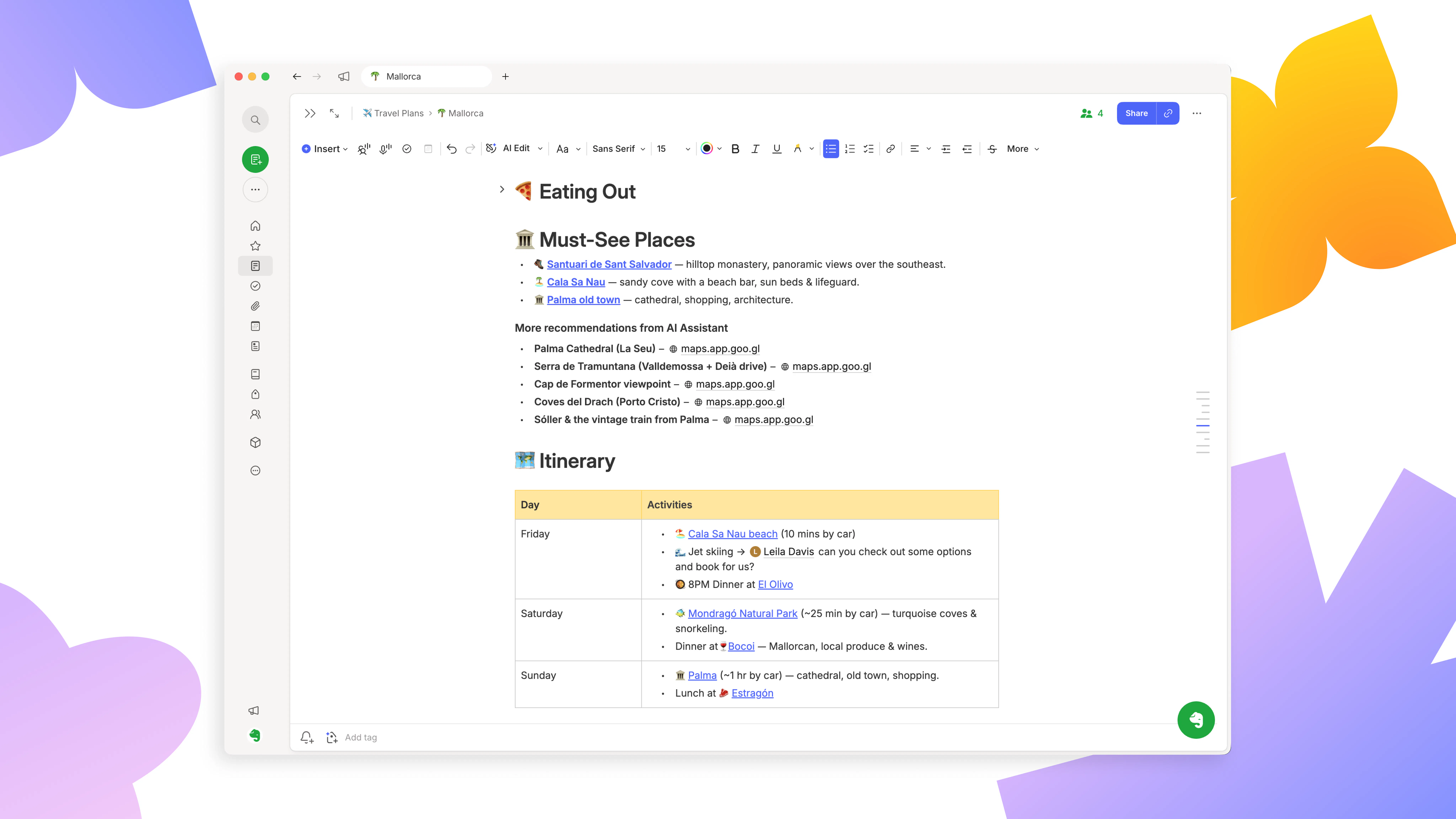
🗺️ Planning your trip
Using Templates. Instead of building the itinerary note from scratch, Rebecca uses a trip-planning template as the starting point. You can browse Evernote’s Template Gallery and import a template to your account, then find it again later in Templates in the sidebar. From there, use the template to create a new note and adapt it however you like, adding restaurant links, places to visit, booking details, or anything else you want to keep together for the trip. You can also save your adapted version as a new template, or create and edit templates with AI Assistant—more on that in this video.
Researching with AI Assistant. AI Assistant can also help you research the best places to visit at your destination, or find useful information about the local weather, culture, and more. Just start a conversation and ask the assistant what you want to know. You’ll get relevant results ready to add to your note, along with the sources, so you can visit the original websites and continue exploring for yourself.
With Edit Mode, AI Assistant can also make changes directly inside your note. Ask it to add or update content, then review and approve its suggestions in the note. See this tutorial on Edit Mode to learn more.
Collaborating in a note. Once the planning note is set up, Rebecca shares it with the friends she’s traveling with. Select Share in the top-right corner of the note, add their name or email address, and choose whether they can view or edit the note. You can share notes with anyone, even if they don’t have an Evernote account. With editing access, everyone can add ideas and update the same note as the plans take shape, instead of passing different versions back and forth or losing recommendations in a message thread. Learn more about collaboration in this article.
🧳 Getting travel-ready
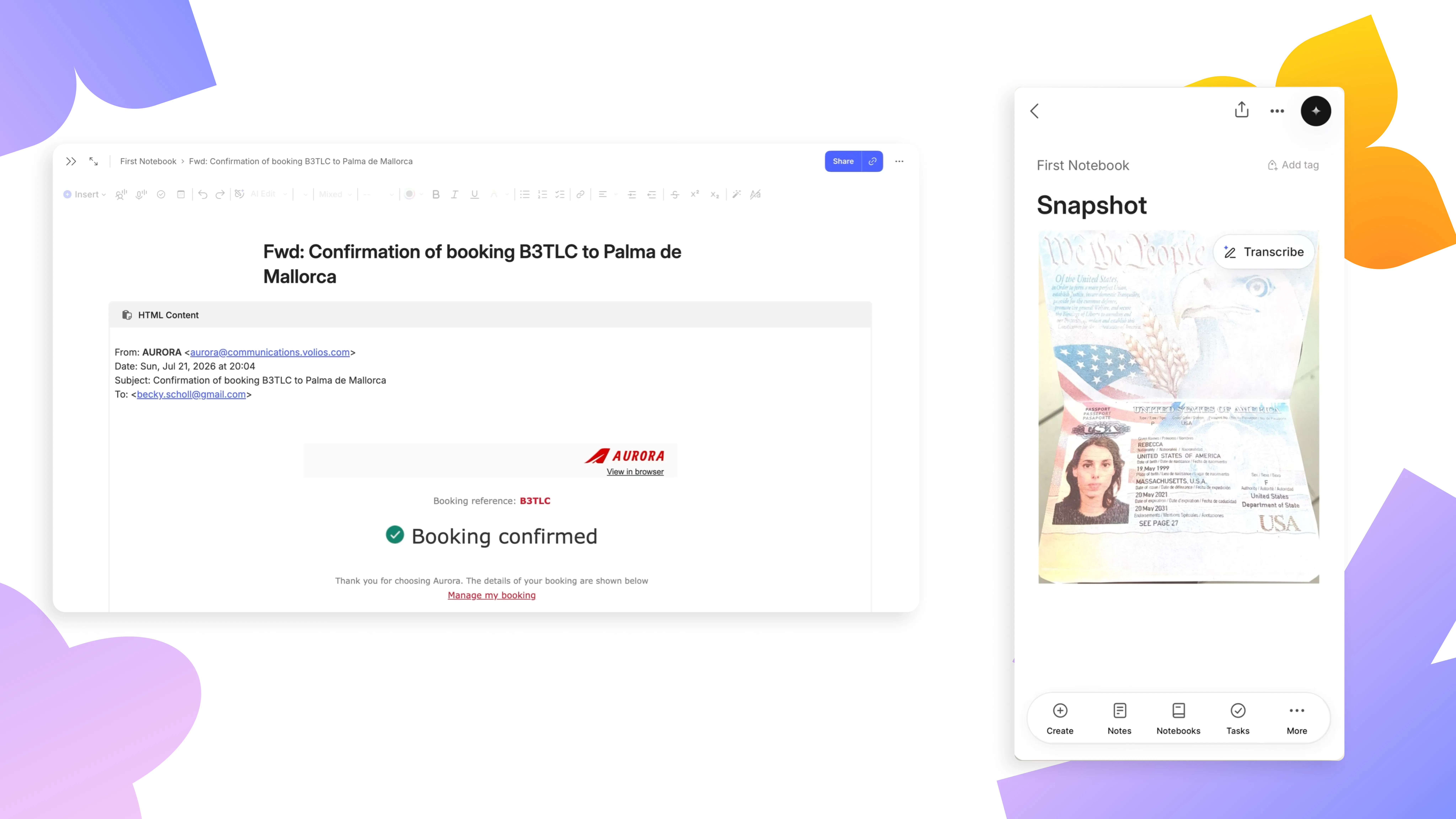
Scan important documents. When she’s ready to travel, Rebecca brings the practical details into Evernote too. Using the document scanner in the Evernote Mobile app, she scans her passport so she has a digital copy alongside the rest of the trip information. You can do this by opening the Evernote Camera and selecting Scan. Evernote automatically detects the edges of your document and removes the background from the PDF you capture. Learn more about scanning on Mobile in this article.
Save emails to Evernote. Flight confirmations and other important travel emails can also be forwarded directly to Evernote, turning them into notes you can keep alongside your itinerary and other documents. That means less time searching through your inbox or camera roll when you need a flight time, booking reference, or other key detail on the go.
Prepare for offline access. If you’ll need your notes without an internet connection, it’s worth getting them ready before you travel. On Desktop, synced notes and notebooks are available offline by default as long as you stay signed in. On Mobile, mark important notes or entire notebooks as Available offline so their full contents are ready when you need them, even without a connection. You can find the full steps for accessing notes offline here.
🌞 During the trip
Find what you need fast. While you’re on the trip, your planning note becomes the key reference point for booking details, restaurant addresses, places to visit, and anything else you’ve saved along the way. Keeping everything together means you can check or update the plan from your phone without digging through different apps or message threads.
Search by meaning. If you know you saved something but can’t remember the exact words or where you put it, Semantic Search can help. Instead of matching only specific keywords, it can surface relevant notes based on what you mean—so you could search for something like “the restaurant we booked for Friday” or “where we’re staying in Palma” and find the right information intuitively. You can learn all the different ways to use Search in this video.
❣️ Looking back on your trip
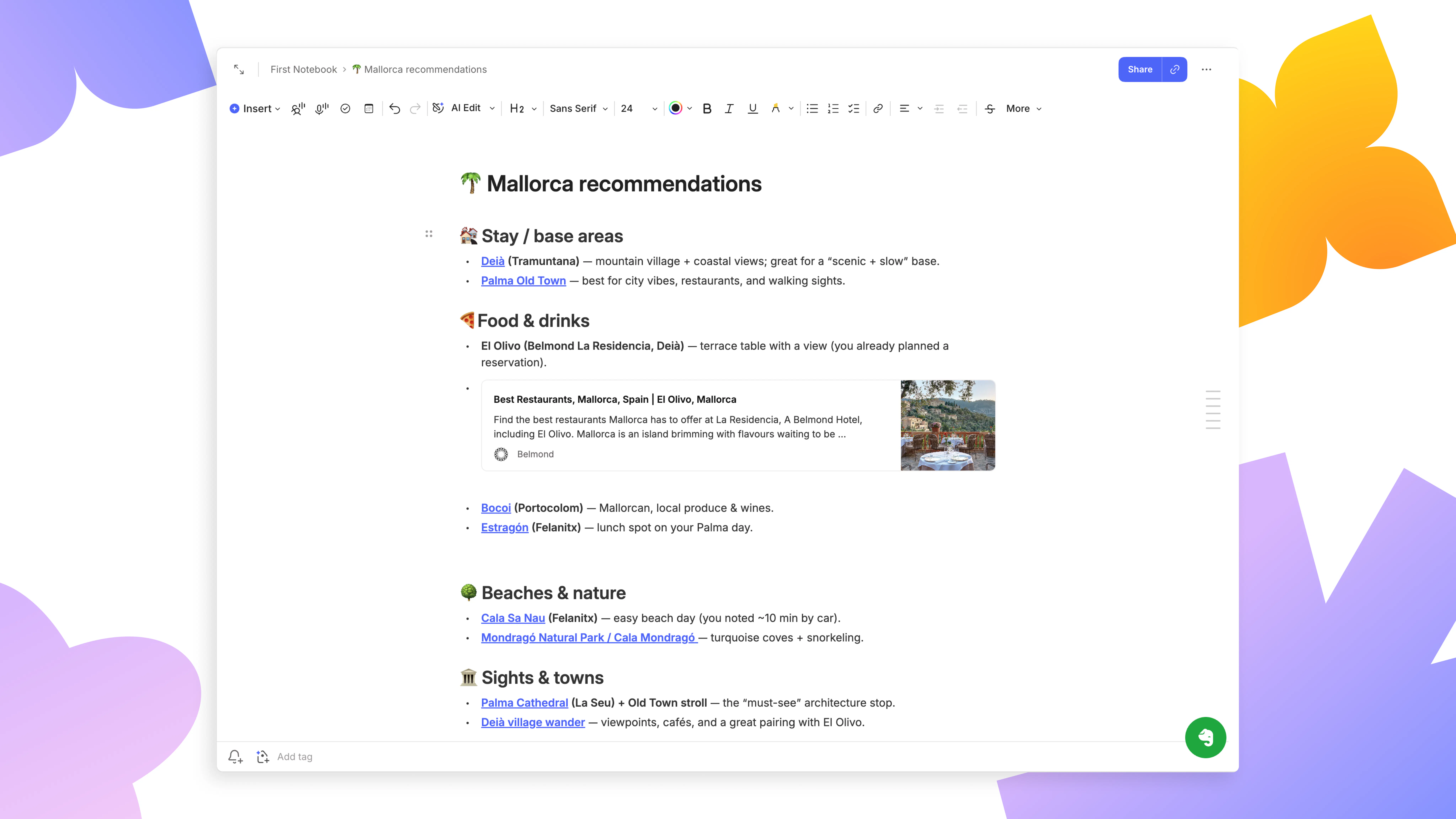
Create a trip recap with AI Assistant. Once you’re home, AI Assistant can help summarize what you saved during the trip, from places you visited to useful recommendations you may want to share with friends. It’s an easy way to turn scattered notes and details into a quick recap without starting from scratch because all the details are already there.
Remember your trip for years to come. Long after your holiday, the details you saved in Evernote are still there when you want to remember them. Look back on where you stayed, find that restaurant you loved, revisit recommendations, or use past trips as inspiration for where to go next. Instead of relying only on your memory—or digging through old photos, emails, and messages—Evernote gives those details a lasting, searchable home you can come back to anytime.
Travel is just one example of how Evernote can help keep the things that matter organized and easy to find. We’ll be sharing more use cases, so head to our YouTube, X, or the app’s 📣 What’s New page for more updates and inspiration, and let us know what you’d like to see in future videos.
Thanks for being part of Evernote,
💚 The Evernote team